


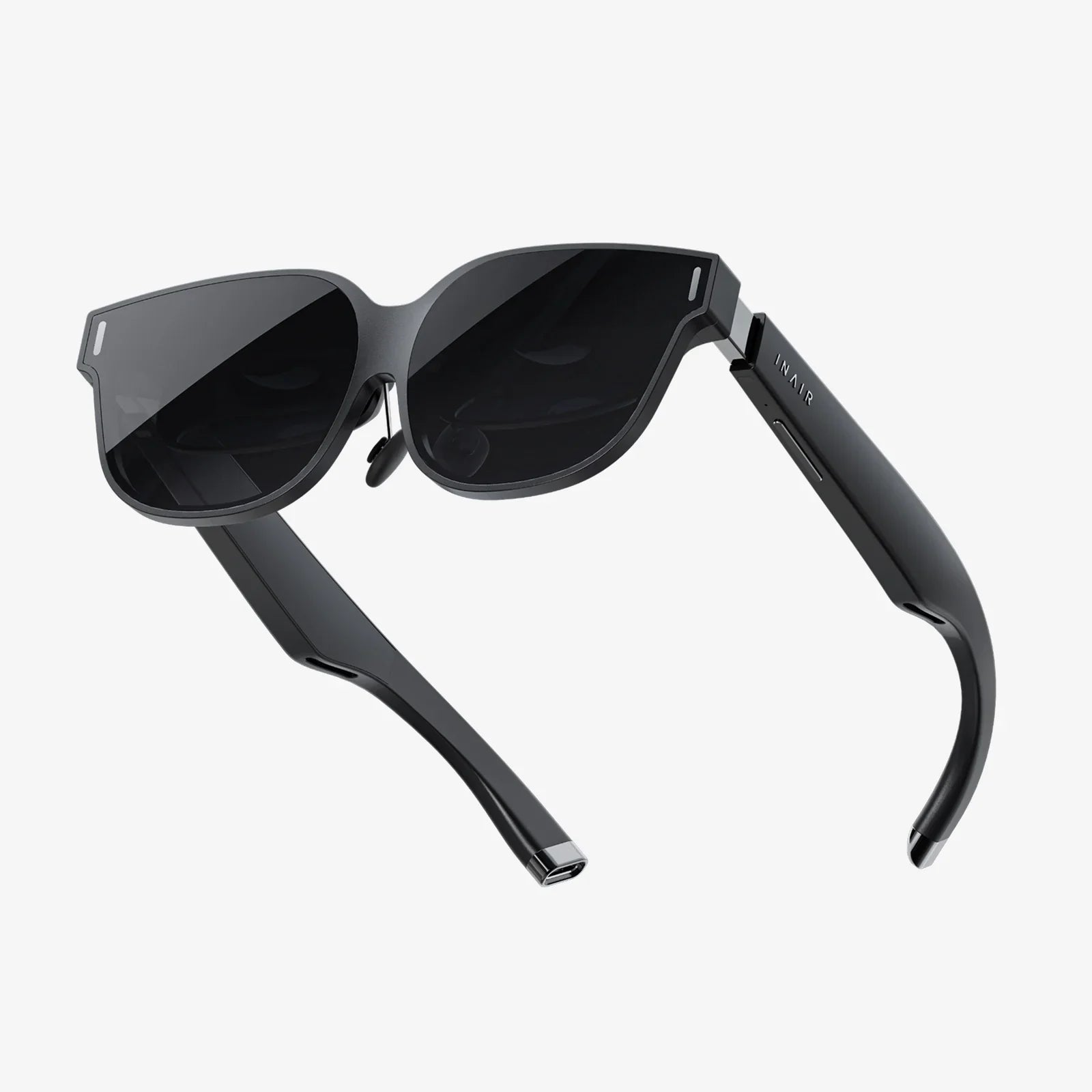
Imagine strapping on a headset and instantly being transported to the peak of Mount Everest, the cockpit of a starfighter, or a canvas where your imagination is the only limit. This is the promise of virtual reality, a technological revolution that is no longer a distant fantasy but an accessible reality for millions. The allure of these immersive experiences is undeniable, but the path to getting there can seem shrouded in complexity. The burning question for any newcomer is a simple one: what do I actually need to dive in? Unpacking the essentials is the first critical step on your journey from our world into countless others.
The Heart of the Experience: Choosing Your Headset
Your headset, or Head-Mounted Display (HMD), is your passport to virtual worlds. This is the single most important purchase, and the category has diversified into two primary paths, each with its own set of requirements.
Standalone VR Headsets: All-in-One Convenience
For those seeking a straightforward, uncomplicated entry into VR, standalone headsets are the answer. These devices have all the necessary computing power, sensors, and batteries built directly into the headset itself. There are no wires tethering you to a separate device, offering unparalleled freedom of movement and ease of setup. You simply charge the headset, put it on, and define your play area. The primary requirement here is a stable Wi-Fi connection for downloading apps, games, and experiencing social VR platforms. This makes them the most accessible option for beginners, families, and anyone who values a clutter-free experience.
PC-Connected VR Headsets: The Power User's Choice
If your ambition is to experience the absolute pinnacle of visual fidelity, complex simulations, and the most graphically intensive games, then a PC-connected (or tethered) headset is the route to take. These devices act as high-resolution displays, but all the processing is handled by a powerful desktop computer to which the headset is connected via a cable. The trade-off for this superior performance is a more complex setup and a significant prerequisite: you need a VR-ready computer. This category is for enthusiasts and gamers who demand the highest quality experience and already have or are willing to invest in a capable gaming rig.
The Brain: Hardware Requirements Demystified
Depending on your chosen headset path, the hardware you'll need to power your adventures varies dramatically.
For Standalone VR: Minimal External Needs
The beauty of a standalone system is its simplicity. Your hardware checklist is refreshingly short:
- The Headset Itself: This is your all-in-one device.
- A Charging Cable and Power Adapter: Keeping your headset powered is obviously essential.
- A Wi-Fi Network: Crucial for initial setup, downloading new content, and multiplayer experiences.
- A Smartphone (for most headsets): Required for the initial setup process to install the companion app, pair the device, and configure settings.
That's largely it. The internal hardware—processor (CPU), graphics (GPU), and memory (RAM)—is already integrated and optimized by the manufacturer, so you don't need to worry about specifications.
For PC VR: Building a VR-Ready Rig
This is where requirements become more technical. A tethered headset is a demanding peripheral, and your computer must meet or exceed certain specifications to run VR content smoothly. An underpowered PC will result in a poor, juddery experience that can quickly lead to discomfort.
- Graphics Card (GPU): This is the most critical component. You will need a dedicated, modern graphics card from a recent generation. Integrated graphics found in standard laptops are not sufficient. The GPU is responsible for rendering two high-resolution displays (one for each eye) at a very high frame rate (typically 90Hz or more), making it the workhorse of any VR system.
- Processor (CPU): A capable multi-core processor is needed to handle the physics, audio, and logic of the virtual world. A mid-to-high-range CPU from the past few generations is recommended.
- Memory (RAM): 16 GB of RAM is the current sweet spot for a smooth experience, ensuring there is enough memory for the VR application and your computer's background processes.
- Video Outputs: Your PC must have the correct video port, which is often a DisplayPort or a specific version of HDMI, to connect to the headset's link box. Always check the headset's requirements against your PC's available ports.
- USB Ports: A free USB port (typically USB 3.0 or higher) is required for data communication and tracking signals.
- Operating System: You will need a up-to-date version of a compatible OS, which for most headsets is Windows 10 or Windows 11.
Most headset manufacturers and stores like Steam and Viveport offer free "compatibility check" software tools. You can run these tools on your PC to instantly see if your system meets the required specs.
The Interface: Controllers and Input
VR is not a passive viewing experience. Interaction is key to immersion. All consumer VR systems come with a pair of motion-tracked controllers. These are your hands in the virtual world. They are ergonomically designed to be held comfortably and feature a variety of inputs like analog sticks, buttons, triggers, and haptic feedback motors. Advanced systems may also offer optional accessories like styluses for artistic applications or tracked gloves for the ultimate in hand presence. For flight or racing simulators, investing in a compatible joystick, throttle, or steering wheel can dramatically enhance the realism.
Setting the Stage: Play Space and Environment
Before you jump in, you need to prepare your physical environment for both safety and optimal performance.
-
Play Area: This is the physical space you clear for VR. There are two main modes:
- Stationary/Seated Mode: For experiences where you are sitting down or standing in one place. This requires the least amount of space.
- Room-Scale Mode: For experiences where you want to walk around. This requires a clear, obstacle-free rectangle of space (e.g., 2m x 2m or larger). You must remove trip hazards like loose rugs, cables, and coffee tables. Protect your TV screens, monitors, and fragile items from accidental swings.
- Lighting: Most inside-out tracking systems (common on modern headsets) work best in a well-lit room. However, avoid direct, bright sunlight shining into the room, as it can interfere with the sensors and potentially damage the headset's internal lenses.
- Tracking Considerations: For headsets that use external base stations or sensors, you will need to mount them in the opposite corners of your play space, ensuring they have an unobstructed view of the area.
The Digital Frontier: Software and Platforms
Hardware is useless without software. You will need to create an account on a digital storefront to purchase and download games and applications.
- Standalone Stores: All-in-one headsets run on their own proprietary platforms with tightly integrated stores.
-
PC Platforms: If you're using a PC headset, you will likely use one or more of these major platforms:
- SteamVR: Valve's massive platform, home to the largest library of VR content.
- Meta Quest Rift Platform: Offers cross-buy on many titles if you own a standalone headset from the same company.
- Viveport: Offers a subscription service, giving you access to a large library of games for a monthly fee.
Enhancing the Experience: Highly Recommended Accessories
While not strictly necessary to start, a few choice accessories can dramatically improve comfort, convenience, and longevity.
- Additional Face Interfaces: Many companies offer pleather or silicone interfaces that are easier to clean after sweaty sessions than the default foam.
- Prescription Lens Inserts: If you wear glasses, these custom inserts clip inside the headset, saving you from cramming your frames into the headset and risking scratching both lenses.
- Extended Battery Pack/Power Bank: For standalone headsets, a external battery pack can double or triple your playtime. You can often slip it into a pocket or clip it to your waistband.
- VR Cover: A simple knit cover that goes over the facial interface, absorbing sweat and keeping the default foam clean. It's easily removable for washing.
- Cable Management System (for PC VR): Pulley systems that suspend the cable from the ceiling, keeping it off the floor and reducing trip hazards and tangles.
- High-Quality Headphones: While most headsets have built-in audio, a good pair of over-ear headphones can provide superior spatial audio and deeper immersion.
The Most Important Component: You
Finally, the most crucial element is you. Prepare yourself for a novel experience.
- Manage Expectations: Start with comfortable, rated experiences. Do not begin with intense flight simulators or roller coaster rides.
- Understand VR Comfort: Be aware of concepts like locomotion and "VR legs." Use comfort settings (like teleportation and snap-turning) generously at first.
- Take Breaks: Especially during your first few sessions. Step out every 15-20 minutes to reorient yourself.
- Stay Hydrated: VR can be physically exerting. Keep water nearby.
- Listen to Your Body: If you feel any discomfort, dizziness, or eye strain, stop immediately. Your tolerance will build over time.
The gateway to virtual reality is now clearer than ever. Beyond the mesmerizing headset lies an ecosystem of complementary technology, from the raw power of a gaming PC to the simple necessity of a cleared-out play space. The initial checklist—headset, hardware, controllers, room, and software—is your ticket to entry. But the journey truly begins when you consider the nuanced upgrades: the comfort of a better interface, the clarity of prescription lenses, and the freedom of wireless play. This isn't just about acquiring gear; it's about thoughtfully constructing your personal portal to limitless experiences. The digital frontier is waiting, and now you know exactly how to answer the call.
Share:
3D-Visualisierung Virtual Reality: The Ultimate Gateway to Digital Realms
Virtual Reality Effects on Society: A New Digital Dawn and Its Profound Implications