


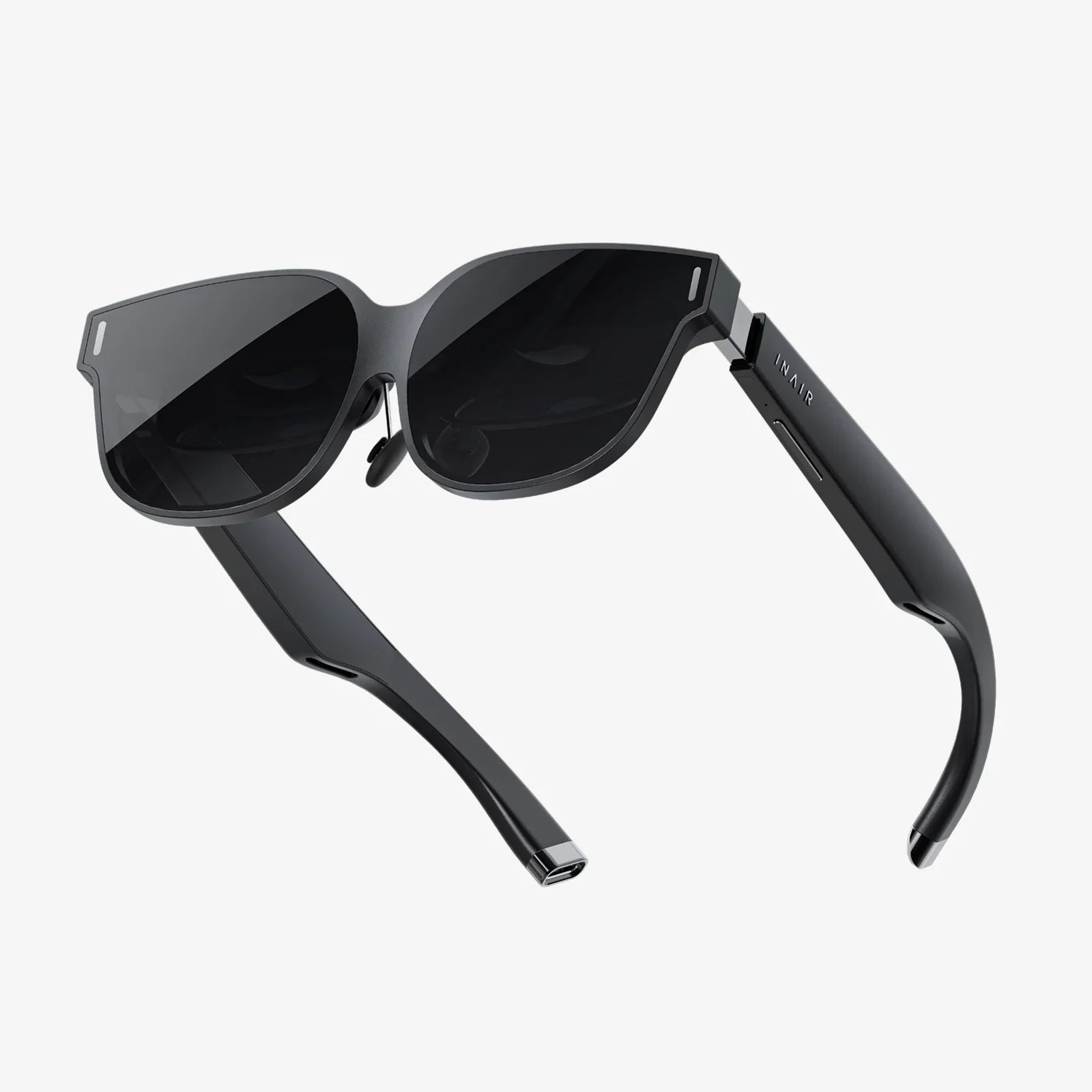
You’re settled in for a movie night, ready to stream your favorite show from your phone to the big screen. You tap the Smart View icon, but nothing happens. The familiar thrill of wireless convenience is replaced by the frustrating silence of a disconnected screen. If you’ve ever angrily muttered, "Why does my Smart View not work?" you are far from alone. This common grievance plagues countless users, turning a feature designed for simplicity into a source of immense frustration. But before you resign yourself to a life of squinting at a small display, know this: the vast majority of Smart View failures are caused by a handful of common, and often easily fixable, issues. This comprehensive guide will walk you through the detective work needed to identify the culprit and restore your wireless streaming paradise.
The Foundation: Understanding How Smart View Works
Before diving into fixes, it's crucial to understand what's happening behind the scenes. Smart View, and technologies like Miracast, Wi-Fi Direct, and Google Cast, don't use your home's standard Wi-Fi network to stream content in the traditional sense. Instead, they create a direct, peer-to-peer wireless connection between your sending device (phone, tablet, laptop) and your receiving device (TV, streaming stick, adapter). This direct link, often called a Wi-Fi Direct or P2P group, is what allows for low-latency screen mirroring. The moment you understand this, the common problems suddenly make sense: any issue that can disrupt this delicate handshake and connection will cause Smart View to fail.
The Universal First Step: The Power Cycle
It sounds cliché, but turning it off and on again remains the most effective first line of defense against a plethora of tech issues. A power cycle clears temporary caches, resets network adapters, and can resolve countless software glitches.
- For Your Phone/Tablet: Completely power it down, wait 30 seconds, and restart it.
- For Your TV or Display: Unplug it from the wall power outlet. Do not just use the remote to turn it off. Wait a full 60 seconds to ensure any residual power is drained from the capacitors, then plug it back in and turn it on.
- For Dedicated Streaming Devices: If you're using one, unplug it from power and your TV's HDMI port. Wait, then reconnect everything.
This simple action resolves a surprising number of connectivity problems by giving all devices a clean slate.
Network Configuration Woes
Since Smart View relies on wireless communication, your network settings are a prime suspect. Here are the most common network-related culprits.
The 2.4 GHz vs. 5 GHz Conundrum
Many modern routers broadcast two separate networks: a 2.4 GHz band and a 5 GHz band. A critical rule for screen mirroring technologies like Miracast is that both the sending and receiving devices must be connected to the same wireless band from the same router to initiate the connection, even though the actual mirroring will use a direct link. If your phone is on the 5 GHz network and your TV is hardwired to the 2.4 GHz band, they often cannot see each other to start the process. Ensure both devices are connected to the same band. Sometimes, forcing your phone to connect to the 2.4 GHz band can improve stability, as it has better range and wall-penetration, even if it's slower.
Wi-Fi Isolation and Firewall Settings
Some routers have a feature called "AP Isolation," "Client Isolation," or "Guest Mode." This is a security setting that prevents devices connected to the same Wi-Fi network from communicating with each other. Its purpose is to protect you on public networks, but if it's accidentally enabled on your home network, it will absolutely block your phone from discovering your TV. Log into your router's admin panel (usually via a web browser) and ensure this feature is disabled. Similarly, overzealous firewall settings on a computer or router can block the necessary communication ports.
Mobile Data Interference
A less obvious issue occurs when your phone's mobile data is active simultaneously with Wi-Fi. Sometimes, the phone can get confused about which connection to use for discovery and may fail to properly initiate the Wi-Fi Direct connection. As a test, try enabling Airplane Mode on your phone, then manually re-enabling just Wi-Fi. This forces the phone to rely solely on its Wi-Fi radio for all communication and can instantly resolve discovery issues.
Device Compatibility and Technical Limitations
Not all devices are created equal, and not all support the same streaming standards.
The Miracast Mandate
Smart View is primarily a brand-specific name for the industry-standard Miracast protocol. For mirroring to work, both devices must support Miracast. Most modern Android devices and Windows PCs do. However, devices from a certain fruit-named company use a different, proprietary technology (AirPlay) and will not work with Miracast-enabled TVs without a separate adapter. Furthermore, an older TV might simply be incompatible. Check your TV's specifications manual or online product page to confirm it supports screen mirroring or Miracast.
HDCP Handshake Failures
High-bandwidth Digital Content Protection (HDCP) is a form of digital copy protection. When you try to stream copyrighted content from an app like Netflix or Disney+, your phone, the intermediary connection, and the TV all perform an "HDCP handshake" to ensure the path is secure. If any device in the chain does not support the required HDCP version (e.g., an old HDMI cable or port), the content will block itself from being mirrored and may show a black screen or an error message. This is not a bug with Smart View; it is a deliberate content protection feature. Try mirroring your device's home screen or a non-DRM video file to see if the problem is content-specific.
Software and Settings: The Hidden Demons
Outdated software or a single incorrect toggle can bring everything to a halt.
The Critical Need for Updates
Software updates are not just about new features; they often contain critical bug fixes for connectivity issues. An outdated operating system on your phone, a stale firmware version on your TV, or an old driver on your PC can all be the sole reason Smart View is broken. Check for and install any available updates on all devices involved.
Location Permissions
This is a particularly sneaky one. On Android, services like Wi-Fi scanning and device discovery often require Location Services to be enabled. This is because scanning for networks can be used to determine your physical location. If you have denied location permission to the Smart View service or system processes, it may fail to find nearby devices. Go to your phone's Settings > Location and ensure it is turned on. Also, check the app permissions for apps like SmartThings or your device's built-in connectivity service.
Power Saving Modes
Aggressive battery optimization is the enemy of background processes. To save power, your phone may aggressively shut down services it deems non-essential, including the processes that keep Smart View discovery active. Add your mirroring apps (e.g., SmartThings, Device Connect) to your phone's "Never Sleeping" or "Unmonitored" apps list within the battery optimization settings.
Advanced Troubleshooting: For the Persistent Problems
If the basics haven't worked, it's time to dig deeper.
Forgiving Networks and Re-pairing
Your devices remember previous connections. Sometimes, this saved data becomes corrupted. On your phone, go to Settings > Connections > Wi-Fi. Tap the three-dot menu and select "Advanced" or "Smart Network Switch." Look for an option like "Wi-Fi Direct" or "Saved devices." Here, you can forget the connection to your TV. On your TV, navigate to the screen mirroring settings and see if there is an option to forget previously connected devices. This forces a completely fresh pairing the next time you try to connect.
Router Channel Conflicts
Wi-Fi networks broadcast on specific channels within the 2.4 GHz and 5 GHz bands. If your router is set to a crowded channel, it can create interference that disrupts the initial setup of the Wi-Fi Direct connection. Using a Wi-Fi analyzer app on your phone, you can see which channels are congested. Log into your router and manually set it to a less crowded channel (e.g., 1, 6, or 11 on the 2.4 GHz band). Setting the channel width to 20 MHz on the 2.4 GHz band can also improve stability for these types of connections.
Factory Resets: The Nuclear Option
If all else fails and the feature is critical, a factory reset on the TV or streaming device can wipe out any deep-seated software glitches. Warning: This will erase all your settings, logged-in accounts, and installed apps, returning the device to its out-of-the-box state. It is a last resort, but it is often effective.
Building a Bulletproof Streaming Setup
Once you've solved the problem, take steps to prevent it from happening again.
- Maintain Updates: Enable auto-updates on your TV and regularly check for updates on your other devices.
- Stable Network: Assign static IP addresses to your TV and streaming devices within your router's DHCP settings to prevent address conflicts.
- Quality Hardware: Use modern, high-speed HDMI cables if you're using an adapter, and ensure all hardware is from reputable manufacturers.
- Know Your Source: Understand that heavily DRM-protected content from certain apps will always be finicky and may not mirror perfectly due to licensing restrictions.
The silent screen doesn't have to signal defeat. What feels like a complex technological failure is usually just a miscommunication between devices, a simple setting buried in a menu, or a network hiccup. By methodically working through this guide—from the basic power cycle to the more advanced network tweaks—you transform from a frustrated user into a savvy troubleshooter. You now possess the knowledge to not only answer the question "why does my Smart View not work?" but to solve it permanently, reclaiming the seamless, wireless world you were promised.
Share:
3D Product Experience: The Future of Digital Commerce and Customer Engagement
AI Powered Productivity Tools: The Silent Revolution Reshaping Your Workday