


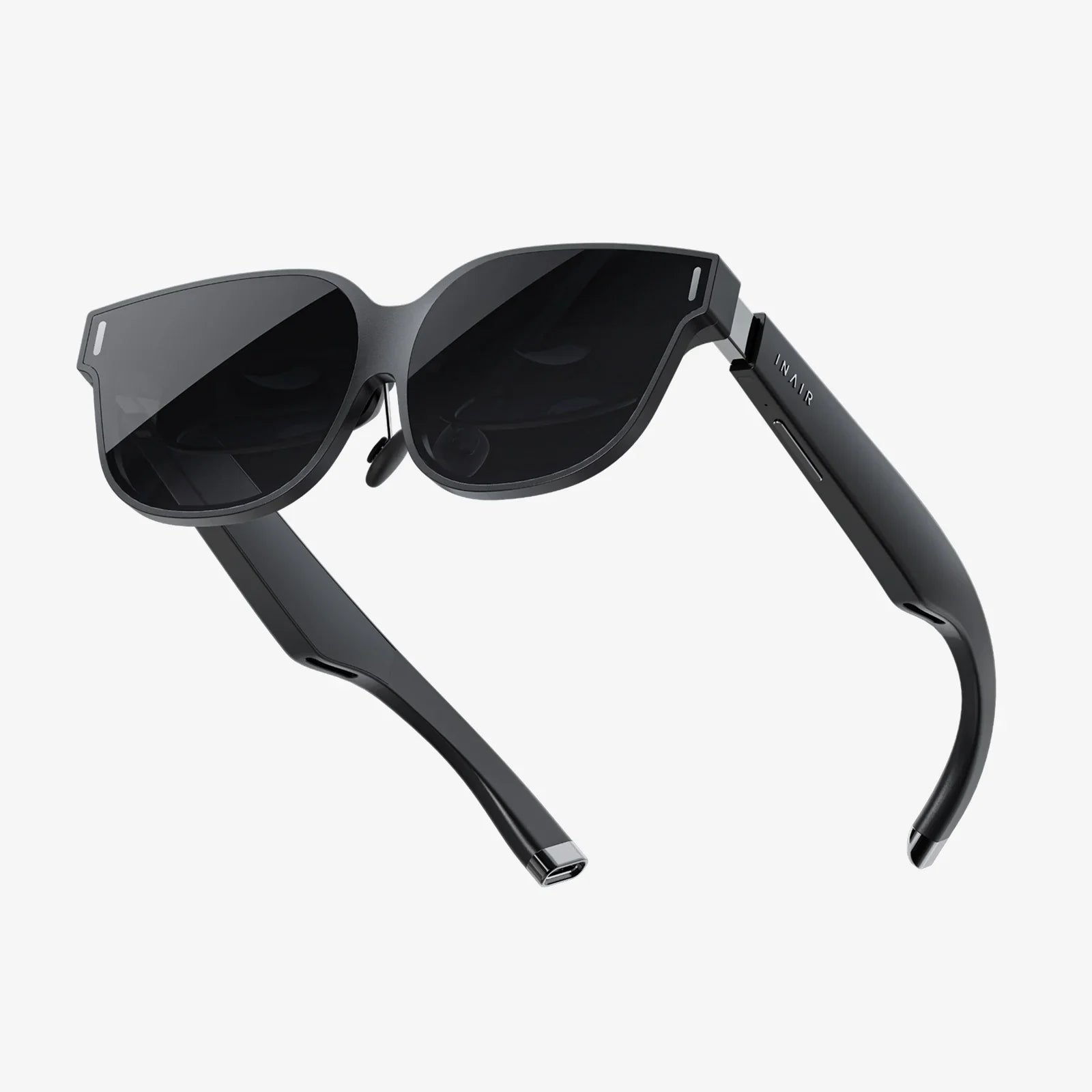
You’re deep in an alien jungle, on the verge of discovering a lost civilization, or perhaps you’re meticulously painting a 3D sculpture in a social space. Then, without warning, the world dissolves into a swirling void of gray or black. The dreaded crash. It’s the single most immersion-breaking event in virtual reality, pulling you from a world of wonder back to the frustrating reality of a frozen screen or a closed application. If you’ve repeatedly asked yourself, “Why does my VR headset keep crashing?” you are not alone. This pervasive issue plagues newcomers and veterans alike, but the good news is that it is rarely an unsolvable mystery. More often than not, a crash is a symptom with a logical, and often fixable, cause.
The Delicate Dance of Hardware and Software
At its core, a VR headset is a marvel of modern technology, a symphony of high-resolution displays, precise motion sensors, complex lenses, and sophisticated software. It must perform a breathtakingly complex set of tasks simultaneously: rendering two distinct, high-frame-rate video feeds, tracking its own position in space, interpreting controller movements, and managing audio input and output. All of this must happen in perfect synchronization to avoid inducing discomfort or, in the worst case, a complete system failure. A crash is simply what happens when this delicate balance is disrupted. Pinpointing the exact point of failure is the first step toward a permanent solution.
Unmasking the Usual Suspects: Common Culprits Behind VR Crashes
The reasons for a VR headset crashing are numerous, but they generally fall into a few key categories. Understanding these categories will help you systematically diagnose your problem.
1. The Software Quagmire: Drivers, Updates, and Conflicts
This is, by far, the most common arena for problems. The software layer connecting your hardware to your VR experience is intricate.
- Outdated or Corrupted GPU Drivers: Your graphics card is the workhorse of VR. The drivers are the essential software that allows your operating system and games to communicate with the card. Outdated drivers lack optimizations and bug fixes for new VR titles. Corrupted drivers from a previous incomplete update can cause instability and direct crashes to the desktop.
- VR Platform Software Bugs: The software that powers your VR ecosystem (like SteamVR or the native platform software for your headset) receives frequent updates. Sometimes, a new update can introduce a bug that conflicts with certain hardware setups or specific games, leading to persistent crashes until a patch is released.
- Operating System Incompatibilities: A major Windows update can sometimes change low-level system settings that VR software relies upon. Background processes, security software, or even certain settings can interfere with the high-priority access VR applications require.
- Game-Specific Bugs: The application itself might be the problem. Poorly optimized games or those with memory leaks can consume all available system resources, forcing a crash.
2. The Overheating Beast: Thermal Throttling and Shutdowns
VR is an incredibly demanding task for both your computer’s components and the headset itself. Under load, your GPU (Graphics Processing Unit) and CPU (Central Processing Unit) generate immense heat.
- Computer Component Overheating: If your computer’s cooling system is inadequate clogged with dust, or suffering from failing fans, your components will quickly exceed their safe operating temperatures. To prevent physical damage, they will engage in “thermal throttling,” drastically reducing their performance to cool down. This often manifests as sudden lag, stuttering, and then a crash as the system can no longer maintain the required frame rate.
- Headset Overheating: The headset itself contains processors and sensors that can overheat, especially during extended play sessions. Many modern headsets have built-in safety features that will trigger a shutdown if internal temperatures get too high, resulting in a sudden black screen.
3. The Hardware Hurdle: Power, Connections, and Limitations
Sometimes, the issue is purely physical. A weak link in the hardware chain can bring the entire experience to a halt.
- Insufficient Power Supply Unit (PSU): Your GPU draws a significant amount of power, especially during the intense workloads of VR. If your PSU is underpowered, low-quality, or aging, it may not be able to deliver stable power consistently during peak demands, causing the system to become unstable and crash.
- Faulty or Loose Cables: This is a incredibly common point of failure, especially for wired headsets. A slightly loose USB connection, a DisplayPort cable that isn’t fully seated, or a cable that has been damaged from twisting and wear can cause intermittent disconnects that the software interprets as a crash. For wireless headsets, this extends to problems with the Wi-Fi router or wireless adapter.
- Underpowered Hardware: Simply put, if your computer does not meet the minimum, or better yet, the recommended specifications for VR, you will experience problems. Attempting to run software that demands more VRAM (Video RAM) or processing power than your system has will result in crashes. This is often accompanied by severe performance issues before the crash occurs.
4. The Tracking Tragedy: Environmental Interference
Headsets that use external sensors or inside-out tracking rely on a clear view of their environment or specific light patterns to determine position.
- Poor Lighting Conditions: Too much bright light (especially sunlight) can wash out the tracking cameras’ view, while too little light makes it impossible for them to see the room’s features. Both can cause the headset to lose tracking, which can sometimes force an application to close or become unresponsive.
- Reflective Surfaces: Large mirrors, glass tables, shiny monitors, and even highly reflective TV screens can confuse tracking systems. The sensors see reflected images of your controllers or the room itself, creating a distorted perception of the space and leading to tracking loss and potential software crashes.
- Sensor Occlusion or Misalignment: For systems using external base stations or sensors, if they are bumped out of alignment, or if your body blocks the line-of-sight between the sensors and your headset/controllers, tracking can fail abruptly.
Your Step-by-Step Diagnostic and Fix Toolkit
Now that we understand the “why,” let’s tackle the “how to fix it.” Work through this list methodically.
Step 1: The Software Foundation
Start with the simplest and most common fixes.
- Update Your GPU Drivers: Do not just check through Windows Update. Go directly to the website of your graphics card manufacturer and download the latest driver suite. During installation, choose the “Clean Installation” or “Perform a Fresh Install” option. This will completely remove old driver files before installing the new ones, eliminating potential corruption.
- Update Your VR Software and Games: Ensure your VR platform and the game itself are fully updated. Developers frequently push patches to address stability issues.
- Check for OS Updates: Install any pending Windows updates and restart your computer.
- Reboot: It sounds cliché, but a full reboot clears system memory and stops errant processes that might be causing conflicts.
Step 2: Investigate and Isolate
If the basics don’t work, it’s time to play detective.
- Is It One Game or All Games? This is a critical question. If only one specific application is crashing, the problem is almost certainly with that game. Check its community forums or discussion pages; other users have likely experienced the same issue and may have found a workaround. Verify the game files through your game platform (e.g., Steam’s “Verify Integrity of Game Files” tool). If all games are crashing, the problem is systemic with your hardware or core VR software.
- Monitor Your Temperatures: Download a hardware monitoring tool. Play a non-VR game or run a benchmark for a while and watch your GPU and CPU temperatures. If they are consistently hitting 90°C or higher, you have a cooling issue. Power down your PC and physically clean it out with compressed air, ensuring all fans are spinning freely.
- Stress Test Your System: Use a benchmarking tool to put a sustained load on your GPU. If this test causes a crash or artifact, it strongly points to a hardware problem—either overheating, an underpowered PSU, or a failing graphics card.
Step 3: The Physical Check
Don’t underestimate the cable.
- Reseat Every Connection: Power off your computer and headset. Unplug and firmly re-plug every cable: the headset’s power, the USB, the display cable, and the connections to the PC itself. For external sensors, check their cables too.
- Inspect for Damage: Carefully examine the entire length of your headset’s cable, especially near the connectors and any areas where it might be frequently twisted or stepped on. Look for kinks, cuts, or fraying.
- Optimize Your Play Space: Address environmental factors. Close blinds to eliminate sunlight, cover or remove large reflective surfaces, and ensure your room is evenly lit with diffuse, indirect light. Reposition external sensors to ensure they have a completely unobstructed view of your play area.
Step 4: Advanced Troubleshooting
For problems that still persist.
- Adjust In-Game Settings: Crashes often occur when pushing hardware too hard. Lower graphical settings, particularly supersampling, shadow quality, and render resolution. Disable resource-intensive features like motion smoothing or advanced shading temporarily to see if stability improves.
- Check Background Processes: Use the Task Manager (Ctrl+Shift+Esc) to see what else is running while you play VR. Close unnecessary applications, especially RGB lighting control software, overlays (like Discord overlay), and aggressive antivirus software, which can sometimes interfere.
- Reinstall VR Software: As a last resort for software issues, completely uninstall your VR platform software and then do a fresh reinstall. This can clear out deep-seated configuration errors.
When All Else Fails: Seeking Help
If you have exhausted all self-help options, it may be time to seek external support. Before you do, gather crucial information: the exact model of your headset, your PC’s full specifications (CPU, GPU, RAM, PSU wattage), and the specific error messages or codes you receive when a crash occurs. Note exactly what you were doing when the crash happened. Contact the support team for your headset manufacturer. Present them with your detailed information and the steps you have already taken. This will greatly expedite the process. If the hardware is under warranty and suspected to be faulty (e.g., a defective cable or headset unit), they will guide you through an RMA (Return Merchandise Authorization) process.
The frustration of a crashing VR headset is a formidable barrier between you and the virtual worlds you want to explore. Yet, this interruption is rarely a death sentence for your hardware. It is most often a puzzle waiting to be solved—a driver begging for an update, a cable needing a reseat, or a setting requiring a gentle tweak. By methodically working through the layers of software and hardware, from the digital drivers to the physical environment, you can demystify the crash and reclaim your reality. Your journey back to a stable, immersive, and crash-free experience begins with a single, systematic step.
Share:
Extended Reality XR 2025: The Year the Digital and Physical Worlds Truly Merge
VR Headset Startup: The Next Frontier in Immersive Technology and Market Disruption