


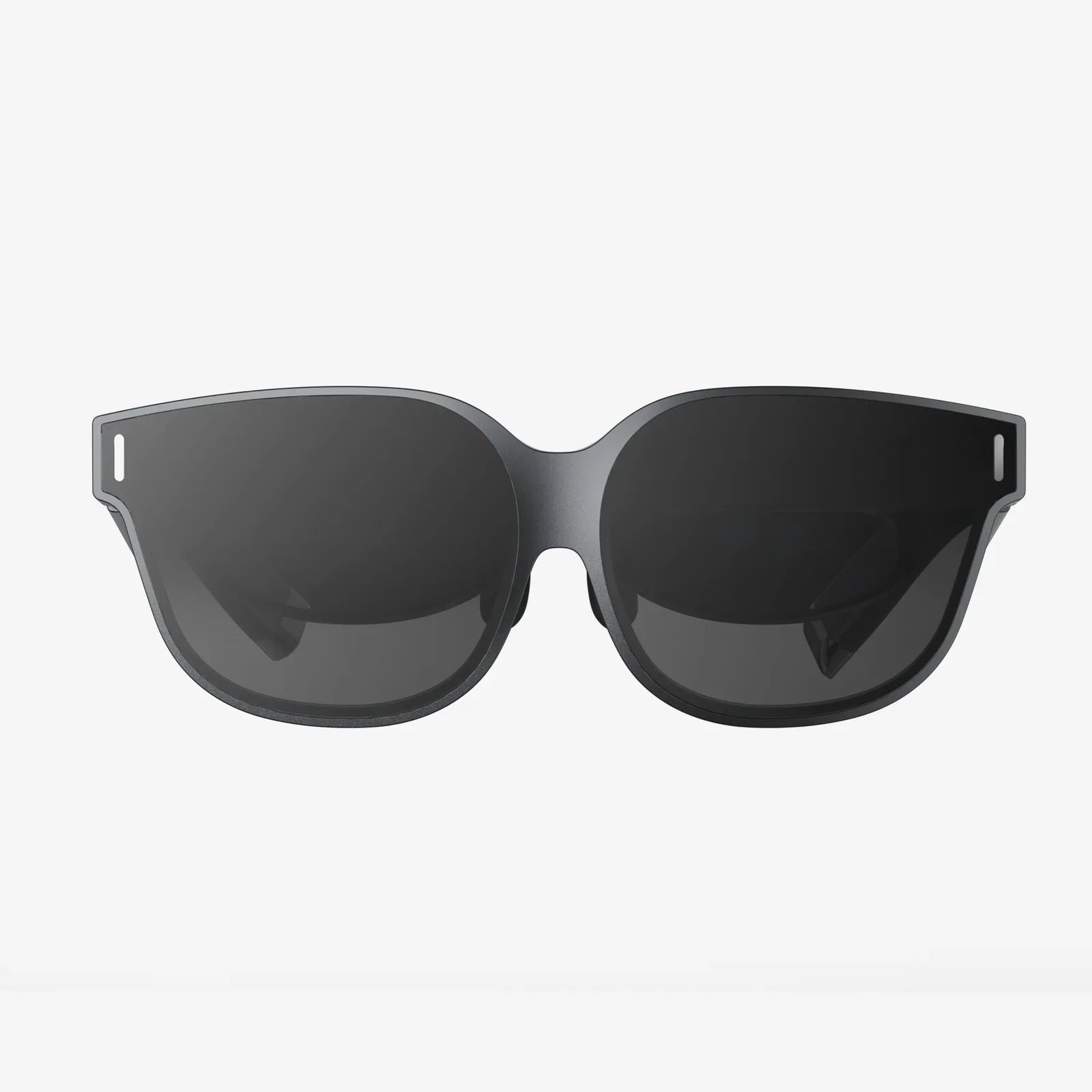
You've cleared your playspace, you're ready to explore new worlds, but your gateway to virtual reality remains stubbornly dark and silent. The frustration is palpable. A non-functioning VR headset isn't just a broken gadget; it's a locked door to countless experiences. Before you consider it a lost cause or an expensive paperweight, know that the vast majority of VR issues are solvable with a methodical approach. This deep dive will arm you with the knowledge to diagnose and fix your headset, transforming frustration into triumph.
Establishing a Baseline: The Initial Diagnostic Steps
Before diving into complex solutions, always start with the simplest possibilities. Overlooking these foundational steps is one of the most common reasons troubleshooting fails.
Power and Connection Checks
It sounds trivial, but it's the number one culprit. Ensure all cables are firmly seated at both ends—the headset and the computer or power outlet. For wired headsets, inspect the entire length of the cable for any obvious kinks, frays, or damage. For wireless models, verify that the headset is charged. Try a different power outlet or a different USB/display port on your computer. A loose connection is often the only thing standing between you and immersion.
The Essential Reboot
Never underestimate the power of turning it off and on again. A full reboot clears temporary caches and resets software states that can cause unexplained issues.
- Fully shut down your computer.
- Unplug the headset's power cable (if applicable).
- Wait 60 seconds.
- Plug everything back in and power up.
Decoding the Symptoms: A Problem-Solving Flowchart
Not all problems are created equal. The specific behavior your headset is exhibiting is a crucial clue pointing to the root cause.
No Power, No Lights, No Life
If your headset shows absolutely no signs of life—no LEDs, no sounds, nothing—the issue is almost certainly hardware-related.
- Power Adapter/Battery: For standalone headsets, the battery may be completely drained. Leave it plugged in for at least an hour before trying again. For PC-powered headsets, the issue could be a faulty power adapter or a broken power cable.
- Faulty Cable: The cable, especially if it's removable, might be damaged. If possible, test with a known-good replacement cable.
- Internal Failure: In rare cases, an internal component like the power management circuit may have failed, necessitating professional repair.
Power On, But No Display (Black Screen)
The headset powers up (you hear sounds or see lights), but the screens remain black. This is a classic and frustrating issue.
- Software Crash: The VR service or graphics driver may have crashed. Check your computer's display settings to see if the headset is being detected as a second monitor.
- Direct Mode vs. Extended Mode: Most modern headsets operate in a "Direct Mode," where the VR software manages the display. If this mode is disabled, the headset may act as a standard monitor. This setting is usually found within your VR platform's desktop software.
- Graphics Driver: Outdated or corrupt graphics drivers are a prime suspect. This leads to our next major section.
Tracking Failures: The World is Jittery or Drifting
Your display works, but the virtual world wobbles, shakes, or slowly slides away from you. This is almost always a tracking issue.
- Environmental Factors: Tracking systems (both inside-out and external sensors) rely on clear visual cues. Ensure your room is well-lit (but avoid direct sunlight on the sensors), and that there are no overwhelming reflective surfaces like mirrors or blank white walls.
- Lens/Sensor Obstruction: Wipe the external tracking cameras or sensors with a microfiber cloth. Even a smudge can degrade performance.
- Bluetooth Connection: For headsets that use external base stations, these stations communicate with the headset via Bluetooth. A weak or interrupted signal can cause tracking hiccups. Ensure there's a clear line of sight.
- USB Bandwidth: If you're using multiple USB devices on the same controller, they can overwhelm the bandwidth, causing the tracking data from the headset to stutter. Plug your headset into a dedicated USB controller, preferably a USB 3.0 port.
Audio Issues: Silence or Distortion
No sound, or sound that crackles and cuts out, breaks immersion completely.
- Default Playback Device: Windows may not have switched the audio output to the headset. Right-click the sound icon in your taskbar, open "Sound Settings," and manually select your VR headset as the output device.
- Loose Headphone Jack: If your headset has a removable audio jack, ensure it is fully plugged in, both on the headset and the computer.
- USB Audio Driver: The headset's audio may be treated as a separate USB audio device. Try uninstalling its driver in Device Manager and letting it reinstall upon reboot.
The Software Labyrinth: Drivers, Updates, and Permissions
More often than not, the villain in this story is software, not hardware. The complex interplay between your operating system, graphics driver, and VR runtime is a common failure point.
Graphics Drivers: The Heart of the Matter
Your GPU driver is the single most important software component for VR. An outdated, beta, or incorrectly installed driver will cause myriad problems.
- Clean Install: Do not just update over an old driver. Use a tool like DDU (Display Driver Uninstaller) from Guru3D to perform a clean wipe of all GPU drivers in Windows Safe Mode. Then, install the latest WHQL-certified driver directly from the manufacturer's website. This solves a huge percentage of VR issues.
- Rollback: If your headset stopped working immediately after a driver update, try rolling back to the previous stable version. New drivers can sometimes introduce new bugs.
VR Platform Software
The software for your specific VR platform (like SteamVR, Oculus PC app, etc.) needs to be healthy.
- File Verification: Platforms like Steam offer a "Verify Integrity of Tool Files" option for SteamVR. This checks for and replaces any corrupted or missing files.
- Reinstall: As a last resort, completely uninstall and then reinstall the VR platform software. This ensures a fresh start.
- Beta Participation: If you are opted into a beta channel for your VR software, try opting out. Beta software can be unstable.
Windows and Security Settings
Windows itself can get in the way. Ensure all your Windows updates are installed. Furthermore, check security and privacy settings related to camera access. VR headsets often require camera permissions for tracking, and a Windows update can sometimes reset these to "Deny."
Hardware Conflicts and System Limitations
Your computer is an ecosystem of interconnected parts. Sometimes, other components prevent the VR headset from functioning correctly.
USB Controller Problems
As mentioned, USB issues are a prime cause of tracking and connection problems. Beyond bandwidth, you may have incompatible hardware.
- Incompatible Chipsets: Some older USB 3.0 controller chipsets (particularly from brands like ASMedia and VIA) have known compatibility issues with VR headsets. The solution is to use a different USB port, often one from a different chipset (e.g., Intel).
- Power Management: Windows can selectively put USB ports to sleep to save power. Disable this feature: Go to Device Manager > Universal Serial Bus controllers > right-click each "USB Root Hub" > Properties > Power Management > uncheck "Allow the computer to turn off this device to save power."
Insufficient System Specifications
VR is demanding. If your computer barely meets the minimum specifications, any background process—an anti-virus scan, a Windows update, a web browser tab—can consume enough resources to cause stuttering, crashes, or failure to launch.
- Check the minimum and recommended specs for your headset.
- Use a monitoring tool to check your CPU and GPU usage while trying to run VR.
- Ensure you are plugging your headset into your dedicated graphics card, not the motherboard's integrated graphics port.
When All Else Fails: Advanced and Nuclear Options
If you've exhausted the standard checklist, it's time to look deeper.
Factory Reset
For standalone headsets, a factory reset will wipe all data and return the device to its out-of-box state. This is a guaranteed way to eliminate any software corruption on the device itself. Warning: This will erase all saved data, games, and settings. Back up what you can first.
Testing on Another Computer
This is the ultimate diagnostic test. If your headset works perfectly on another capable PC, then the problem is unequivocally with your original computer's software or hardware configuration. If it fails on a second known-good computer, the headset or its cables are likely faulty.
Seeking Professional Help
If you suspect a hardware fault (physical damage, broken cable, internal failure) and the device is under warranty, contact the manufacturer's support. They can run remote diagnostics and facilitate a repair or replacement if necessary.
The journey from a bricked headset to a fully immersive VR experience is often just a few careful steps away. The key is patience and a systematic process of elimination. By methodically working through connections, software, and hardware, you transform from a frustrated user into a savvy troubleshooter. That dark screen is not a dead end; it's a puzzle waiting to be solved, and the solution is your ticket back to the virtual realms you love.
Share:
Best VR Headset 2025 PC VR: The Ultimate Guide to Next-Gen Immersion
Best Video Quality VR Headset: A Deep Dive into Visual Fidelity