


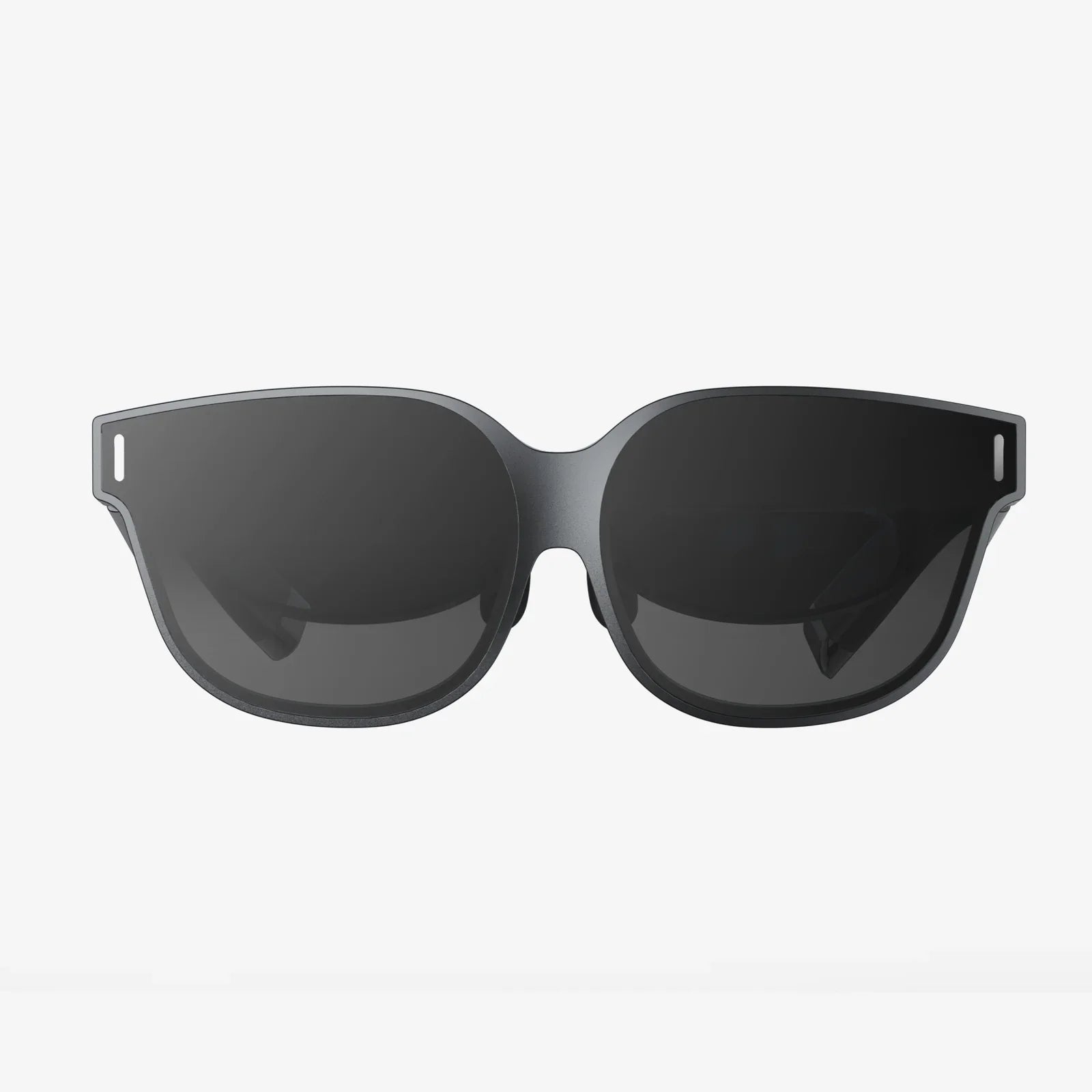
You’ve cleared your playspace, you’re ready to dive into another world, and you reach for your headset—only to be met with a blank, unresponsive screen. That sinking feeling is all too familiar for many VR enthusiasts. A headset that won’t turn on is the ultimate immersion breaker, transforming excitement into instant frustration. But before you resign yourself to an expensive paperweight or a lengthy repair process, know that the solution is often simpler than you think. This guide will walk you through every conceivable reason, from the most basic checks to more advanced diagnostics, empowering you to solve the problem and return to your virtual escapades.
The First and Most Common Culprits: Power and Connections
More often than not, the issue is not a catastrophic failure but a simple disruption in the flow of power. This is always the best and first place to start your investigation.
Is It Actually Plugged In and Charged?
It sounds trivial, but it’s the number one reason for startup failure. Cables can become slightly dislodged, power strips can be switched off, and batteries deplete.
- Check the Wall Outlet: Test the outlet with another device, like a lamp or phone charger, to ensure it’s providing power. Don’t forget to check if a surge protector or power strip is switched on.
- Inspect the Power Adapter: Ensure the power adapter is firmly plugged into both the wall outlet and the headset. For headsets that use a proprietary power brick, make sure it’s the correct one; using an underpowered third-party charger is a common mistake.
- Examine All Cables: Look for any obvious signs of damage—kinks, fraying, bent pins, or chew marks from pets. Try a different cable if possible.
- Charge It Fully: If your headset has an internal battery, it might be completely drained. Leave it plugged into a known-good power source for at least an hour, even if there are no immediate signs of life (like a charging light). A deeply discharged battery can sometimes take a while to show any activity.
Deciphering the LED Lights
Most headsets have LED indicators that communicate their status. A solid light, a blinking light, or no light at all can provide vital clues. Consult your device’s manual for the specific meaning of its light patterns. A blinking red light often indicates a charging battery, while a solid green light typically means fully charged. An amber or orange light can signify anything from a low battery to a software error.
Standalone vs. Tethered: A Diagnostic Divide
The troubleshooting path diverges significantly depending on whether your headset is a standalone unit or a PC-tethered device. Identifying your type is crucial.
Troubleshooting Standalone Headsets
These all-in-one devices have their own internal computer and battery, which introduces a different set of potential problems.
- The Battery: Beyond just being dead, a battery can fail. If the headset only works while plugged in but dies instantly when unplugged, the battery may need replacement. Lithium-ion batteries have a finite lifespan and can degrade over time, especially if consistently drained to zero.
- Software Crash or Freeze: Like any computer, a standalone headset can freeze. Perform a forced restart. This is usually done by holding down the power button for a significantly longer time than usual—often 10 to 30 seconds. This cuts power and reboots the system, clearing any temporary software glitches.
- Boot Loop Issues: If the device turns on, shows a logo, and then restarts repeatedly, it’s stuck in a boot loop. This often points to a corrupted operating system. You may need to perform a factory reset, which is typically done by holding a combination of buttons (like volume and power) during startup. Warning: This will erase all your data and apps.
Troubleshooting PC-Tethered Headsets
These headsets rely on an external computer and a complex chain of connections. The problem might not be the headset itself.
- Check the PC Connection: Is the headset properly plugged into the correct port on your computer? These headsets often require a specific high-speed USB port and a specific DisplayPort or HDMI port on your graphics card. Try different ports.
- Graphics Card Drivers: Outdated, corrupted, or incorrect graphics drivers are a prime suspect. Completely uninstall your current drivers using a dedicated tool and then perform a clean install of the latest drivers directly from the manufacturer's website.
- Software and Services: Ensure the required companion software on your PC is up to date and running correctly. Sometimes, this software can crash or fail to launch necessary background services. Try restarting the software or your entire computer.
-
The Breakaway Cable: Many tethered headsets have a detachable cable that connects to the headset. This cable is a frequent point of failure. Unplug it from both the headset and the computer, inspect the connectors for damage, and reseat it firmly.
When Simple Fixes Fail: Delving Deeper
If you’ve ruled out all the easy solutions, it’s time to consider more serious hardware and environmental factors.
Environmental and Physical Damage
VR headsets are精密 instruments that don’t take kindly to abuse.
- Overheating: Did your headset shut down abruptly during an intense session? It may have overheated and triggered a thermal protection shutdown. Power it off completely and let it cool down in a well-ventilated area for at least 30-60 minutes before attempting to turn it on again.
- Physical Damage: Has the headset been dropped or suffered a significant impact? Even a small drop can dislodge internal connectors, damage the battery, or crack solder joints on the motherboard. Look for any external cracks or misalignments.
- Liquid Damage: Sweat is a common enemy of VR gear. While most devices have some protection, excessive moisture from sweat or spills can seep in and cause short circuits or corrosion. If you suspect liquid damage, power off immediately and leave it to dry completely for several days—do not use heat to accelerate the process.
Internal Hardware Failure
This is the worst-case scenario, but it does happen. Components can fail due to manufacturing defects, wear and tear, or a power surge.
- Failed Power Button: The button itself could be physically broken or disconnected from the mainboard.
- Motherboard Failure: The mainboard is the brain of the operation. A power surge or component failure can render it inoperable.
- Display Failure: The headset might actually be turning on (you might hear sound or feel it vibrate) but the displays are dead.
Diagnosing these issues at home is extremely difficult and often voids any remaining warranty. If you suspect an internal hardware failure, your best course of action is to contact official support.
The Final Step: Seeking Professional Help
If you have meticulously worked through every step in this guide and your headset remains a silent black slate, it’s time to call in the experts.
- Check Your Warranty Status: First, determine if your device is still under warranty. If it is, contact the manufacturer’s support team immediately. They will guide you through their process, which may involve remote diagnostics or a mail-in repair.
- Official Support Channels: Even if out of warranty, the manufacturer’s support site is the best resource. They may offer paid repair services that are still more cost-effective than replacing the entire unit.
- Third-Party Repair Shops: Be cautious with third-party repair services. While some are excellent, VR headsets are complex and require specific parts and expertise. Ensure they have good reviews and experience with your specific model.
A non-responsive VR headset can feel like a door slammed shut on your favorite hobby. The frustration is real, but it’s almost always surmountable. By methodically eliminating possibilities—starting with the simple power check and moving to more complex software and hardware issues—you are far more likely to find a solution than by panicking. You are now armed with the knowledge to systematically diagnose and potentially fix the problem yourself. So take a deep breath, grab the right cable, and start troubleshooting. That next virtual horizon is waiting for you, and with a little patience, you’ll be back in the game before you know it.
Share:
Extended Reality XR News Today: The Metaverse Takes Shape and Industries Transform
Best VR for iPhone XR: Your Ultimate Guide to Immersive Mobile Experiences