


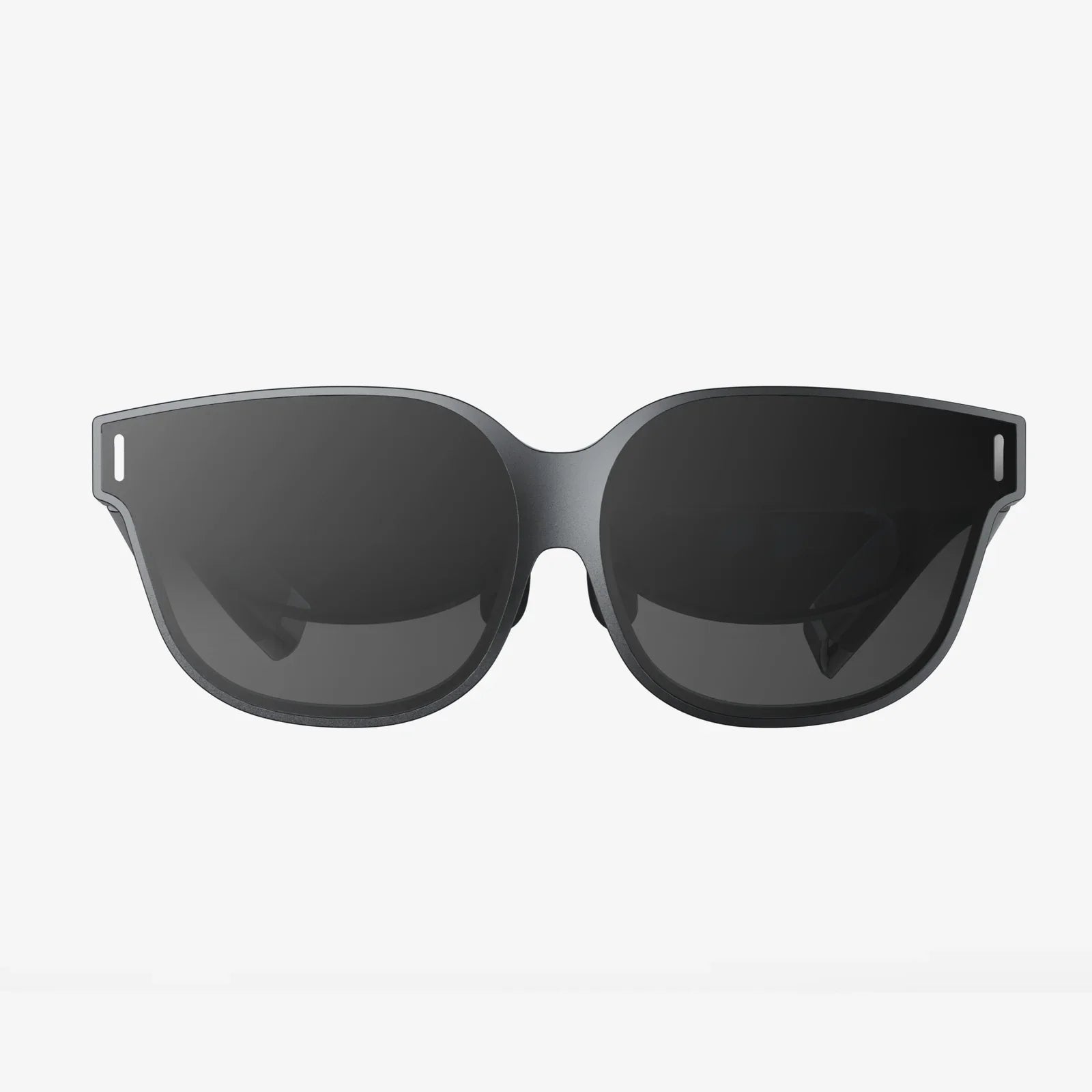
Imagine stepping into breathtaking virtual worlds, exploring vast digital landscapes, and interacting with immersive environments, all powered by the raw processing might of your desktop computer but viewed through the surprisingly capable and high-resolution display of your iPhone. This isn't a glimpse into a distant future; it's a reality you can unlock today. The quest to connect iPhone VR to PC represents the ultimate fusion of mobility and power, creating a wireless VR experience that rivals dedicated headsets at a fraction of the cost. For gamers, architects, educators, and curious tech enthusiasts, this bridge between ecosystems opens up a universe of possibilities, freeing you from the constraints of cables and expensive hardware upgrades. This guide will walk you through every step, from the essential software to the perfect settings, ensuring your journey into PC-powered mobile VR is nothing short of spectacular.
The Foundation: Understanding How iPhone VR to PC Connection Works
Before diving into cables and applications, it's crucial to grasp the fundamental technology that makes this magic possible. At its core, connecting your iPhone for VR use with a PC is a two-part process: streaming and tracking.
The first part, streaming, involves your powerful PC doing all the heavy lifting. Your graphics card renders the complex, beautiful worlds of a VR game or application. This video signal is then compressed and sent over your local network (Wi-Fi) or a physical cable to a receiver application on your iPhone. Your phone's screen acts as the viewfinder, displaying the high-quality visuals generated by the PC.
The second part, tracking, is where the real innovation lies. Your iPhone is a treasure trove of sensors—gyroscopes, accelerometers, and even LiDAR scanners on newer models. Specialized software harnesses these sensors to track the precise movement and rotation of your head. This movement data is sent back to the PC, which adjusts the rendered viewpoint in real-time. This closed loop of streaming video and receiving motion data creates a seamless, low-latency VR experience that feels incredibly responsive.
This approach leverages the best of both devices: the unparalleled graphical fidelity and vast library of PC VR content, combined with the convenience, high pixel density, and mobility of your iPhone's display.
Essential Gear: What You'll Need to Make the Connection
Assembling the right tools is half the battle. Fortunately, you likely already own most of what's required.
- A VR-Capable PC: This is non-negotiable. Your computer needs the horsepower to run VR applications. Focus on a modern multi-core processor and, most importantly, a dedicated graphics card from the last few generations. A sufficient amount of RAM is also critical for a smooth experience.
- Your iPhone: The newer the model, the better the experience. Newer iPhones have more advanced screens (OLED for perfect blacks), better sensors for accurate tracking, and more processing power to handle the decoding of the video stream efficiently. However, even older models can work surprisingly well.
- A VR Headset Mount: You cannot simply hold your phone to your face. You need a headset holder that positions the phone correctly in front of your eyes and blocks out ambient light. These range from simple cardboard-style viewers to more comfortable plastic headsets with adjustable straps and lenses. Many affordable options are available that are specifically designed to hold an iPhone securely.
- A Strong Network (For Wireless): If you plan to go wireless, your network is the backbone of your experience. A robust 5GHz Wi-Fi network is absolutely essential. For the best performance, a direct connection is ideal. This can be achieved by connecting your PC directly to your router via an Ethernet cable and ensuring your iPhone is on the same 5GHz Wi-Fi network. This minimizes latency and prevents interference.
- A USB Cable (For Wired): For those who prioritize zero latency and maximum stability, a wired connection is the way to go. You will need a compatible Lightning to USB (or USB-C to USB on newer iPhones) cable. Note that standard charging cables often only handle power and slow data; you may need a higher-quality cable certified for data transfer.
- The Right Software: This is the glue that holds everything together. You will need two pieces of software: a server application installed on your PC and a companion client application installed on your iPhone. These applications work in tandem to manage the streaming and tracking data.
Choosing Your Weapon: Software Solutions for Streaming
Several talented developer teams have created software suites designed specifically for this purpose. They vary in features, price, and compatibility.
1. The Open-Source Pioneer: One of the earliest and most respected projects is an open-source program that revolutionized wireless PC VR streaming. It consists of a PC server and a mobile client. Its strengths lie in its extensive customization options, strong community support, and its ability to work with a huge variety of games and applications. Setting it up requires following detailed guides, but the reward is a highly tuned and flexible experience.
2. The Polished All-in-One Solution: Another excellent option is a commercial application that prioritizes ease of use and a polished user interface. It often features one-click launches, automatic game detection, and streamlined setup processes. It frequently updates with new features like advanced performance overlays and custom environments. This is often the best choice for users who want a hassle-free, premium experience out of the box.
Your choice will depend on your technical comfort level and desired feature set. Both are capable of delivering an exceptional experience when configured correctly.
Step-by-Step: A Universal Setup Guide
While the exact menus will differ slightly between software choices, the overall setup process follows a consistent pattern.
- Prepare Your PC: Ensure your PC is ready for VR. Update your graphics card drivers to the latest version. This is one of the most common fixes for performance issues. Disable any unnecessary background applications to free up system resources.
- Install the PC Server Software: Download and install your chosen streaming server application on your PC. Launch it and go through its initial setup. You will likely need to pair your headset here later.
- Install the Mobile Client App: On your iPhone, go to the App Store and download the client app that pairs with your chosen PC software.
- Network Configuration (Wireless): Connect your PC to your router via an Ethernet cable. Ensure your iPhone is connected to the same 5GHz Wi-Fi network. The 2.4GHz band is not sufficient due to its lower speed and higher latency. Inside your router's settings, it can be helpful to assign a static IP address to your PC to avoid connection issues later.
- The Connection Process: Open the client app on your iPhone and the server on your PC. The phone app will search for the server on your network. Once it finds it, you may need to enter a code displayed on the PC screen to pair the devices securely.
- Calibration and Settings: The final step is to calibrate your headset. Place your iPhone into the VR headset mount and put it on. The software will guide you through setting your interpupillary distance (IPD) and establishing a neutral viewing orientation. This ensures the world looks correct and comfortable to your eyes.
Optimizing Your Experience: The Key to Flawless VR
A successful connection is just the beginning. Fine-tuning is what transforms a jittery demo into a buttery-smooth portal to another world.
- Bitrate: This controls the quality of the video stream. A higher bitrate means sharper image quality but demands more from your network. If you see artifacts or stuttering, try lowering this value slightly.
- Streaming Resolution: You can often set the resolution higher than your iPhone's native screen resolution through a process called supersampling. This dramatically improves image clarity and reduces the "screen door" effect. Only do this if your PC can maintain a high frame rate at the increased resolution.
- Codec:Codec: The software will offer different video codecs for encoding the stream. The most modern option is typically the best, offering the best image quality for a given bitrate. However, if you encounter issues, try switching to an older, more compatible codec.
- Buffer Size: A small buffer reduces latency, making the experience feel more immediate. A larger buffer can help smooth out network hiccups. Find a balance that works for your setup.
- Controller Setup: To interact with the VR world, you will need motion controllers. Most standard PC VR controllers are not natively compatible with iPhone-based tracking. The best solution is to use controllers that are tracked by your PC using their own sensors. The software will then sync your head and hand movements together within the VR environment.
Troubleshooting Common Hurdles
Even with the best preparation, you might hit a snag. Here are solutions to common problems.
High Latency or Stuttering: This is almost always a network issue. Move closer to your Wi-Fi router, ensure no other devices are heavily using the bandwidth (like 4K video streaming), and double-check that you are on the 5GHz band. The wired connection is the ultimate solution.
Black Screen or Failed Connection: First, check your firewall and antivirus software. They can sometimes block the connection between the PC server and the iPhone client. You may need to create an exception rule for the server application.
Poor Tracking or Drift: This is often due to magnetic or environmental interference. Keep your play area away from large metal objects, speakers, or other sources of magnetic fields. Also, ensure your iPhone's sensors are calibrated. The client app usually has a tool for this.
Low Frame Rate: If the image is choppy even with a good connection, the bottleneck is your PC. Lower the graphical settings within your VR game or application. Reduce the streaming resolution in your server software settings.
The Possibilities Are Endless
Once your system is running smoothly, a new frontier opens up. You are no longer limited to mobile VR apps. You now have access to the entire rich library of PC VR content. Explore the vast, mod-friendly worlds of open-world RPGs, test your skills in intense competitive shooters, create stunning 3D sculptures in professional-grade applications, or even use advanced simulators for flight and racing. The power of your PC, combined with the convenience of your iPhone, makes it all possible.
You've now mastered the art of convergence, weaving together the sleek sophistication of your iPhone with the brute force of your gaming rig to birth a truly wireless VR titan. This setup shatters the myth that high-end virtual reality requires a fat wallet, proving instead that with a little ingenuity and the right guide, you can claim your passport to countless digital dimensions. The lag is gone, the blur has cleared, and all that remains is for you to step forward and claim your adventure. Your library of PC VR games is no longer gathering dust—it's waiting for you to dive in, untethered and utterly free.
Share:
VR Goggle for iPhone: Your Ultimate Portal to Virtual Worlds
Connect to VR Headset: Your Ultimate Guide to a Seamless Immersive Experience