


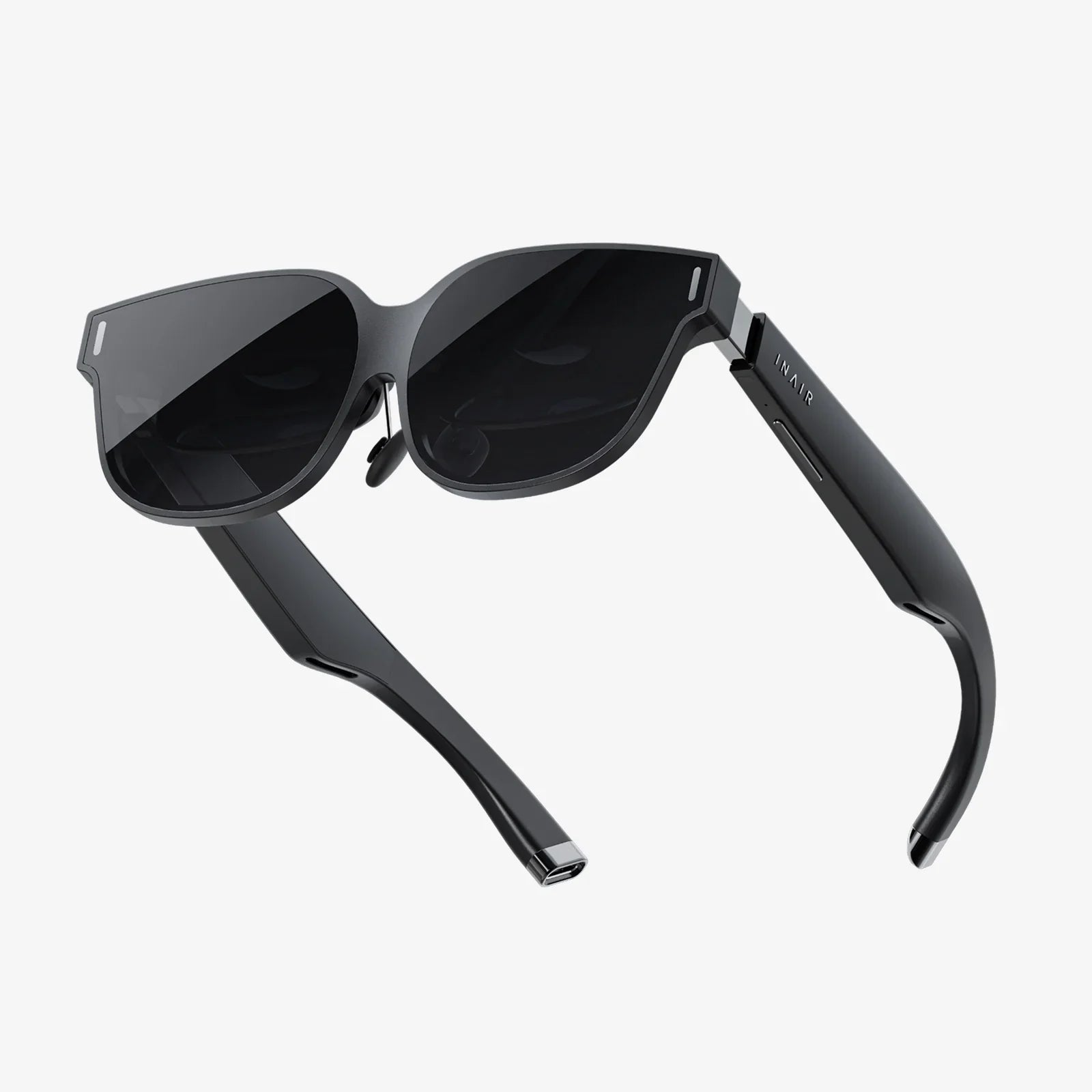
You've just unboxed that sleek, futuristic piece of technology, the gateway to other worlds, and your mind is already racing with the possibilities. But before you can scale mountains, explore the depths of the ocean, or step onto a virtual battlefield, there's one crucial step: you must connect to VR headset. This moment, often seen as a mere technicality, is in fact the foundational ritual that bridges our reality with the digital infinite. Getting it right doesn't just mean it works; it means your first step into the metaverse is one of awe, not frustration. This comprehensive guide is designed to be your trusted companion, transforming a potentially daunting process into a simple, successful, and exciting beginning to your adventures.
Understanding the VR Ecosystem: More Than Just a Headset
Before diving into cables and settings, it's vital to understand what you're working with. A VR system is an ecosystem of interconnected components, each playing a critical role in delivering a seamless experience. The headset itself is the centerpiece, but its connection to a processing unit—whether a high-powered computer, a gaming console, or its own integrated mobile chip—is what brings it to life. Furthermore, controllers, sensors or cameras, and the software environment form the complete picture. Recognizing this interconnectedness is the first step to a successful setup, as a weak link in any part of this chain can compromise your entire immersive journey.
The Wired Connection: A Pillar of High-Fidelity VR
For users seeking the highest levels of visual fidelity, performance, and stability, a wired connection remains the gold standard. This method typically involves linking the headset directly to a powerful computer or console using a high-speed cable.
Essential Prerequisites
Preparation is key. Before you attempt to connect to VR headset via a wire, ensure you have the following:
- A Compatible Computer or Console: This is non-negotiable. The host device must meet or exceed the minimum system requirements specified by the headset manufacturer. This includes a sufficiently powerful graphics processing unit (GPU), central processing unit (CPU), available RAM, and the correct video output ports (typically DisplayPort or HDMI).
- The Correct Cable: Most modern headsets come with a dedicated cable. Using third-party cables can lead to performance issues or complete failure to connect. Ensure the cable is undamaged and firmly connected at both ends.
- Available USB Ports: Beyond the video cable, headsets often require a connection to a USB port for data transmission and power. A high-speed USB 3.0 port (usually indicated by blue plastic inside the port) is frequently recommended for optimal performance.
- Updated Drivers: Outdated graphics card drivers are a leading cause of connection failures. Visit the website of your GPU's manufacturer to download and install the latest drivers before you begin.
The Step-by-Step Wired Setup Process
- Software First: It is often advisable to install the necessary VR platform software on your computer before physically connecting the headset. This software (like SteamVR, Oculus PC app, etc.) will include essential drivers and a setup wizard.
- Physical Connection: Power down your computer and headset if recommended. Connect the video cable to your computer's GPU output and the headset's input. Connect the USB cable to an appropriate port on your computer.
- Power Up: Turn on your computer and then the headset. The software should automatically detect the new hardware.
- Follow the Wizard: The installed platform software will guide you through the remaining setup, which includes pairing controllers, setting up a guardian or chaperone boundary (a virtual wall to prevent you from hitting real objects), and adjusting the headset's fit for clarity.
The Wireless Revolution: Cutting the Cord for Freedom
Wireless connectivity has transformed VR, offering unparalleled freedom of movement and eliminating the tripping hazard and constant awareness of a cable. There are two primary methods to connect to VR headset wirelessly.
Standalone VR: All-in-One Immersion
Standalone headsets have the computer built directly into the headset. Their connection needs are different:
- Initial Setup: After charging the device, you simply put it on. The setup process involves connecting to your Wi-Fi network, creating or logging into an account, and pairing the controllers.
- Wi-Fi for Content: A Wi-Fi connection is primarily used for downloading games, apps, and updates, as well as for certain multiplayer experiences. The core VR processing happens on the device itself.
PC Streaming: High-End VR Without the Cable
This method allows you to use a wireless headset to stream content from a powerful gaming PC, marrying high-end graphics with cord-free freedom.
- The Hardware Requirement: This requires a robust Wi-Fi 6 (or at least Wi-Fi 5) network. For the best experience, a dedicated router is highly recommended—a router used solely for the VR stream, connected via Ethernet cable to your PC, with all other household devices on a separate network.
- The Software Link: Applications like Air Link (for Meta Quest headsets) or Steam Link VR handle the compression and streaming of the video signal from your PC to your headset over your local Wi-Fi network.
- The Process: Enable the streaming service in your headset's settings and within the desktop software on your PC. The software will then search for your PC on the network. Once found, you select it and—if all conditions are ideal—you are suddenly in your PC VR library, completely untethered.
Navigating the Software Landscape
Successfully connecting the hardware is only half the battle. The software platform is the orchestrator of your experience.
Platform Stores and Ecosystems
You will likely be using a primary storefront like the Meta Quest store, SteamVR, or PlayStation Store. Your account on this platform is your identity in VR, holding your library of games and friends list. Ensuring you are logged into the correct account is crucial for access to your content.
Room Setup: Defining Your Play Space
This is one of the most important software steps. The guardian system (or chaperone) uses your headset's sensors to map your physical environment. You define your play area by drawing a boundary on the virtual floor. This system is critical for safety, as it will display a warning grid when you get too close to the edge of your defined space, preventing collisions with walls and furniture.
Troubleshooting Common Connection Hurdles
Even with perfect preparation, issues can arise. Here’s how to tackle the most common problems.
“No Display” or “Headset Not Detected”
- Check Physical Connections: Reseat every cable at both the computer and headset ends.
- GPU Port: Ensure your monitor and headset are plugged into the outputs on your graphics card, not the motherboard's integrated graphics ports.
- Driver Update: Revisit your GPU manufacturer's website for a clean driver install.
- USB Power Management: In your computer's Windows Power Management settings, disable the option that allows the computer to turn off USB ports to save power.
Poor Wireless Performance (Lag, Stuttering, Compression)
- Dedicated Router: This is the single biggest improvement for wireless PC VR. A congested Wi-Fi network is its greatest enemy.
- Line of Sight: Ensure there is a clear line of sight between your headset and the Wi-Fi router. Avoid physical obstructions.
- Channel Selection: Use a Wi-Fi analyzer app to find the least congested channel for your router and switch to it in the router's admin settings.
- Bitrate Adjustment: In your streaming software, lower the streaming bitrate. A higher bitrate offers better visual quality but requires a more perfect network and is more prone to stuttering if conditions aren't ideal.
Tracking Issues (Controller or World Drift)
- Lighting: Ensure your play space is well-lit, but avoid direct sunlight on the headset's sensors and avoid repetitive patterns or reflective surfaces that can confuse the inside-out tracking cameras.
- Recalibrate: Most software has an option to recalibrate your controllers or re-run the room setup.
- Bluetooth Interference: For headsets that use external base stations, other wireless devices like speakers or routers can cause interference. Try turning off nearby devices to test.
Optimizing Your Experience: Beyond the Basic Connection
Once you're connected, a few extra steps can elevate your experience from functional to phenomenal.
Visual Clarity is King
The single most important setting is the IPD (Interpupillary Distance) adjustment. This is the physical slider on most headsets that moves the lenses closer together or further apart. Matching this distance to the space between your pupils is critical for a sharp image and preventing eye strain. Take your time to adjust this while looking at text until it is perfectly clear.
Comfort is Everything
A poorly fitted headset is a one-way ticket to a headache and a short play session. Adjust the top strap to take most of the weight, then tighten the side straps. The goal is a snug fit that doesn't apply uncomfortable pressure to your cheeks or forehead. The weight should be distributed across your head, not your face.
Performance Tweaking
Within your PC VR settings, you can often adjust the render resolution and refresh rate. Increasing these will improve visual quality and smoothness but demand more from your GPU. Find a balance that your system can handle without dropping frames, as consistent performance is more important than raw graphical power for preventing motion sickness.
That initial moment of hesitation, the fear of a tangled web of technical challenges, now melts away, replaced by the confident knowledge of how to properly connect to VR headset. You are no longer just a user; you are an operator, equipped to not only establish that vital link but to refine it, troubleshoot it, and perfect it. The cable in your hand or the Wi-Fi signal in the air is no longer a mystery—it's a lifeline you control. The real journey begins not when the headset is on your head, but the moment you successfully bridge the gap between realities. Now, step forward. Your worlds await, and they are flawlessly, seamlessly connected.
Share:
Connect iPhone VR to PC: The Ultimate Guide to Unlocking a Wireless VR Powerhouse
Do You Need a Phone to Use a VR Headset? The Ultimate Guide to VR Hardware