


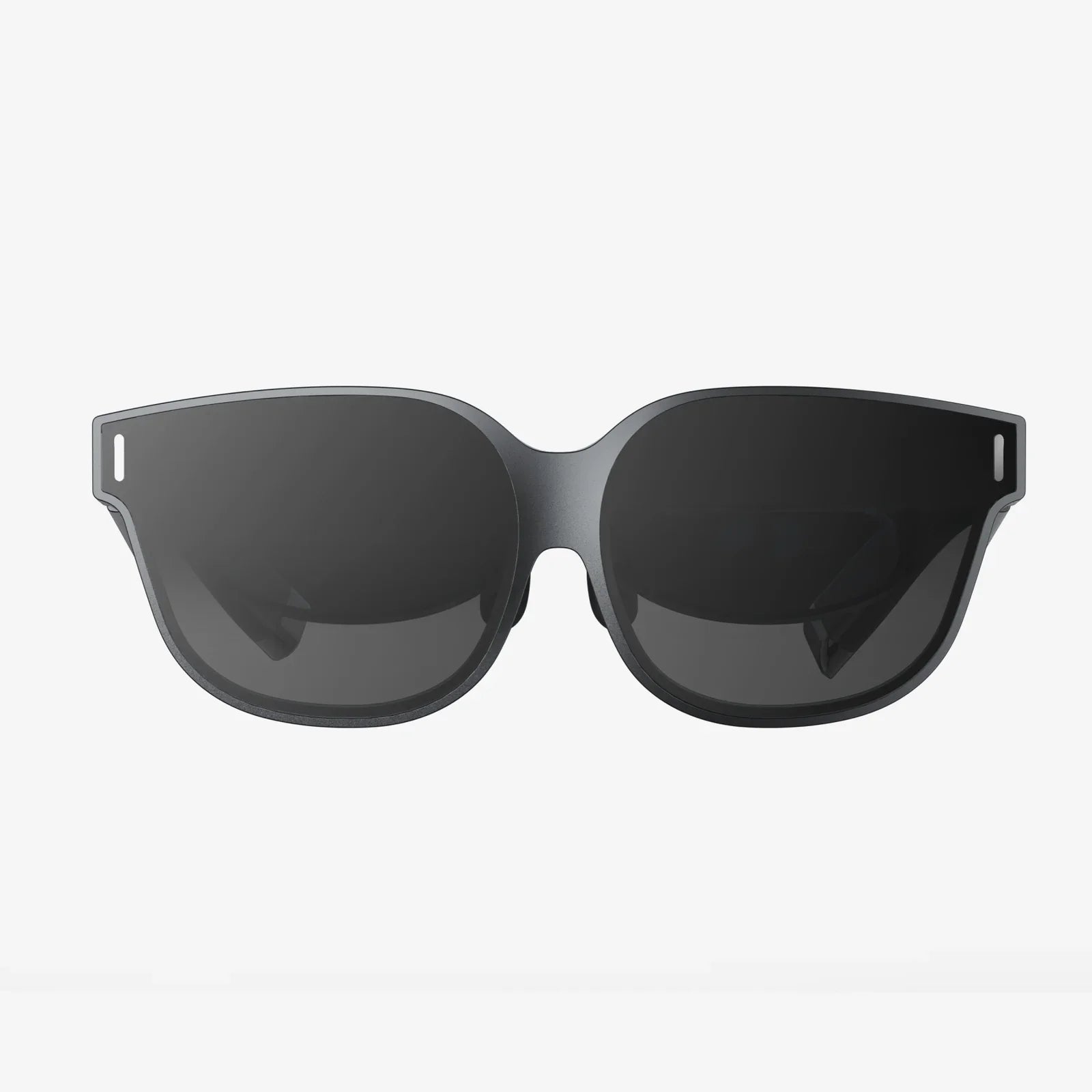
You've acquired a powerful VR headset, a beast of a gaming rig is humming on your desk, and a universe of immersive experiences awaits. But a single, daunting question stands between you and that digital frontier: just how do you bridge the gap between your PC and the headset? The journey from unboxing to diving into breathtaking virtual worlds can seem complex, but fear not—this definitive guide will demystify every cable, setting, and step, transforming a technical chore into an exciting prelude to adventure.
The Foundation: Understanding the Connection Types
Before you start plugging in cables, it's crucial to understand the two primary methods for linking your headset to your computer. Each path offers a different balance of fidelity and freedom, and your choice will depend on your hardware and priorities.
The Wired Connection: Pure, Uncompromised Power
The most traditional and widely supported method is a physical, wired connection. This approach typically delivers the highest possible visual quality, the most stable performance, and the lowest latency (the delay between your movement and the screen's response), which is critical for avoiding motion sickness and staying competitive in fast-paced games. The wired connection is the gold standard for enthusiasts and professional applications.
The Wireless Connection: Cutting the Cord for Ultimate Freedom
For those who prioritize uninhibited movement and despise the feeling of a cable tugging at their back, wireless PC VR is a game-changing alternative. This method streams data from your PC to your headset over a local Wi-Fi network. While incredibly liberating, it demands a robust and well-configured network environment to perform well and can sometimes introduce minor compression artifacts or a slight increase in latency compared to a direct cable.
The Wired Deep Dive: Cables, Ports, and Protocols
Connecting via a wire involves more than just a single cable. It's an ecosystem of data and power delivery that must be understood.
The Central Nervous System: USB and Its Many Flavors
The Universal Serial Bus (USB) connection is a workhorse for VR. It handles critical data transfer for the headset's sensors (gyroscopes, accelerometers), the built-in cameras for inside-out tracking, microphone audio, and sometimes even power. Not all USB ports are created equal.
- USB 3.2 Gen 1 (formerly USB 3.0): The minimum recommended standard. It offers sufficient bandwidth (5 Gbps) for the high-speed data from tracking cameras.
- USB 3.2 Gen 2 & Gen 2x2: These newer standards (10 Gbps and 20 Gbps respectively) offer more headroom and can provide more stable power delivery, which can improve overall reliability.
- USB-C vs. USB-A: The shape of the connector. Many modern headsets and PCs use the oval-shaped USB-C port, but adapters to the rectangular USB-A are common and effective, provided the underlying speed standard is met.
Always plug your headset into a USB port directly on your motherboard or a powered USB hub. Front-panel case ports can be underpowered or connected via lower-quality internal cables, leading to tracking instability.
The Visual Pipeline: DisplayPort and HDMI
This cable is responsible for delivering the stunning high-resolution, high-refresh-rate imagery to your headset's displays. It is the single most important cable for visual fidelity.
- DisplayPort (DP): Generally the preferred standard for PC VR. The latest versions (DP 1.4 and newer) support the enormous bandwidth required for resolutions and refresh rates beyond even what many current headsets demand. It is the unequivocal choice for high-end VR.
- High-Definition Multimedia Interface (HDMI): A common and viable alternative. While capable, some versions of HDMI may have lower bandwidth caps than DisplayPort, potentially limiting the maximum refresh rate or resolution on certain headsets. Always check your headset's specific requirements against your graphics card's output specifications.
It is imperative that you plug this cable directly into your dedicated graphics card, not the HDMI or DisplayPort on your motherboard's rear I/O panel. The motherboard ports are connected to your CPU's integrated graphics, which lacks the power to run VR.
Power and Convenience: The Role of Power Adapters and Link Boxes
Many wired headsets don't draw all their power from the USB connection. They instead use a separate power adapter plugged into a wall outlet. This ensures the headset receives stable and adequate power, preventing issues and allowing for brighter displays. Furthermore, most systems employ a small link box or breakaway dongle. This device acts as a convenient intermediary:
- It provides a single, easy-to-reach connection point for all your PC cables.
- It often houses the connection for the DC power adapter.
- It serves as a sacrificial component; a sudden tug on the headset cable will disconnect at the link box, preventing your expensive PC or headset from being pulled off the desk.
The Wireless Pathway: Mastering Air Link and Streaming Applications
Wireless VR magic is performed by a dedicated application that runs on your PC. This software encodes the video and audio output from your PC into a compressed stream, sends it over your local network to your headset, and then receives input data (head and controller positions) back from the headset.
The Network: Your Invisible Tether
Your Wi-Fi network is now your cable. Its quality directly dictates your wireless VR experience. For a flawless experience, you need:
- A High-Speed Wi-Fi Router: A modern router supporting Wi-Fi 6 (802.11ax) is highly recommended for its efficiency and lower latency in congested environments. A strong Wi-Fi 5 (802.11ac) router can also work well.
- Dedicated 5 GHz Band: Your headset should be connected to your router's 5 GHz network. This band is less congested and faster than the 2.4 GHz band. For the best results, ensure no other devices are using this band while you play.
- Ideal Router Placement: The router should be in the same room as your play area, with a clear line of sight to you. Walls and distance are the enemies of a strong signal.
- Wired Connection for PC: This is non-negotiable. Your gaming PC must be connected to your router via a Gigabit Ethernet cable. This ensures the PC has a pristine, maximum-speed pathway to the router, eliminating a major variable that could cause stuttering and lag.
The Software: Your Streaming Conductor
You will need to install and run the proprietary streaming application provided by your headset's manufacturer on your PC. This application runs in the background, managing the entire encoding, streaming, and decoding process. You then activate the wireless streaming mode from within the headset's system menu to initiate the connection.
The Universal Software Bridge: SteamVR and Native Platforms
Regardless of your connection type, your PC needs software to recognize the headset as a display and a spatial tracking device.
- Manufacturer's Software: The first step is always to install the PC application provided by your headset's maker. This software contains the essential drivers that allow your operating system to communicate with the hardware. It also usually provides its own home environment and storefront.
- SteamVR: For the vast majority of users, SteamVR is the next crucial layer. It is a universal VR platform that translates inputs from various headsets into a standardized language that VR games on Steam can understand. When you launch a VR title from Steam, it typically boots up SteamVR, which then manages the game's runtime. It provides a familiar overlay and dashboard accessible from within any experience.
- Graphics Driver Settings: Occasionally, you may need to adjust settings within your graphics card's control panel (e.g., NVIDIA Control Panel or AMD Software) to resolve specific issues, but for most users, the automatic detection works perfectly.
Step-by-Step: Your Connection Checklist
Follow this sequence to ensure a smooth setup.
For a Wired Setup:
- Install Software First: Download and install the necessary PC application from the headset manufacturer's website.
- Power Down: Ensure your PC is on, but shut down the headset completely if possible.
- Connect the Link Box: Plug the DisplayPort/HDMI and USB cables from the link box into the correct ports on your graphics card and motherboard. Connect the power adapter to the link box and wall outlet.
- Connect the Headset: Plug the headset's single cable into the link box.
- Power Up: Put on the headset and follow the on-screen setup instructions within the VR environment.
For a Wireless Setup:
- Prepare Your Network: Connect your PC to the router via Ethernet. Configure your router to have a dedicated 5 GHz SSID if possible.
- Install Software: Install the manufacturer's PC application and any specific wireless streaming software required.
- Charge Your Headset: Ensure the headset is fully charged, as wireless operation consumes significant power.
- Enable Streaming: Open the streaming application on your PC. Inside your headset, navigate to the settings menu and enable wireless streaming. It should automatically discover your PC.
- Pair and Play: Confirm the pairing request and you will be transported to your PC's VR environment.
Troubleshooting Common Connection Hurdles
Even with perfect setup, issues can arise. Here's how to solve them.
- "Headset Not Detected" or "Displayport Cable Not Connected": This is the most common error. Solution: 1) Restart the headset and the PC application. 2) Try a different USB port (preferably USB 3.0+ on the motherboard). 3) Check for a firmware update for the headset in its settings. 4) Try a different DisplayPort or HDMI port on your graphics card.
- Poor Performance/Stuttering (Wired): 1) Ensure no other demanding applications are running. 2) Update your graphics drivers. 3) Check your PC's performance metrics to see if your GPU or CPU is maxing out, indicating a need to lower in-game graphics settings.
- Poor Performance/Stuttering (Wireless): 1) Move closer to the router. 2) Ensure no other devices are downloading or streaming on the 5 GHz network. 3) In your streaming software, try lowering the streaming bitrate. 4) Check for Wi-Fi channel congestion using a smartphone app and change your router's channel to a less crowded one.
- Tracking Issues: 1) Ensure your play area is well-lit, but avoid direct sunlight or reflective surfaces that can confuse the cameras. 2) Re-run the room setup to redefine your guardian boundaries.
- Audio Not Coming Through Headset: Windows audio settings often reset. Right-click the sound icon in your Windows taskbar, open "Sound Settings," and manually set both the output and input devices to your VR headset.
The world of PC VR connectivity, with its acronyms and cables, is simply a gateway—a series of logical steps that, once mastered, become second nature. It's the final calibration before launch, the check of your harness before the climb. With this knowledge, you're no longer just following instructions; you're understanding the architecture of immersion itself. Now, that universe of limitless exploration, heart-pounding adventure, and social connection is no longer waiting on your desk; it's waiting for you, just on the other side of the lenses.
Share:
What is the Best AR Headset? A Deep Dive into the Future on Your Face
Best Consumer VR Headset: Your Ultimate Guide to Immersive Reality in 2024