


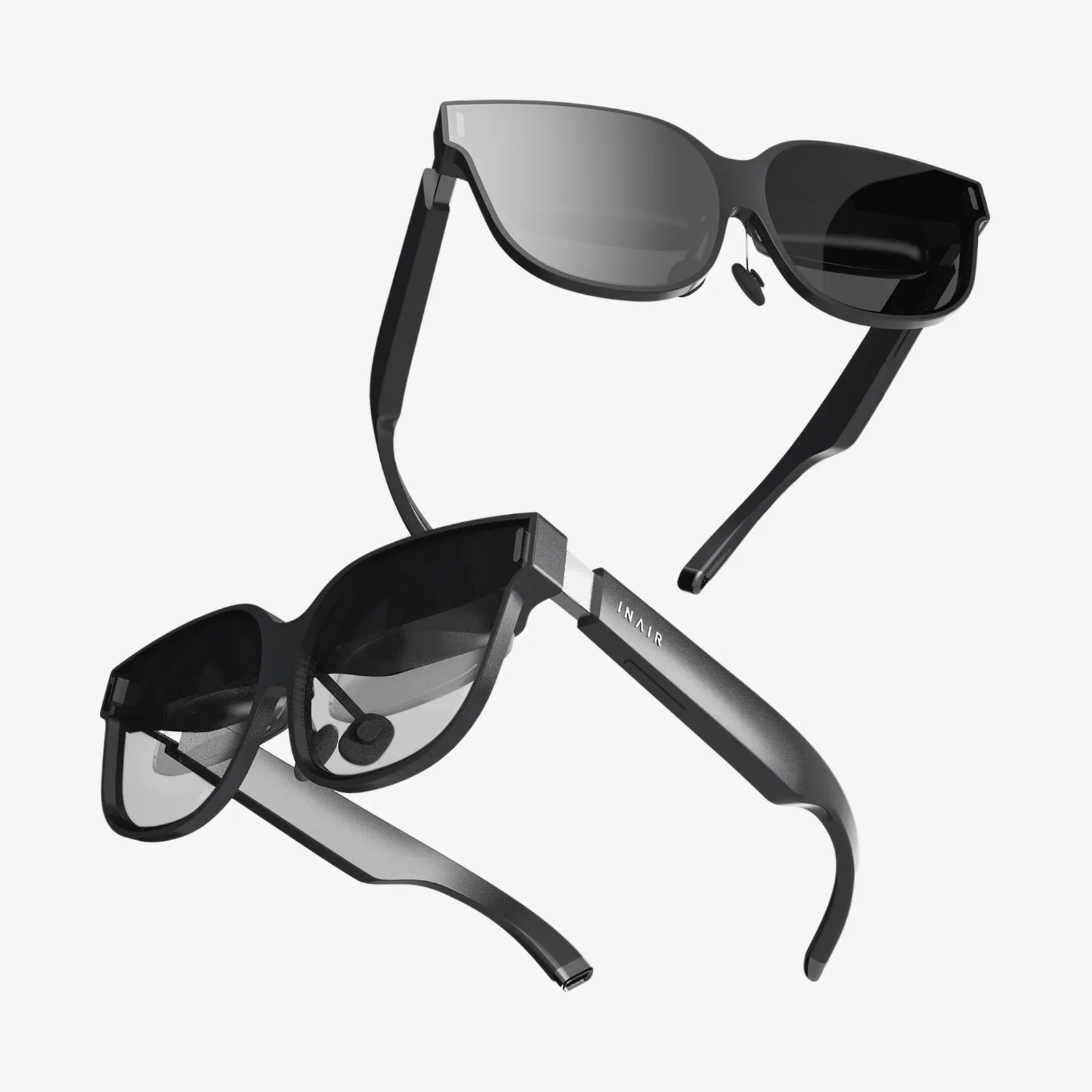
You’ve just conquered a dragon, scaled a mythical mountain, or perhaps you’re meticulously crafting a virtual sculpture. The immersive world inside your headset is breathtaking, but it’s an experience you’re having alone—or so you think. What if you could beam that incredible adventure directly to your television, turning it into a shared spectacle for friends and family? The ability to put your VR headset’s view on your TV isn’t just a neat trick; it’s a gateway to collective wonder, a tool for guidance and coaching, and the ultimate party feature. Unlocking this capability transforms a solitary journey into a communal event.
Understanding the Core Technology: How Mirroring Works
Before diving into the specific steps, it's crucial to grasp the fundamental principle at play: screen mirroring or casting. At its core, this process involves wirelessly transmitting a duplicate of your headset's display (often referred to as the "first-person perspective" or a dedicated spectator view) to another device. This isn't about sending the full, immersive 3D signal; it's about projecting a 2D representation of what the user is seeing or what a game's spectator mode provides.
The television acts as a simple monitor in this setup. It receives a video and audio stream from a intermediary device, which is typically either a dedicated streaming dongle plugged into the TV's HDMI port or a smart TV platform itself. The magic lies in how the headset communicates with this receiver.
Method 1: Native Wireless Casting to a Smart TV or Streaming Device
This is often the most straightforward method, as it leverages built-in software features designed for convenience. The process generally involves a few simple steps within the headset's menu system.
Step-by-Step Guide
- Prepare Your Television: Ensure your smart TV or streaming device (e.g., a common media stick) is powered on and connected to the same Wi-Fi network as your VR headset. This is the most critical prerequisite; both devices must be on the same network to communicate.
- Access the Casting Menu: Put on your headset. Navigate to the universal menu or dashboard. Look for an icon typically named "Cast," "Stream," "Mirror," or something similar. This is usually represented by a symbol of a screen with a Wi-Fi signal.
Select Your TV: Click on the casting icon. The headset will scan the local network and present a list of compatible devices. This list should include your television or the dongle attached to it. Select it from the list. - Initiate the Connection: After a brief moment, a connection will be established. Your TV screen will flicker and then display exactly what is seen in the headset's preview, often with a slight latency of one to three seconds.
- Manage the Stream: A small interface will usually appear in your headset view, allowing you to stop the stream, adjust audio settings, or sometimes change the quality. You can now move freely, and your audience on the TV will see your journey.
Advantages and Limitations
Advantages: The primary benefit is sheer simplicity. There are no extra cables, no additional hardware beyond what you likely already own (a smart TV or stick), and the process is integrated directly into the headset's user interface. It's quick, wireless, and convenient for spontaneous sharing.
Limitations: The quality and stability of the stream are entirely dependent on the strength and congestion of your Wi-Fi network. You may experience lag, compression artifacts, or occasional disconnections if the signal is weak. There's also a inherent latency, making it unsuitable for someone to play a game by watching the TV screen instead of the headset.
Method 2: Using a PC as a Powerful Middleman
For users who demand higher fidelity, lower latency, or whose TV setup isn't compatible with direct casting, using a personal computer as a relay is an excellent alternative. This method often provides a more robust and customizable experience.
The Setup Process
- Connect PC to TV: Connect your computer to your television using an HDMI cable. This establishes your TV as a second monitor for your PC.
- Install Companion Software: On your computer, install the official companion application provided by the headset manufacturer. This software is specifically designed to manage the device, update firmware, and crucially, handle screen mirroring.
- Enable Streaming: Open the companion software on your PC. With your headset powered on and in use, the software should detect it. Look for a "Stream," "Mirror," or "Broadcast" tab within the application.
- Start the Broadcast: Click the option to start mirroring the headset's display. The view will appear in a window on your computer screen.
- Display on TV: Simply drag this window or set your TV's display mode to duplicate your PC's main screen. The video and audio will now play through your television.
Why Choose This Method?
This approach often results in a higher-quality stream because the connection between the headset and the PC can be a dedicated wireless link or even a physical cable, bypassing general Wi-Fi congestion. The companion software might also offer advanced options like selecting a specific spectator camera angle in supported games, adjusting bitrate for quality, or recording the footage directly to your hard drive while you play. It's the method of choice for content creators and those who want the most control over their output.
Method 3: The Wired HDMI Solution for Zero Latency
If even the slightest delay is unacceptable for your audience—perhaps for a rhythm game or a fast-paced shooter—a direct wired connection is the ultimate solution. This method aims for near-zero latency and a perfect, uncompressed picture.
How to Implement a Direct Connection
The feasibility of this method varies significantly between headset models. Some older or enterprise-focused devices featured a direct HDMI output port. For modern consumer headsets, this is rare.
In cases where a direct port is not available, the process involves a specific type of external capture card. This is a small hardware device that captures a video signal and passes it through. The setup would be:
- Connect a compatible video capture card to your computer via USB.
- Use software on the headset or PC to redirect the video signal to the capture card as if it were a display.
- Run video capture software on the PC (like OBS Studio) to receive the signal from the capture card.
- Finally, mirror that software window to the TV via the PC's HDMI connection.
This method is technically complex and introduces more points of potential failure, but for purists, the flawless result is worth the effort.
Troubleshooting Common Hurdles
Even with the right method, you might encounter issues. Here’s how to solve the most common problems.
The TV Doesn't Appear in the List of Devices
- Network Check: Double and triple-check that both the headset and the TV/streaming device are on the exact same Wi-Fi network (2.4GHz vs. 5GHz can sometimes matter).
- Reboot Everything: Power cycle your headset, TV, and router. This clears temporary glitches.
- Update Software: Ensure your headset's software and your TV's firmware are up to date. Casting protocols are frequently improved with updates.
- Firewall: On a PC setup, ensure the companion software is allowed through your computer's firewall.
The Stream is Laggy or Choppy
- Wi-Fi Strength: Move your router closer to your play space or consider a Wi-Fi mesh system for better coverage.
- Reduce Congestion: Have others on your network stop streaming video or downloading large files while you cast.
- Lower Quality: If the option exists in the headset's casting menu, try streaming at a lower resolution. A stable 720p stream is better than a choppy 1080p one.
There's No Audio on the TV
- Audio Output Settings: On your PC companion software or within the headset's settings, there is often an option to choose where the audio is routed. Ensure it's set to "Headset & TV" or similar.
- TV Input: Make sure your TV is set to the correct HDMI input and that its volume is up.
Transforming Your Entertainment and Social Gatherings
Successfully putting your VR headset on your TV opens up a new dimension of entertainment. It’s no longer just about your experience; it’s about creating moments for everyone. Imagine hosting a game night where players take turns in a hilarious party game while everyone else watches the action unfold on the big screen, cheering and laughing together. It allows a coach or a friend to guide a player through a complex puzzle by seeing exactly what they see. For families, it demystifies the technology for skeptical parents or enthralls children, making the virtual world a shared space rather than an isolating one. It bridges the gap between the player in the virtual realm and the audience in the physical one, fostering connection and shared amazement.
The view from inside the headset is incredible, but the view from your couch, shared with others, is something truly special. Stop keeping your virtual adventures to yourself. Grab your headset, follow these steps, and within minutes, you can transform your living room into a portal for collective awe, turning your most thrilling digital moments into a spectator sport that everyone can enjoy. The biggest challenge won't be the setup—it'll be deciding who gets to play next.
Share:
South Korea Extended Reality Market: A Deep Dive into the Next Digital Frontier
Best Phone VR Headset: Your Ultimate Guide to Mobile Virtual Reality