


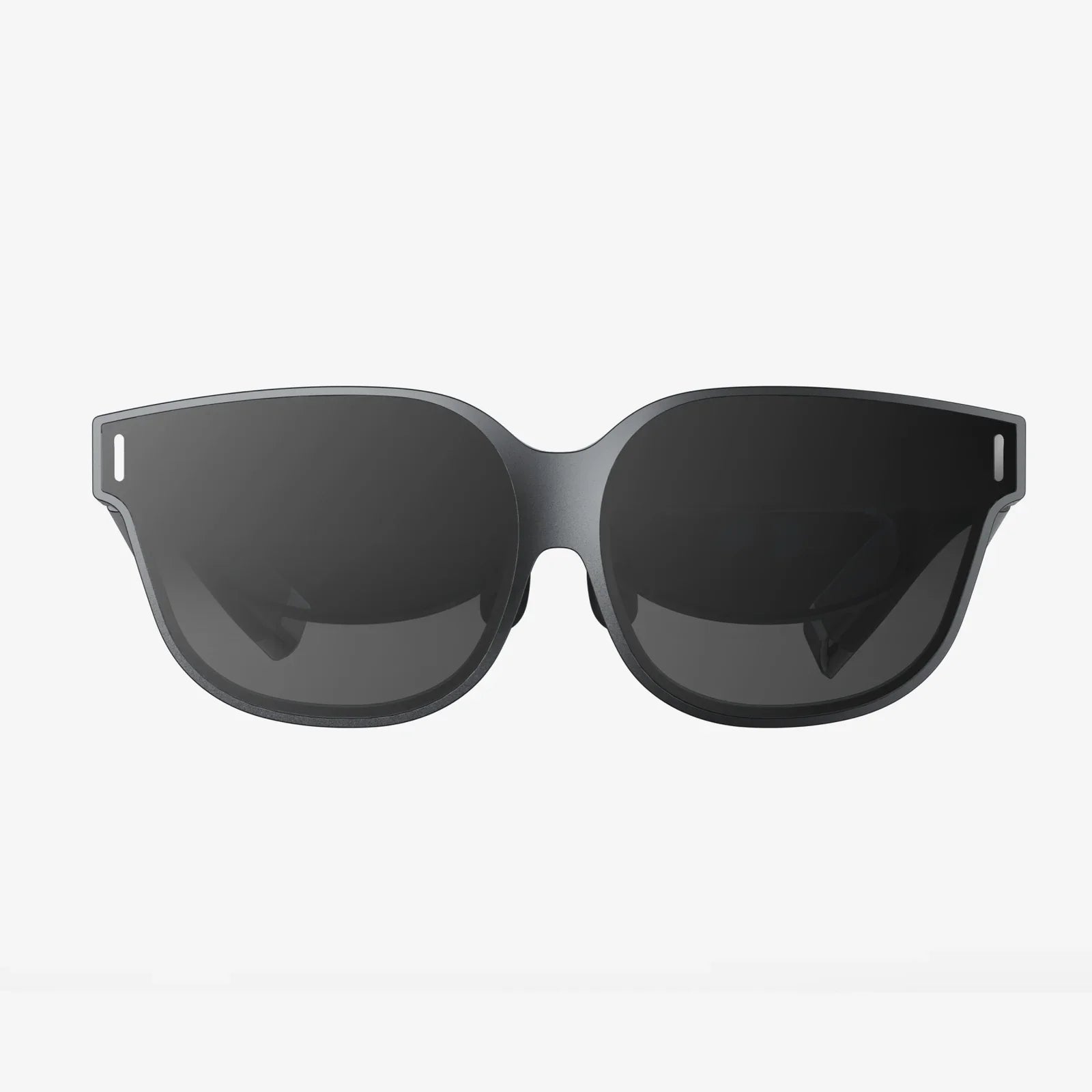
Imagine slipping on a headset and instantly being transported to a front-row concert, a distant planet, or the depths of the ocean—all powered by the device already in your pocket. The world of mobile virtual reality is an accessible gateway to breathtaking experiences, but the magic hinges on one critical process: a flawless setup. A poorly configured phone can lead to a jarring, nauseating experience that shatters the illusion, while a properly optimized one creates a seamless portal to other worlds. This definitive guide will walk you through every single step, from the initial compatibility check to advanced performance tweaks, ensuring your journey into VR begins with confidence and ends with absolute immersion. Let's transform your smartphone into the ultimate reality-bending machine.
The Foundational Pillars: Understanding Compatibility and Requirements
Before you download a single app or adjust a single setting, you must answer the most important question: Is my phone even capable of delivering a quality VR experience? Not all smartphones are created equal for this demanding task. The setup process is built upon three non-negotiable pillars: hardware, software, and the headset itself.
Hardware: The Engine of Immersion
The internal components of your phone are the workhorses of VR. They render two high-resolution screens at a very high frame rate, process head-tracking data, and run complex applications. Key specifications to consider:
- Processor (CPU/GPU): This is the heart of the operation. A powerful, modern processor is essential. High-end chipsets are designed to handle the intense graphical workloads of VR without overheating or stuttering. Older or budget-oriented processors may struggle, leading to lag (a delay between your movement and the visual update), which is a primary cause of motion sickness.
- Display: You will be viewing the screen through magnifying lenses mere centimeters from your eyes. Therefore, a high-resolution display (ideally Full HD or, even better, Quad HD or higher) is critical to minimize the "screen door effect" (seeing the gaps between pixels). The screen must also have a high refresh rate (90Hz or higher is ideal, though 60Hz is standard for many mobile headsets) for smooth motion.
- Sensors: The magic of VR is its ability to track your head movements. This is accomplished through a combination of a gyroscope, an accelerometer, and a magnetometer. Virtually all modern smartphones have these, but their quality and calibration vary. Premium phones typically have more precise and responsive sensors.
- Battery Life: VR is a power-intensive activity. Expect your battery to drain significantly faster than during normal use. A phone with a robust battery is recommended, and you should plan to have it fully charged before a long session or keep it plugged in.
Software: The Operating System Bridge
Your phone's operating system must be a recent version to ensure compatibility with the latest VR services and security protocols. For Android phones, this typically means a version no older than two major releases back. iPhones have a different VR ecosystem, often requiring specific app-based approaches rather than a unified platform. Furthermore, the phone must be free of malware and unnecessary background processes that could steal precious processing power.
The Headset: Your Window to Another World
The headset itself is more than just a plastic shell. It houses the lenses that focus your eyes on the phone's screen and often includes additional components like a proximity sensor (to pause the experience when you remove the headset) and a adjustable head strap for comfort. Ensure your chosen headset is explicitly compatible with your phone's screen size. A headset designed for a smaller phone will not work properly with a larger one, and vice versa.
The Step-by-Step Setup Procedure
With the prerequisites understood, it's time to dive into the actual setup process. Follow these steps in order for a smooth and successful configuration.
Step 1: The Pre-Flight Checklist
Before your phone ever touches the headset, prepare the digital environment.
- Check for OS Updates: Go to your phone's Settings app and navigate to System > Software Update (or the equivalent on your device). Download and install any available updates. A current OS ensures maximum stability and compatibility.
- Free Up Storage Space: VR apps and especially VR video content can be enormous, easily consuming several gigabytes each. Use your storage manager to delete unused apps, clear cached data, and offload photos and videos to the cloud or a computer.
- Close Background Applications: Swipe away all recently used apps. On Android, you can go to Settings > Battery > Battery Usage to see if any apps are consuming resources in the background. On iOS, ensure apps are fully closed from the app switcher. This dedicates 100% of your phone's power to the VR experience.
- Enable Bluetooth: Many VR experiences support or require a Bluetooth controller for input. Turn on Bluetooth in your quick settings menu so it's ready to pair when needed.
Step 2: Installing the VR Ecosystem
Mobile VR doesn't run on a single app; it runs on a platform. You need to install the core software services that power most VR applications. The most common platform requires you to download two key components from your phone's official app store:
- The Core VR Services App: This app acts as the backbone, providing the necessary libraries and APIs for VR applications to run. It often includes basic system utilities.
- The Companion App Launcher: This is your new home. This app acts as a portal, housing a store for downloading VR games and experiences, a library of your installed content, and system settings specifically for VR. Search your app store for terms like "VR" and the name of your headset to find the correct, official apps.
Install both of these apps before proceeding. Open the launcher app once to allow it to complete any first-time setup and grant it the necessary permissions it requests.
Step 3: The Physical Marriage of Phone and Headset
This is a physical step, but it must be done with care to avoid damaging your device.
- Clean Your Screen: Use a microfiber cloth to gently wipe away all fingerprints, dust, and smudges. Any debris on the screen will be magnified and highly visible in the headset.
- Identify the Tray: Locate the phone tray or holder on your headset. It will typically have a spring-loaded door or a removable faceplate.
- Insert the Phone: Gently slide your phone into the tray, ensuring the screen is facing the lenses. This may seem obvious, but it's a common mistake in the excitement of the moment. Center the phone as perfectly as possible within the tray.
- Secure the Phone: Close the door or latch mechanism. It should hold the phone snugly without putting undue pressure on the buttons or ports. The phone should not be able to shift or wobble.
- Connect Headphones (Optional but Recommended): Plug a pair of wired headphones into your phone's audio jack or connect wireless Bluetooth earbuds. High-quality, immersive spatial audio is half of the VR experience and dramatically increases presence.
Step 4: Calibration and Fine-Tuning
The hardware is in place, but the software needs to be fine-tuned for your eyes and environment.
- Adjust the Head Straps: Put the headset on and adjust the side straps and top strap so it feels secure and balanced on your head. It should be comfortable, not so tight that it causes pressure points.
- Set the Interpupillary Distance (IPD): This is arguably the most important adjustment for visual clarity and comfort. IPD is the distance between the centers of your pupils. Many headsets have a dial or slider that physically moves the lenses closer together or further apart. Look through the lenses at a static image with text and adjust this dial until the image is sharp and clear across the entire view, with no blurriness or strain. If your headset lacks a physical adjustment, it may offer a software-based IPD calibration tool within its platform app.
- Calibrate the Sensors: The launcher app may have an option to calibrate the gyroscope or compass. This usually involves placing the phone on a flat surface or slowly rotating it in a figure-eight pattern. Follow the on-screen instructions precisely.
- Define Your Play Area: For standing or room-scale experiences, the app will often ask you to define a safe boundary. This is usually done by looking at a point on the floor and setting a perimeter. Always be aware of your real-world surroundings to avoid bumping into furniture or walls.
Optimizing for Peak Performance and Comfort
A basic working setup is good, but an optimized one is great. These pro-level tips will elevate your experience from functional to fantastic.
Maximizing Battery Life and Managing Heat
VR is a benchmark-level workload for your phone, and it will get warm. Excessive heat can trigger thermal throttling, where the phone deliberately slows its processor to cool down, resulting in laggy performance.
- Enable Airplane Mode: Once your content is downloaded and your Bluetooth controller is connected, switch on Airplane Mode. This disables power-hungry cellular radios and Wi-Fi, which are not needed during gameplay. This significantly reduces heat and extends battery life. You can typically re-enable just Bluetooth while leaving other radios off.
- Reduce Screen Brightness: Lower your phone's screen brightness to 50-70% before inserting it into the headset. In the dark environment of the headset, this is still more than bright enough and reduces both power consumption and heat generation.
- Remove the Case: Take your phone out of its protective case before placing it in the VR headset. The case traps heat and can prevent the phone from making a secure connection in the tray.
- Consider a Cooling Solution: For marathon sessions, a small USB fan blowing air across the back of the headset (and thus the phone) can work wonders to prevent thermal throttling.
Ensuring Long-Term Comfort
Physical comfort is key to enjoying longer VR sessions.
- Take Regular Breaks: Experts recommend a 10-15 minute break for every hour of VR use. This prevents eye strain, muscle fatigue, and disorientation. Listen to your body.
- Keep the Lenses Clean: Only use a dry, microfiber lens cloth to clean the headset's lenses. Never use harsh chemicals or abrasive materials, as they will permanently damage the delicate coatings.
- Manage Cables: If you are using wired headphones, route the cable behind you or tuck it into the head strap to avoid tangling and pulling.
Troubleshooting Common Hurdles
Even with a perfect setup, you might encounter issues. Here’s how to solve them.
-
Problem: The image is blurry or double.
Solution: Re-adjust your IPD setting. Ensure your phone is perfectly centered in the headset tray. Clean the phone screen and headset lenses thoroughly. -
Problem: The experience is laggy or stutters.
Solution: Close all background apps. Enable Airplane Mode (with Bluetooth back on). Ensure your phone is not overheating. Restart your phone. -
Problem: The headset doesn't detect when I put it on.
Solution: Check if your headset has a proximity sensor and ensure it's not blocked by your phone's placement. Check the sensor settings within the VR platform app. -
Problem: I feel motion sickness (cybersickness).
Solution: Start with stationary experiences before moving to ones with artificial locomotion. Use a fan blowing on you to provide a stationary real-world reference point. Take breaks immediately at the first sign of discomfort. Your "VR legs" will develop over time.
You've meticulously followed the steps, optimized your settings, and conquered any technical gremlins. Now, the real adventure begins. That plastic and glass contraption on your head is no longer just a holder for your phone; it's a starfighter's cockpit, a painter's studio, a virtual cinema, and a gateway to social spaces that defy geography. The initial wonder of looking around a virtual world with natural head movement is a feeling that never truly fades. With your phone perfectly configured, you are no longer a spectator—you are an active participant in the next evolution of digital experience. The only limit now is the content you can download. So go on, explore, create, and play. Your new reality awaits.
Share:
How to Use AR in Android: A Comprehensive Guide to Getting Started
Best VR Headset for iPhone SE: Your Ultimate Guide to Mobile Immersion