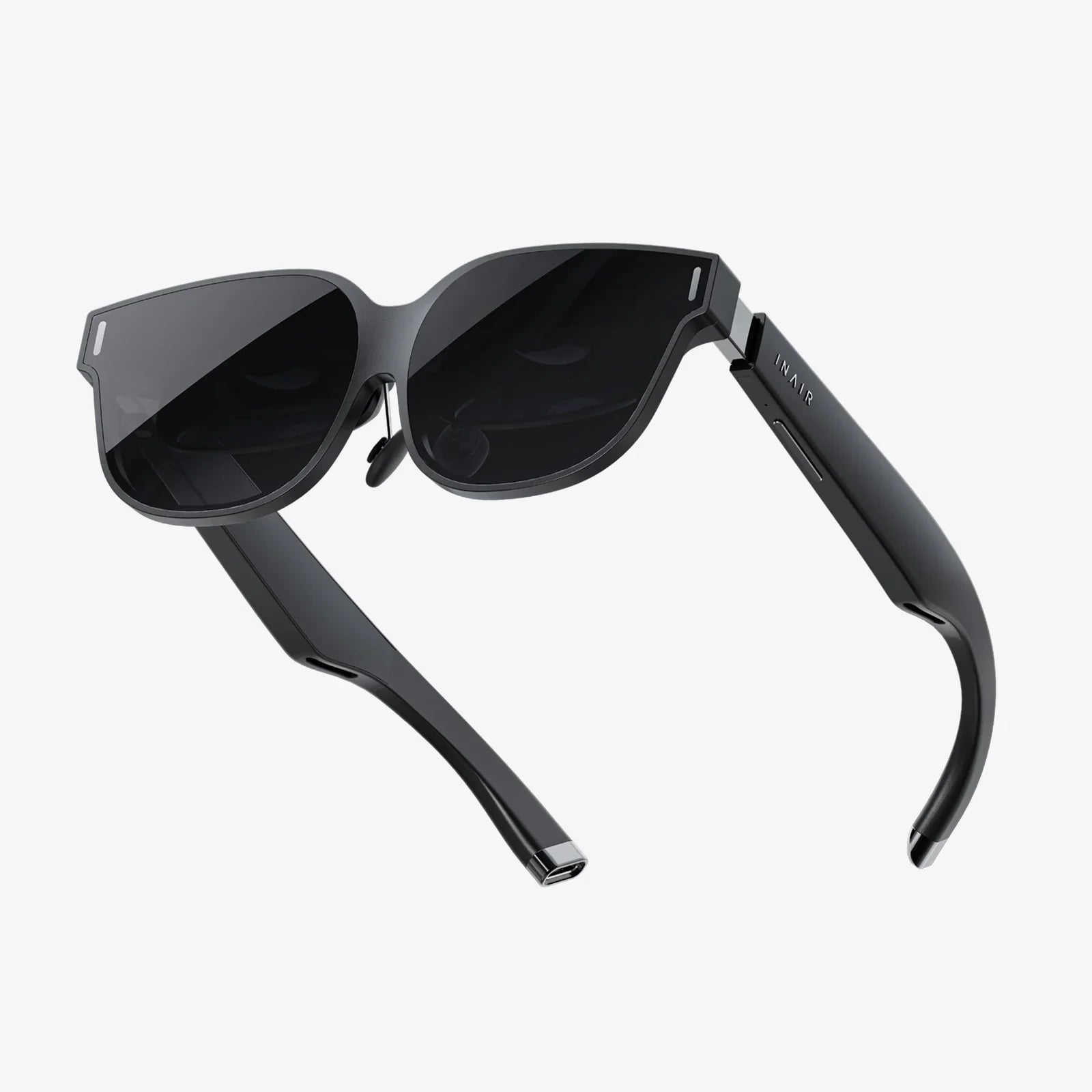
You've just unboxed that sleek, futuristic box containing your portal to other worlds, but now a hundred questions swirl in your mind. How do you even begin? The promise of breathtaking virtual landscapes, heart-pounding games, and awe-inspiring educational experiences is tantalizingly close, yet the path to getting there can feel shrouded in mystery. Fear not. This definitive guide is your trusted companion, designed to transform that initial apprehension into confident mastery. We will walk you through every single step, from the very first cable you touch to the advanced techniques that will make you a VR virtuoso. Prepare to unlock the full, staggering potential of your new device and step into experiences that will redefine your perception of reality itself.
Pre-Flight Checklist: Preparing for Your First Journey
Before you even think about strapping the headset to your face, a little preparation will ensure your maiden voyage is smooth and spectacular, not fraught with frustration.
Understanding Your Hardware Ecosystem
Not all headsets are created equal, and their setup processes differ significantly. The first step is to identify which category your device falls into:
-
Standalone Headsets: These are all-in-one units. They have their own internal computer, battery, and sensors. They are the easiest to set up, requiring little more than a Wi-Fi connection, controller pairing, and an account login.
-
PC-Connected Headsets: These are high-performance devices that tether to a powerful desktop or laptop computer via a cable. They offload the processing to the PC, enabling incredibly detailed and complex virtual environments. This setup requires a compatible computer with a sufficiently powerful graphics card, specific ports, and software installation.
-
Console-Based Headsets: Designed to work exclusively with a specific video game console. The setup involves connecting to the console and is generally streamlined for that ecosystem.
- Smartphone-Based Headsets: (While less common now) These platforms utilize a smartphone slotted into a head-mounted holder, using the phone's screen and sensors. Setup involves placing the phone into the headset and launching an app.
Consult your device's manual to confirm its type, as this will dictate your next steps.
Crafting the Perfect Physical Space
Virtual reality is a physical medium. Your real-world environment is just as important as the virtual one.
-
Clearing a Play Area: This is non-negotiable for safety. Move coffee tables, chairs, lamps, and other obstacles out of the way. The goal is to create a large, empty rectangle or circle where you can move your arms freely and take a step or two in any direction without hitting anything. Most systems will ask you to define this boundary, formally known as a Guardian or Chaperone system.
-
Lighting and Sensors: For headsets that use external sensors or cameras for tracking, lighting is critical. Avoid direct sunlight on the sensors or your play area, as it can interfere with the infrared tracking. Aim for consistent, diffuse ambient light—neither a pitch-black room nor a brightly sunlit one.
-
Floor Considerations: Remove small rugs or mats that could become a tripping hazard. Be aware of the floor surface; a clear, hard floor is ideal.
-
Mirrors and Reflective Surfaces: Large mirrors, glass tables, or shiny TV screens can confuse the inside-out tracking systems found on most modern headsets. Cover them or position your play area to avoid them if you experience tracking issues.
Gathering Your Digital Arsenal
You'll need to create an account on the platform store associated with your headset (e.g., Meta Quest Store, SteamVR, PlayStation Store). Do this on your computer or smartphone before you start. Ensure your computer (for PCVR) or console is updated with the latest drivers and system software. For standalone headsets, ensure it is fully charged before your first use.
The First Connection: A Step-by-Step Setup Walkthrough
Now, with your space prepared and accounts ready, it's time to bring your headset to life.
Step 1: Hardware Assembly and Connection
Follow the manufacturer's instructions to:
- Connect any external sensors to your PC and position them high in the corners of your play area, angled towards the center.
- For PCVR, connect the headset's cables to the appropriate ports on your computer. This often involves a combination of HDMI or DisplayPort for video and USB for data and power. Some modern headsets use a single USB-C cable that handles both.
- Plug the headset and controllers into a power source to charge fully if they aren't already.
Step 2: Software Installation and Pairing
- On your PC or smartphone, download and install the required companion app or runtime software (like Oculus PC app or SteamVR).
- Put on the headset. You will likely be guided through a first-time setup wizard directly in the headset's display.
- Pair the motion controllers. This usually involves holding a specific button to put them into pairing mode and then confirming the connection through the software interface.
Step 3: Defining Your Play Space
This is the most crucial step for safety. The system will guide you through setting up your Guardian boundary.
-
For Stationary/Seated Experiences: You will define a small, stationary oval in the center of your play area. This mode is for experiences where you remain seated or standing in one spot.
-
For Room-Scale Experiences: You will be asked to point your controller at the ground and trace the entire perimeter of your cleared play area. The system will remember this boundary. A translucent grid wall will appear in your virtual view whenever you get too close to the edge, preventing you from smacking into your real-world walls.
Step 4: Fine-Tuning for Comfort and Clarity
-
Interpupillary Distance (IPD) Adjustment: This is the physical distance between the lenses. If your headset allows it (usually via a slider on the bottom), adjust it so that the two circular images merge into one perfectly clear picture. Incorrect IPD can cause eye strain, headaches, and a blurry image.
-
Headset Strapping: Don't just crank the side straps tight. The top strap should bear most of the weight. Adjust it so the back of the strap cradles the base of your skull. Then, tighten the side straps just enough to prevent slippage without uncomfortable pressure on your face.
-
Finding the "Sweet Spot": Micro-adjust the angle and position of the headset on your face. The goal is to find the position where the text on the screen is at its absolute sharpest. This often involves sliding the headset slightly up or down on your cheeks.
Navigating the Virtual Frontier: Interfaces and Controls
You're in! The home environment loads around you. This is your hub, your operating system in VR.
Mastering the Controllers
VR controllers are not like traditional gamepads. They are designed to be an extension of your hands.
-
Pointer Ray: A laser beam typically emanates from your controller, allowing you to point at and select menus and objects from a distance.
- Grip Button: Usually located on the side of the controller, under your middle or ring fingers. This is your "virtual hand" button. Squeeze it to pick up objects, hold onto ledges, or grab tools.
- Trigger: Located under your index finger. This is often used for precise actions like firing a weapon, selecting, or pulling a specific trigger in the virtual world.
- Thumbstick/Touchpad and Face Buttons: Used for movement (locomotion) and secondary actions, much like a traditional controller.
Understanding Locomotion Techniques
Moving in VR is a learned skill and different applications use different methods.
-
Teleportation: The most common and comfortable method for new users. You point to where you want to go and instantly blink there. It eliminates the potential for motion sickness.
-
Smooth Locomotion: Using the thumbstick to move forward, back, and strafe, just like in a traditional first-person game. This can induce vertigo or nausea in some users (known as VR sickness) until they gain their "VR legs." It's best to start with teleportation and experiment with smooth locomotion in short sessions.
-
Armswing: A less common but intuitive method where you swing your arms as if walking to move forward.
Advanced Operations: Elevating Your Experience
Once you're comfortable with the basics, these pro-tips will transform your experience from good to extraordinary.
Managing VR Sickness
If you feel queasy, dizzy, or sweaty, stop immediately. Do not try to "power through" VR sickness; it will only make it worse and create a negative association. Instead:
- Start with stationary experiences (like puzzle games or creative apps) before moving to ones that require walking.
- Use a fan blowing gently on you. This provides a constant spatial orientation cue for your brain.
- Take frequent breaks. Start with 15-minute sessions and gradually increase your time.
- Ginger candies or gum can help settle your stomach.
- Over time, most users develop a tolerance.
Optimizing for Social and Multiplayer Use
VR is profoundly social. When joining multiplayer games or social hubs:
- Be mindful of your personal space and the personal space of others.
- Use the mute button if there is background noise in your environment.
- Remember that your avatar often reflects your real movements—a wave, a thumbs-up, or a nod can be powerfully communicative.
Accessibility and Shared Use
If others will use your headset, utilize profiles if available to save individual settings and game progress. Use a microfiber cloth and approved lens cleaning solutions to wipe down the interface and lenses between users for hygiene. Adjust the headset and IPD for each new user to ensure their comfort and visual clarity.
Maintenance and Care
Store your headset in its original case or a dark, dry place to avoid lens damage from sunlight. Sunlight focused through the lenses can act like a magnifying glass and permanently burn the internal screens. Keep controllers in a safe spot where they won't be stepped on or have their tracking rings damaged. Regularly check for and install software and firmware updates, which often bring new features, performance improvements, and bug fixes.
Beyond Gaming: The Expansive Universe of VR Applications
While gaming is a flagship use, your headset is a gateway to so much more.
-
Cinematic Experiences: Watch movies on a virtual silver screen the size of a house or in a private theater. 360-degree videos place you in the center of the action, from the depths of the ocean to the surface of Mars.
-
Fitness and Wellness: A plethora of apps turn workouts into fun, immersive games, from rhythm-based boxing to yoga and meditation in serene virtual environments.
-
Social Connection: Platforms exist as virtual meeting spaces where you can hang out with friends, watch movies together, or attend live events and concerts as if you were there.
-
Productivity and Creativity: Create 3D sculptures, paint in a 3D space, design architecture, or use virtual desktop applications to have multiple massive screens floating in your home office.
-
Education and Training: Take virtual field trips to historical sites, explore the human body in anatomy apps, or practice real-world skills in a safe, simulated environment.
The initial awe of putting on a headset and being transported never truly fades; it simply evolves. You've moved from wondering how to use a 3D virtual reality headset to understanding it as a new limb for your imagination, a tool for connection, and a window to limitless possibilities. The virtual frontier is vast, constantly expanding with new worlds to explore, skills to learn, and people to meet. Your journey has just begun. That headset is no longer a complex piece of technology—it's your ticket. Now, go on. What are you waiting for? Your next adventure is only a strap away.