


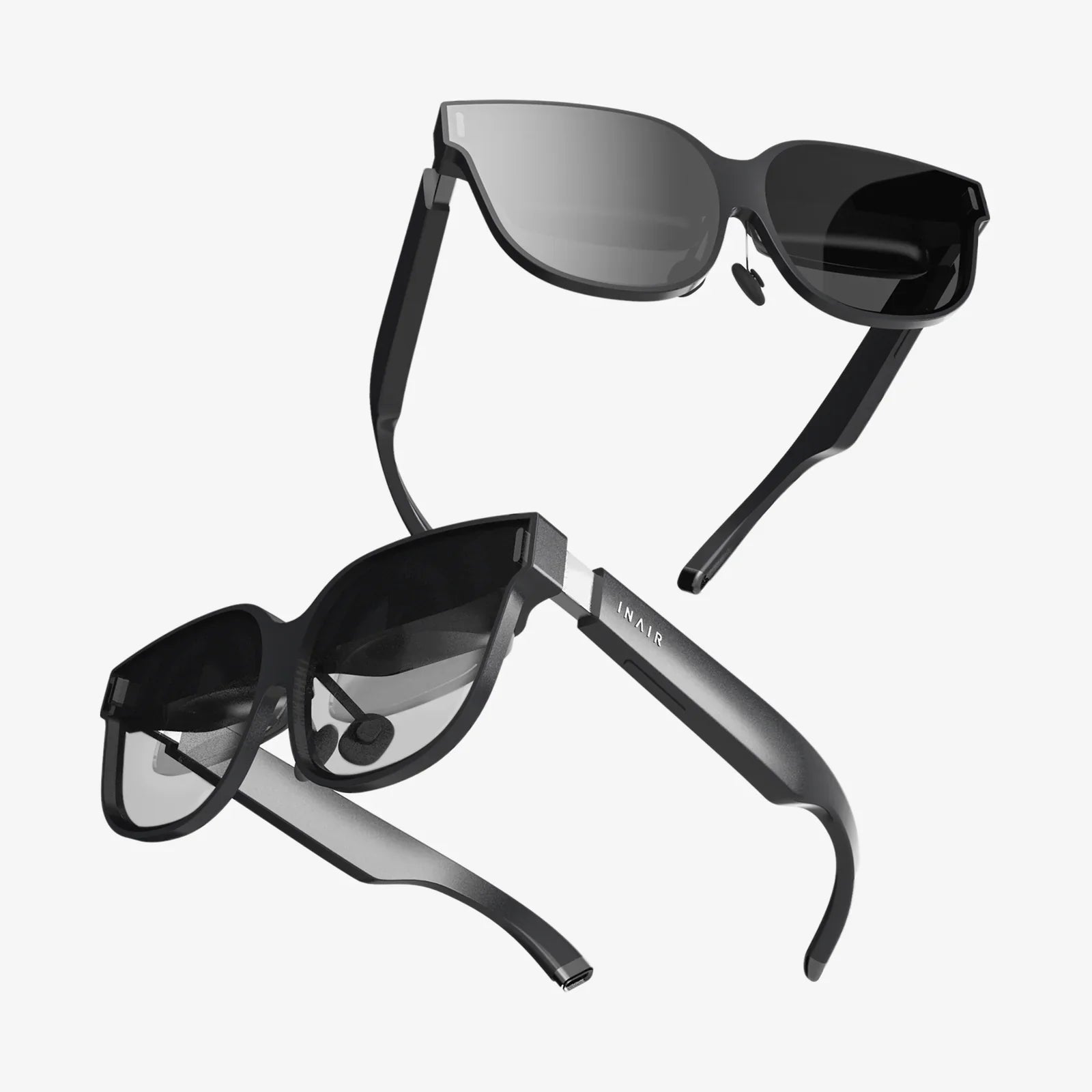
Imagine sitting in the front row of a concert happening halfway across the world, feeling the palpable energy of the crowd as the bass vibrates through you. Picture yourself standing on the edge of a virtual cliff, your heart skipping a beat as you peer into the vast digital canyon below. This is the unparalleled magic of watching 3D videos in Virtual Reality—a transformative experience that transcends traditional media consumption. It’s not just watching a video; it’s stepping inside it. The journey from unboxing your headset to achieving this level of immersion, however, can seem daunting. Where do you find this content? What are the right settings? How do you avoid the common pitfalls that lead to a subpar experience? This definitive guide is designed to answer all those questions and more, providing you with the knowledge to unlock the full, breathtaking potential of your device and become a true connoisseur of stereoscopic storytelling. Prepare to leave the flat screen behind and enter a new dimension of entertainment.
The Foundational Principles: Understanding Stereoscopic 3D
Before diving into the 'how,' it's crucial to grasp the 'why.' Understanding how 3D vision works in a headset will make every subsequent step clearer and help you troubleshoot any issues.
How Your Brain Perceives Depth
Human vision is stereoscopic. Our two eyes are spaced slightly apart, each capturing a unique perspective of the world. Your brain seamlessly merg these two slightly offset images (a left-eye view and a right-eye view) into a single picture with depth, dimension, and volume. Virtual Reality headsets replicate this biological phenomenon perfectly. Each lens covers one eye, and the screen (or screens) inside displays two distinct images—one for each eye. This trick of the mind is the entire foundation of depth perception in a simulated environment.
3D Video Formats Decoded
Not all 3D videos are created equal. They come encoded in different formats, and knowing which one you're dealing with is key to a successful viewing experience.
Side-by-Side (SBS)
This is one of the most common formats. The left and right eye views are squashed horizontally and placed next to each other within a single video frame. A player or the headset itself then stretches each half to fill the entire view for each eye. It can be Full Side-by-Side (where the resolution is, for example, 3840x1080 for a 4K source) or Half Side-by-Side (1920x1080).
Over-Under (Top-Bottom)
Similar to SBS, but the two views are stacked vertically instead of horizontally. Again, this can be full or half resolution. The player will correctly orient and separate these views.
Frame Packing
A higher-quality format often used for 3D Blu-ray releases. The left and right eye frames are packed together into a single video frame sequentially, preserving the full vertical resolution for each eye. This format requires more bandwidth but offers superior image quality.
180° and 360° Video
This refers to the field of view, not the 3D format itself, though the two are often conflated. A 180° 3D video is typically shot with two fish-eye lenses side-by-side, creating a hemispherical immersive view that is also stereoscopic. 360° 3D video uses two back-to-back 180° rigs to capture a full sphere. These are almost always delivered in an SBS or Over-Under format wrapped within a spherical projection.
Your Hardware Setup: Creating the Perfect Viewing Environment
A flawless 3D experience starts with a properly configured hardware ecosystem.
Headsets and Their Capabilities
Most modern headsets are inherently designed for 3D content. The core differentiators lie in display resolution, lens quality, and processing power. Standalone devices have all the necessary computing hardware built-in, offering a wireless, convenient experience. PC-connected devices often deliver higher fidelity visuals and more stable performance by leveraging a powerful external computer. The setup process will differ, but the core principles of 3D playback remain consistent across platforms.
The Critical Role of Headset Fit and IPD
This is arguably the most overlooked yet vital step. An improperly fitted headset will lead to a blurry image, eye strain, and a complete breakdown of the 3D effect.
- Secure and Balanced Fit: The headset should feel snug but not painful. It should not slide down your face. The weight should be distributed comfortably across your cheeks and forehead. A loose headset means the lenses are not aligned correctly with your pupils.
- Interpupillary Distance (IPD) Adjustment: This is the physical or software-based adjustment that changes the distance between the lenses to match the distance between your pupils. An incorrect IPD setting will cause eye strain, headaches, and a blurry image because the stereoscopic images are not hitting your retinas correctly. Always take the time to find your ideal IPD setting using your headset's calibration tool.
The Software Ecosystem: Players, Apps, and Platforms
Your headset's operating system is a gateway to a universe of content and specialized applications designed for playback.
Dedicated VR Video Platforms
Several major platforms exist as central hubs for VR video content. These are often available as downloadable applications directly through your headset's official store. They provide a curated experience, hosting thousands of 3D videos, both professional and user-generated. They feature intuitive interfaces built for navigating content while wearing a headset, with categories specifically for 180° and 360° 3D videos. These are the easiest starting points for newcomers.
The Power of Standalone Video Players
For the true enthusiast who wants to play their own downloaded video files, a robust video player application is non-negotiable. These players are the workhorses of custom 3D playback. Their primary function is to recognize the format of a video file (e.g., SBS, OU) and apply the correct rendering method to display it stereoscopically. Look for players that offer a high degree of customization, including:
- Manual format selection (SBS, Over-Under, etc.)
- Zoom and height adjustment
- Codec support for high-bitrate files
- Support for spatial audio formats
Web Browsers and Streaming
You can also access 3D content directly through your headset's built-in web browser. Major video-sharing websites have dedicated VR channels with 3D content. The experience can be more variable than using a dedicated app, as it relies on the browser correctly interpreting the video stream and the website's player having VR mode functionality. For streaming, a strong, stable Wi-Fi connection (preferably Wi-Fi 6) is essential to avoid buffering and resolution drops, which are far more jarring in an immersive environment.
A Step-by-Step Guide to Your First 3D Video
Let's walk through the process from start to finish.
Step 1: Sourcing Content
You have two main avenues: streaming and local files.
Streaming from an App
- Put on your headset and navigate to the app store.
- Download a reputable video platform application.
- Launch the app and browse or search its library. Use filters like "180° 3D" or "360° 3D."
- Select a video and press play. The app will automatically handle all the formatting.
Playing a Local File
- Acquire a 3D video file (ensuring it is from a legitimate source).
- Transfer the file to your headset's internal storage or a connected network drive (DLNA/NAS).
- Launch your preferred standalone video player app from your headset's library.
- Navigate to the file location and select your video.
- The player might auto-detect the format. If the 3D looks wrong (double vision, misaligned), open the player's settings menu and manually select the correct format (e.g., "SBS").
Step 2: Configuring the Player
Once the video is playing, don't be afraid to tweak the settings. Use the player's menu to adjust:
- Format: Switch between SBS, Over-Under, etc., until the image snaps into perfect 3D.
- Zoom: If the video feels too close or has a "giant head" effect, slightly reduce the zoom.
- Screen Distance/Size: Simulate sitting closer or further from a giant virtual screen.
Step 3: Enjoying the Experience
Find a comfortable seated position in a clear space. Use over-ear headphones for immersive spatial audio. Remember, you can look around! In 180°/360° videos, the director may place important action all around you. The beauty of VR is your agency within the narrative space.
Troubleshooting Common Issues
Even with perfect setup, you might encounter problems. Here's how to solve them.
The Dreaded Double Vision
If you see two overlapping images, the player is not correctly configured for the video's format. This is the most common issue. The fix is simple: open the player's settings menu and cycle through the different 3D format options (SBS, Over-Under) until the two images converge into a stable, deep picture.
Blurriness and Low Resolution
If the overall image is soft or pixelated, the source file might be low resolution. 3D requires high bitrates. A "4K" 180° 3D video is actually spreading those pixels over a vast area. For a crisp image, seek out the highest resolution sources possible (e.g., 5.7K or 8K for 180° video). Also, double-check your headset's fit and IPD adjustment, as a misalignment is often mistaken for a low-res video.
Motion Discomfort
If a video involves a lot of camera movement (flying, rolling, quick cuts), it can induce nausea in some viewers. This is known as simulator sickness. If you feel discomfort, stop immediately. Don't try to "power through" it. Start with more static experiences like concerts or seated experiences to build your "VR legs" gradually. Using a fan blowing on you can also help provide a stable physical orientation cue.
Beyond the Basics: Advanced Techniques and the Future
For those who have mastered the fundamentals, a deeper world awaits.
Spatial Audio: The Other Half of Immersion
True immersion is audiovisual. Many high-end 3D videos are encoded with spatial audio or ambisonic sound. This means sounds are mapped to specific points in the 3D space. A character speaking behind you will sound like they are behind you. To experience this, you must use headphones. Standard speaker output or non-spatialized audio will flatten the experience. Check your player's audio settings to ensure spatial audio is enabled.
Social Viewing and Shared Experiences
The future of media is social. Many platforms now allow you to watch 3D videos in a shared virtual space with friends. You see each other's avatars, can sit on virtual couches together, and react in real-time via voice chat or emotes. This transforms a solitary activity into a shared event, making you feel like you're in a private theater with your friends, no matter where they are in the physical world.
What's on the Horizon: Volumetric Video
The next evolutionary step is volumetric video. Instead of a flat equirectangular video wrapped around a sphere, this technology captures a true 3D volume of space, allowing you to walk around inside the captured scene and view it from any angle, just as you would a real object. While still in its early stages and requiring immense data, it promises to shatter the remaining barriers between recorded video and tangible reality.
The world of 3D video in VR is a vast and rapidly evolving landscape, a testament to human ingenuity in the pursuit of deeper connection and more powerful stories. It transforms you from a passive observer into an active participant within the frame. The initial setup—adjusting your headset, configuring a player, finding that perfect high-resolution source—is a small price to pay for the reward that awaits. Once you’ve felt the thrill of a dinosaur walking past you in stereoscopic 3D or the intimacy of a performance filmed for VR, traditional screens will feel like a relic of the past. This isn’t just a new way to watch; it’s a new way to experience. Your library of incredible immersive experiences is waiting. Your headset is the key. All you have to do is take that first step through the lens.
Share:
Virtual Reality Meaning in Computer: A Deep Dive into the Digital Frontier
Virtual Artificial Intelligence: The Invisible Engine Reshaping Our Digital and Physical Worlds