


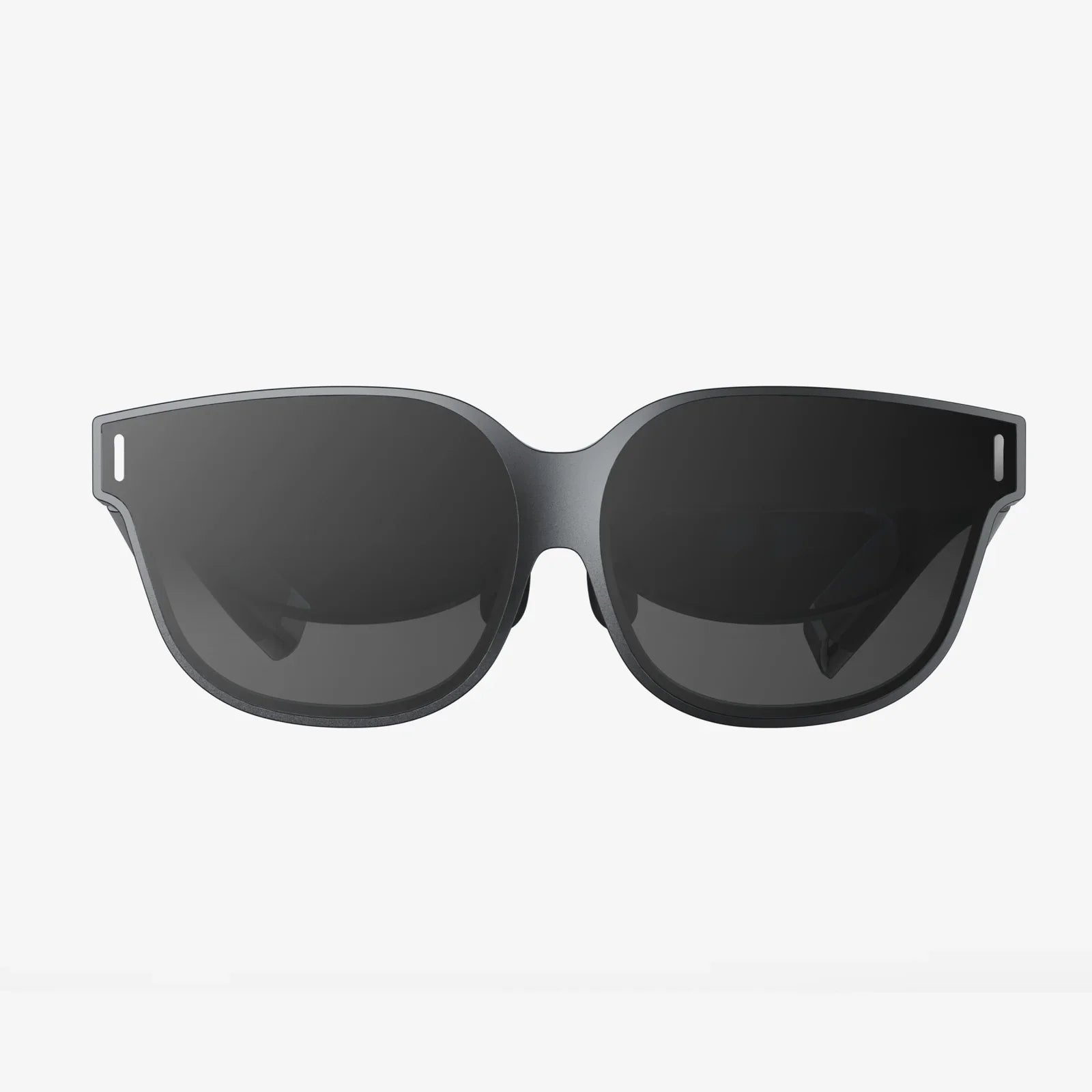
You've just unboxed the future—a sleek pair of VR goggles promising digital worlds beyond your wildest imagination. The anticipation is electric, but the path from a box of components to a fully immersive virtual reality can seem daunting. Fear not. This definitive guide is designed to transform that initial apprehension into confident expertise, walking you through every single step of setting up your VR goggles for a flawless and breathtaking experience from the very first moment you put them on.
The Pre-Flight Checklist: Before You Even Open the Box
A successful VR launch begins long before you connect a single cable. Proper preparation is the cornerstone of a smooth setup process and a stellar user experience.
Space: Your Virtual Playground
The first and most crucial consideration is your physical environment. Not all VR systems require the same amount of space, but planning is key.
- Room-Scale vs. Stationary: Determine if your system supports room-scale experiences, which allow you to walk around within a virtual space, or if it's primarily a stationary seated/standing experience. Room-scale requires a cleared, contiguous area of at least 6.5 x 5 feet (2m x 1.5m), free of obstructions like furniture, tripping hazards, or low-hanging light fixtures.
- The Safety Zone: This area is your designated "play space." Ensure the floor is clear. Rugs with curled edges are tripping hazards. Consider placing a small, tactile mat in the center of your play space; its feel under your feet will provide a constant physical reminder of your real-world location, helping you avoid bumping into walls.
- Lighting and Reflections: Many VR systems use external sensors or cameras that track the position of your headset and controllers. These can be confused by bright, direct sunlight or large reflective surfaces like mirrors, glass-covered pictures, or glossy TV screens. A controlled, evenly lit environment is ideal.
System Requirements: The Digital Engine
If your VR headset is powered by an external computer, verifying its capabilities is non-negotiable. This is the most common point of failure for first-time users.
- Check the Specs: Consult the manufacturer's minimum and recommended specifications. Pay close attention to the Graphics Processing Unit (GPU), Central Processing Unit (CPU), and number of available USB ports. Do not assume a "gaming laptop" or a years-old desktop meets the requirements.
- Update Everything: Before you begin the physical setup, ensure your computer's operating system is up to date. Download the latest drivers for your GPU from the chipmaker's website (NVIDIA or AMD). An outdated driver is a primary cause of performance stutters, crashes, and tracking issues.
Gathering Your Tools
Have a power strip nearby for all the required plugs. Ensure you have a stable internet connection, as the software installation and setup will require a significant download. Read the manual—a quick skim can save you hours of frustration.
Unboxing and Physical Assembly: Building Your Portal
Now, the fun begins. Carefully unbox all the components and lay them out on a clean, soft surface to prevent scratches. A typical VR system includes the headset itself, one or two motion controllers, external sensors or base stations (for some models), and a tangle of connecting cables.
Connecting the Dots: Cables and Sensors
For PC-powered systems, the connection process is critical.
- Sensor/Base Station Placement: If your system uses external tracking devices, their placement is paramount. They should be positioned high in the corners of your play space, angled downward towards the center of the room. They need a stable, vibration-free mount—tripods or wall mounts are ideal. Ensure they have a clear, unobstructed view of the entire area where you will be moving.
- PC Connections: Connect the sensors to your computer's USB ports. The headset itself will typically connect via a high-speed HDMI or DisplayPort cable (for video) and a dedicated USB cable (for data and power). Plug these into their respective ports on your PC. Avoid using extension cables initially, as they can sometimes cause signal degradation. If you must use them later, ensure they are high-quality, active cables.
- Standalone Systems: For all-in-one headsets, this step is beautifully simple: just ensure the device is fully charged before first use.
Controller Setup
Insert the required batteries into your motion controllers. They may power on automatically or require you to press a button. Keep them off until the software setup instructs you to pair them.
The Software Symphony: Installing and Configuring the Platform
The hardware is just the vessel; the software is the soul of your VR experience. You will need to install a dedicated VR platform application on your computer or smartphone.
Download and Install
Download the necessary software from the official source. Run the installer and follow the on-screen prompts. This process will likely include creating an account or logging in with an existing one.
The Guided Setup Wizard: This software is your best friend. It will walk you through the entire configuration process step-by-step. Do not skip any steps.
- Firmware Updates: The first thing the software will do is check for updates for the headset, controllers, and base stations. It is imperative to install all updates to access the latest features and bug fixes.
- Pairing Controllers: The software will guide you through pairing your motion controllers to the headset via Bluetooth. This usually involves holding down specific buttons to put them into pairing mode.
- Guardian/Chaperone System Setup: This is the most important software step for your safety. The system will ask you to define your play space. You do this by holding a controller and tracing the boundary of your cleared-out area. Once set, a virtual wall (usually a glowing grid) will appear in your headset whenever you get too close to the edge of your real-world space, preventing you from walking into a couch or a wall. Never disable this feature.
- Floor Calibration: You will be asked to place your controllers on the floor or to look down and manually adjust a virtual floor level to match your real one. An accurate floor setting is vital for a comfortable experience, as an incorrect setting can make you feel unnaturally tall or short.
Fitting the Headset: The Perfect Wear
A poorly fitted headset is uncomfortable, lets in light (breaking immersion), and can provide a blurry image. Taking the time to adjust it correctly is arguably the most impactful step for quality.
Strapping On
Most headsets use a three-point strap system: one strap goes over the crown of your head, and the two side straps cup the back of your skull. Loosen all straps, place the headset on your face, then pull the rear strap down so it cradles the base of your head. The headset should feel secure, not tight. The weight should be distributed across your cheeks and forehead, not borne by the bridge of your nose.
Finding the Sweet Spot: Lens and IPD Adjustment
This is the key to visual clarity.
- Sweet Spot: The lenses have a small central area where the image is perfectly clear. Gently move the headset up, down, left, and right on your face until the image is sharpest across the entire field of view.
- Interpupillary Distance (IPD): This is the distance between the centers of your pupils, measured in millimeters. Many headsets have a physical slider or software adjustment to move the lenses closer together or further apart to match your unique IPD. An incorrect IPD setting can cause eye strain, headaches, and a blurred image. Some software includes a guide to help you measure this accurately using the controllers.
Your First Steps in a New Reality
You're all set! The portal is open. But before you jump into an intense game, take some time to acclimate.
Start with the Tutorial
Every platform has a built-in tutorial or a recommended first experience. Complete it. This is not optional. It will teach you how to navigate menus, interact with objects, and use your controllers intuitively. It's also designed to be a gentle introduction for your brain and your "VR legs."
Managing VR Comfort
For some, movement in VR can initially cause discomfort or motion sickness. This is normal and often passes with repeated, short sessions.
- Start Slow: Begin with stationary experiences or games that use "teleportation" for movement instead of analog stick locomotion.
- Short Sessions: Play for 15-20 minutes at first, then take a break. Gradually increase your play time as you feel more comfortable.
- Stop at the First Sign: If you start to feel warm, sweaty, or queasy, stop immediately. Do not try to "power through" VR sickness—it will only make it worse and create a negative association. Return when you feel completely normal.
- Use a Fan: Having a gentle fan blowing air on you can help significantly with comfort and orientation.
Exploring the Virtual Landscape
Now, explore! Dive into the storefront and look for highly-rated "Experiences" or casual games to start. Share the moment with friends and family—seeing someone experience VR for the first time is almost as magical as experiencing it yourself.
Advanced Tweaks and Troubleshooting
Once you're comfortable, you can delve into finer adjustments to perfect your setup.
- Performance Settings: If your experience is stuttering, first ensure no other demanding applications are running on your PC. Then, within the VR software or game settings, you can adjust graphical fidelity (like supersampling, texture quality, and shadows) to improve performance.
- Tracking Issues: If tracking is jittery or controllers float away, check for reflective surfaces, ensure sensors are clean and firmly connected, and that their view of the play space is completely unobstructed.
- Audio: While most headsets have built-in audio, for the deepest immersion, consider using a good pair of over-ear headphones.
The box on your floor is now a gateway. You've meticulously calibrated your space, tuned the software, and perfected the fit of the headset. You stand at the center of your virtual playground, controllers in hand, the boundary grid shimmering faintly at the edges of your perception. That initial daunting task has melted away, replaced by the sheer potential of infinite worlds waiting for your first step. The only thing left to do is press play and discover what you've been missing—a new layer of reality, all yours to explore.
Share:
Wearable Technology Security Issues: The Vulnerable Frontier on Your Wrist
What Is The Meaning of Human Computer Interaction - The Bridge Between Man and Machine