


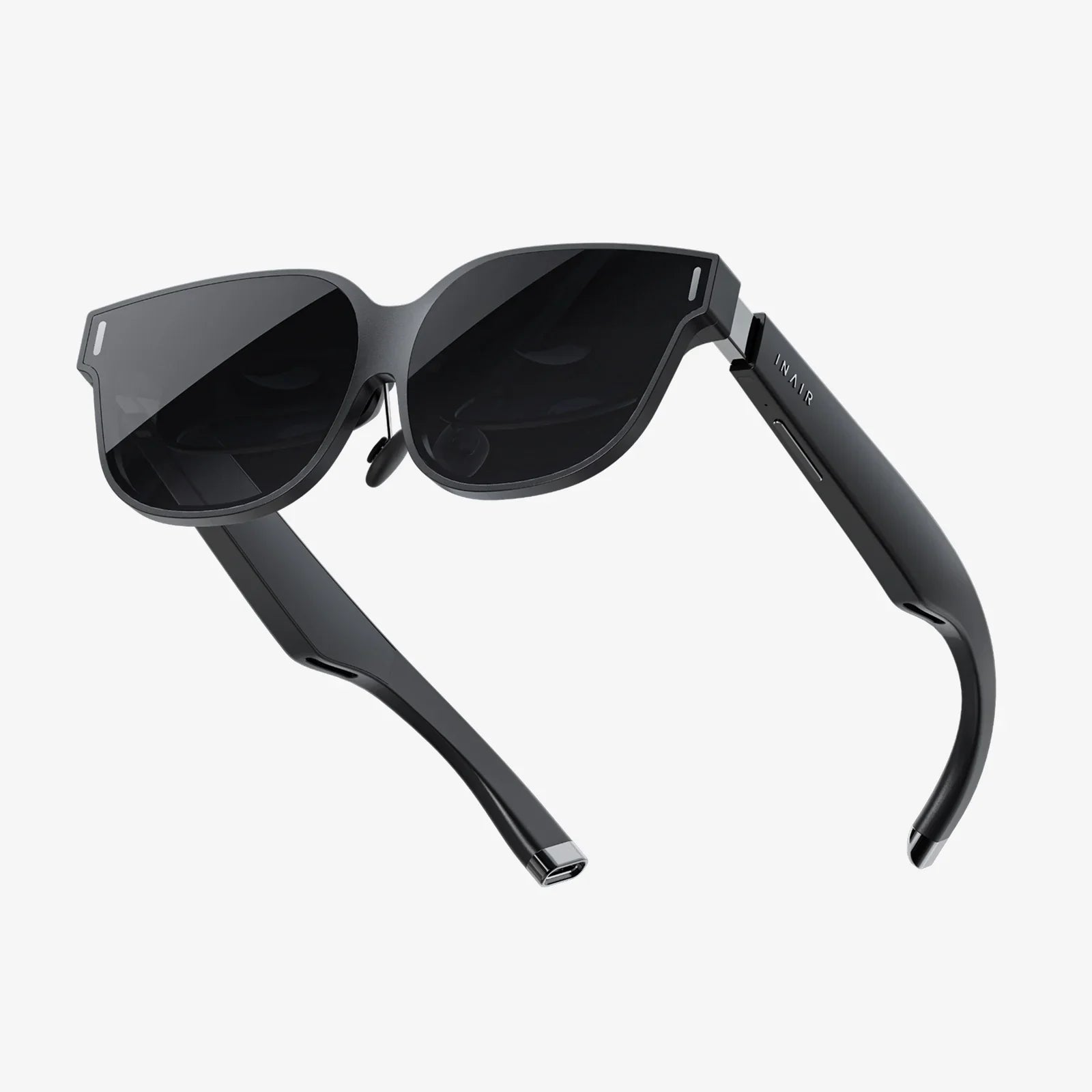
If you have ever wished for more screen space without buying extra hardware, a stable virtual monitor setup might be the hidden upgrade you have been missing. With the right configuration, you can turn a single display into a flexible, multi-monitor powerhouse that feels smooth, reliable, and tailored to your workflow. The difference between a clumsy, laggy virtual screen and a truly stable virtual monitor can decide whether you glide through tasks or get stuck fighting your tools.
As more people work remotely, create content, or manage complex digital workflows, virtual monitors are becoming a serious alternative to traditional multi-display setups. But stability is everything. Flickering windows, input lag, and random disconnects can destroy focus and productivity. This guide walks you through how a stable virtual monitor works, why it matters, and how to design a setup that feels as solid as physical screens, without the cost or clutter.
What Is a Stable Virtual Monitor?
A stable virtual monitor is a software-defined display environment that behaves like a physical monitor but runs entirely through your operating system and graphics stack. Instead of plugging in another monitor, you create additional virtual screens that your computer treats as real displays, complete with their own resolutions, orientations, and workspaces.
The key word is stable. A stable virtual monitor is not just a pop-up window or a mirrored screen. It is a persistent, smooth, and predictable display surface that:
- Maintains consistent resolution and layout over time
- Handles window movement without stutter or tearing
- Recovers gracefully after sleep, locking, or system restarts
- Works reliably across your main apps and workflows
Where traditional multi-monitor setups rely on cables and physical panels, a stable virtual monitor relies on software, GPU drivers, and sometimes networked connections. That makes configuration and optimization crucial if you want it to feel dependable enough for serious work.
Why Use a Stable Virtual Monitor Instead of Physical Screens?
Physical monitors are great, but they are not always practical. A stable virtual monitor offers several advantages that are especially valuable for modern, mobile, and flexible workflows.
1. Reduced Hardware and Cable Clutter
Extra monitors require desk space, power outlets, mounting hardware, and cables. If you work from a small apartment, share a workspace, or move between locations, carrying and managing multiple screens is not ideal. A stable virtual monitor gives you extra workspace without adding physical clutter.
2. Flexible, On-Demand Layouts
With a stable virtual monitor, you can dynamically reconfigure your workspace. For example:
- Create a wide display for timelines and spreadsheets in the morning
- Switch to a vertical layout for coding or document editing in the afternoon
- Spin up extra virtual screens for temporary projects, then remove them
This flexibility is difficult to replicate with fixed physical panels.
3. Better Mobility and Remote Work
If you work from a laptop on the go, a stable virtual monitor can simulate a multi-display workstation even when you are physically limited to one panel. Combined with remote desktop or cloud tools, you can keep a consistent multi-monitor feel across locations without carrying extra hardware.
4. Cost Efficiency Over Time
High-quality monitors are expensive, especially if you need several. While a stable virtual monitor depends on software and adequate system resources, it can often deliver the feel of multiple screens using the hardware you already own. This is particularly appealing for freelancers, students, and small teams.
5. Specialized Use Cases
A stable virtual monitor can also serve specialized roles, such as:
- Simulating multi-monitor setups for app testing and development
- Running dedicated dashboards for analytics or system monitoring
- Creating separate workspaces for streaming overlays and chat windows
- Providing additional views in creative tools without rearranging your main display
Core Components of a Stable Virtual Monitor Setup
To build a stable virtual monitor environment, several layers need to work together. Understanding these components helps you troubleshoot issues and optimize performance.
Operating System Support
Your operating system is the foundation. It must support multiple displays, window management, and virtual display drivers. Modern desktop operating systems generally offer:
- Display configuration panels for layout, scaling, and resolution
- Window snapping, tiling, or workspaces
- Support for third-party tools that create virtual displays
The more robust your OS is at handling multi-monitor workflows, the easier it is to achieve a stable virtual monitor configuration.
Graphics Hardware and Drivers
Your GPU (or integrated graphics) and its drivers are responsible for rendering and managing virtual displays. For a stable virtual monitor, you want:
- Up-to-date graphics drivers
- Sufficient GPU memory to handle multiple high-resolution surfaces
- Stable support for hardware acceleration across your main applications
Outdated or unstable drivers are one of the most common causes of flickering, stuttering, or disappearing virtual monitors.
Virtual Display Software Layer
The virtual display layer is the software that actually creates and manages the virtual monitors. It may be a dedicated virtual display driver, a remote desktop component, or a workspace manager that simulates multiple screens. Its stability determines whether your virtual monitor:
- Stays connected during sleep, lock, or user switching
- Handles resolution changes gracefully
- Works consistently across reboots and updates
Application Compatibility
Not all applications behave identically with virtual displays. Some may:
- Refuse to open full-screen on a virtual monitor
- Reset their window positions when displays change
- Use hardware acceleration in ways that conflict with virtual drivers
Testing your core applications on your stable virtual monitor is essential before committing to the setup for critical work.
Designing a Stable Virtual Monitor Workflow
Beyond the technical components, a stable virtual monitor is about how you design your daily workflow. The goal is to create a layout that feels intuitive, reduces friction, and keeps you in flow.
Define Clear Roles for Each Virtual Monitor
Assign each virtual monitor a clear purpose. For example:
- Main virtual monitor: primary work area for documents, code, or main apps
- Secondary virtual monitor: reference materials, documentation, or browser tabs
- Communication virtual monitor: messaging, email, and meeting tools
- Monitoring virtual monitor: dashboards, logs, or performance graphs
When each virtual monitor has a role, you spend less time hunting for windows and more time doing focused work.
Use Logical Resolutions and Scaling
Stability is not just about avoiding crashes; it is also about visual comfort. Choose resolutions and scaling that:
- Match or closely align with your physical display
- Keep text legible without excessive zooming
- Avoid extreme aspect ratios that break app layouts
A stable virtual monitor should feel natural to use, not like a cramped or distorted workspace.
Standardize Window Layouts
To maximize the value of a stable virtual monitor, standardize how you place your windows. For instance:
- Always keep your main editor or document on the primary virtual monitor
- Pin reference or documentation windows to the secondary monitor
- Dock communication tools to a narrow vertical virtual monitor
Over time, this consistency trains your muscle memory. You will know exactly where to look for each type of information, which reduces cognitive load and speeds up navigation.
Leverage Shortcuts and Automation
A stable virtual monitor becomes even more powerful when combined with automation. Consider:
- Keyboard shortcuts to move windows between virtual monitors
- Scripts or profiles that open groups of apps on specific monitors
- Workspace presets for different tasks (writing, editing, coding, meetings)
With the right automation, you can switch your entire virtual monitor layout in seconds, without manually rearranging windows every time.
Ensuring Stability: Performance and Reliability Tips
To truly earn the label “stable virtual monitor,” your setup must remain dependable under real-world conditions. That means handling heavy workloads, long sessions, and system events without falling apart.
Allocate Sufficient System Resources
Virtual monitors consume resources. Each additional display surface requires GPU power, memory, and sometimes CPU time. To keep your stable virtual monitor responsive:
- Monitor CPU and GPU usage when using multiple virtual monitors
- Close unnecessary background applications during heavy work
- Consider lowering virtual monitor resolution if performance drops
If your system is consistently maxed out, stability will suffer, no matter how good your software is.
Keep Drivers and System Software Updated
Stability issues often trace back to outdated or conflicting drivers. To maintain a stable virtual monitor:
- Update graphics drivers from trusted sources
- Apply operating system updates that address display and graphics bugs
- Test your setup after major updates to confirm everything still works
When you find a configuration that is rock-solid, consider documenting driver versions and settings so you can restore them if needed.
Test Sleep, Wake, and User Switching
Many virtual monitor glitches appear when the system state changes. To validate that your setup truly qualifies as a stable virtual monitor, test scenarios like:
- Putting your system to sleep and waking it multiple times
- Locking and unlocking your session
- Switching between user accounts, if applicable
Watch for disappearing virtual monitors, rearranged windows, or resolution changes. If issues appear, adjust your power settings or virtual display configuration until the behavior stabilizes.
Minimize Conflicting Tools
Running multiple tools that hook into the display system can create conflicts. For example, combining several window managers, overlay utilities, and virtual display drivers may introduce instability. To protect your stable virtual monitor:
- Disable or uninstall redundant display-related tools
- Use one primary solution for virtual monitors and window management
- Check logs or error messages when conflicts occur
The cleaner your stack, the more predictable your virtual monitors become.
Use Cases Where a Stable Virtual Monitor Shines
Different professions and workflows can benefit dramatically from a stable virtual monitor. Here are some practical scenarios that reveal its strengths.
Remote Professionals and Knowledge Workers
For people who spend their days in documents, spreadsheets, and communication tools, a stable virtual monitor can simulate an entire control center on a single physical display. A typical layout might include:
- Main virtual monitor: primary document or project management tool
- Secondary virtual monitor: supporting research tabs or reference files
- Third virtual monitor: messaging, email, and calendar
With this setup, context switching becomes faster and less disruptive, especially when combined with keyboard shortcuts and standardized window positions.
Developers and Technical Professionals
Developers often juggle code editors, terminals, documentation, logs, and test environments. A stable virtual monitor allows them to:
- Keep the main editor and debugger front and center
- Pin documentation or API references on a dedicated virtual monitor
- Monitor logs or performance metrics on another virtual screen
When everything stays where it belongs across sessions and reboots, the virtual environment becomes as reliable as a physical multi-monitor rig.
Content Creators and Designers
Video editors, designers, and audio producers often require multiple panels: timelines, preview windows, effect controls, and asset libraries. A stable virtual monitor can support layouts such as:
- Wide virtual monitor for the main timeline or canvas
- Secondary virtual monitor for tool panels and layers
- Third virtual monitor for media libraries, notes, or scripts
As long as the virtual monitors remain stable and responsive, creators can achieve a studio-like experience with minimal hardware.
Gamers and Streamers
Gamers and streamers need to track chat, overlays, system stats, and streaming controls while playing. A stable virtual monitor can host:
- Streaming control panels and status indicators
- Chat windows and community interactions
- System performance overlays or monitoring dashboards
The key is ensuring that the virtual monitor does not introduce latency or interfere with full-screen performance. Testing and careful configuration are essential here.
Data Analysts and Researchers
Analysts often work with dashboards, reports, code notebooks, and documentation. A stable virtual monitor layout might include:
- Primary virtual monitor for the main analysis environment
- Secondary virtual monitor for live dashboards or reports
- Additional virtual monitor for notes, documentation, or communication
Because data work often involves long-running sessions, stability over time is crucial. A well-tuned virtual setup can handle this without constant adjustment.
Common Problems and How to Keep Your Virtual Monitor Stable
Even a carefully designed setup can run into issues. Recognizing and addressing common problems quickly keeps your stable virtual monitor from turning into a frustration.
Issue: Flickering or Black Screens
Flickering or black virtual monitors usually point to driver or resource problems. To address this:
- Update or roll back graphics drivers if the issue started after an update
- Lower the resolution or refresh rate of the virtual monitor
- Disable conflicting overlays or screen capture tools temporarily to test
Issue: Windows Resetting Positions
Windows that jump back to the main display or rearrange themselves can break your workflow. To reduce this behavior:
- Avoid frequent display layout changes after you set up your virtual monitors
- Disable automatic display detection features if they cause instability
- Use window management tools that remember positions per virtual monitor
Issue: Performance Drops with Multiple Virtual Monitors
If your system slows down when you add virtual monitors:
- Reduce the number of virtual monitors or their resolutions
- Close GPU-intensive applications running in the background
- Adjust graphics settings in your main applications to reduce load
Issue: Virtual Monitor Disappears After Sleep or Reboot
This is a classic stability problem. To mitigate it:
- Check whether your virtual display tool has an option to restore layouts at startup
- Adjust power settings to reduce aggressive sleep or hibernation behavior
- Document a quick procedure to re-enable your virtual monitor if needed, so you lose minimal time
Security and Privacy Considerations
While a stable virtual monitor is mostly about productivity, it also has security implications, especially when remote or networked components are involved.
Screen Content Exposure
If your virtual monitor is tied to remote access or screen sharing tools, be mindful of what appears on it. Sensitive data, private messages, or confidential documents should not be casually displayed on virtual monitors used for demonstrations or shared sessions.
Access Control and Permissions
Virtual display tools may require elevated permissions or system-level access. To maintain security:
- Install virtual display components from trusted, reputable sources
- Review requested permissions carefully
- Limit access to administrative features on shared machines
Data Handling and Logging
Some tools that interact with virtual monitors may log activity or capture screenshots for debugging. If you handle sensitive information, confirm how your tools manage logs and whether they can be configured to minimize or secure captured data.
Future Trends in Stable Virtual Monitor Technology
The concept of a stable virtual monitor is evolving rapidly as display, networking, and interface technologies advance. Several trends are likely to shape how we use virtual monitors in the coming years.
Deeper Integration with Operating Systems
As demand grows, operating systems are likely to offer more native support for virtual displays. This could mean:
- Built-in virtual monitor creation tools
- Smarter window management across physical and virtual displays
- Better persistence of layouts and app positions
Such integration would make it easier to maintain a stable virtual monitor without juggling multiple third-party tools.
Cloud and Remote Workspaces
Cloud-based desktops and remote workspaces increasingly allow users to access powerful machines from lightweight devices. A stable virtual monitor will be a natural part of these environments, enabling:
- Multi-monitor cloud sessions from a single physical screen
- Consistent layouts across devices and locations
- Seamless transitions between local and remote virtual monitors
Immersive and Spatial Computing
As augmented and virtual reality tools mature, the idea of a stable virtual monitor will expand into three-dimensional space. Instead of flat panels, users will arrange virtual screens around them in a virtual or mixed reality environment. The principles of stability, predictability, and performance will still apply, just in a more immersive context.
Practical Steps to Build Your Own Stable Virtual Monitor Setup
Bringing everything together, here is a practical roadmap for building a stable virtual monitor environment that feels reliable and efficient.
Step 1: Clarify Your Goals
Decide what you want from your stable virtual monitor:
- More room for multitasking?
- Dedicated space for communication tools?
- A flexible layout for creative or technical work?
Your goals will guide how many virtual monitors you create, their resolutions, and their roles.
Step 2: Prepare Your System
Before adding virtual monitors:
- Update your operating system
- Install current graphics drivers
- Remove or disable unnecessary display-related utilities that might conflict
Step 3: Configure Virtual Monitors
Create your virtual monitors and configure:
- Resolution and orientation for each monitor
- Relative positions (left, right, above, or below your main display)
- Scaling that keeps text and UI elements comfortable
Start with a modest number of virtual monitors and scale up as you confirm stability.
Step 4: Assign Roles and Layouts
Define what each virtual monitor is for and place windows accordingly. Create a repeatable pattern such as:
- Main work on the central virtual monitor
- Reference materials on the side monitor
- Communication tools on a narrow vertical monitor
Use this layout consistently so that it becomes second nature.
Step 5: Add Shortcuts and Automation
Configure shortcuts to:
- Move windows between virtual monitors
- Snap windows into standard positions
- Switch between task-specific layouts
This is where your stable virtual monitor transitions from merely functional to truly efficient.
Step 6: Stress-Test Stability
Use your setup under real conditions:
- Run your usual workload for extended sessions
- Put the system to sleep, wake it, and verify that virtual monitors persist
- Reboot and check that layouts can be restored quickly
Take notes on any instability and adjust your configuration until the behavior is predictable.
Step 7: Maintain and Refine
Once you have a stable virtual monitor configuration, treat it like any critical tool:
- Document key settings and versions
- Test changes in small steps instead of overhauling everything at once
- Refine layouts as your work evolves, while preserving overall stability
Your Next Move with Stable Virtual Monitors
A well-tuned, stable virtual monitor can feel like unlocking a hidden upgrade in your existing hardware. Suddenly you have room to breathe: more space for ideas, fewer window-juggling headaches, and a workflow that feels custom-built for how you think and work. Instead of cluttering your desk with additional screens, you orchestrate a flexible digital workspace that follows you from task to task and location to location.
If you often catch yourself wishing for “just one more screen,” this is your signal to experiment. Start small: add a single virtual monitor, give it a clear purpose, and see how it changes your day. Then refine, expand, and stabilize. With thoughtful configuration and a focus on reliability, a stable virtual monitor can transform your computer from a crowded single-window experience into a calm, multi-surface command center that keeps up with your ambitions.
Share:
AR Glasses for Coding: How Augmented Reality Is Rewriting Developer Workflows
AR glasses as a standalone device: The Next Computing Revolution