


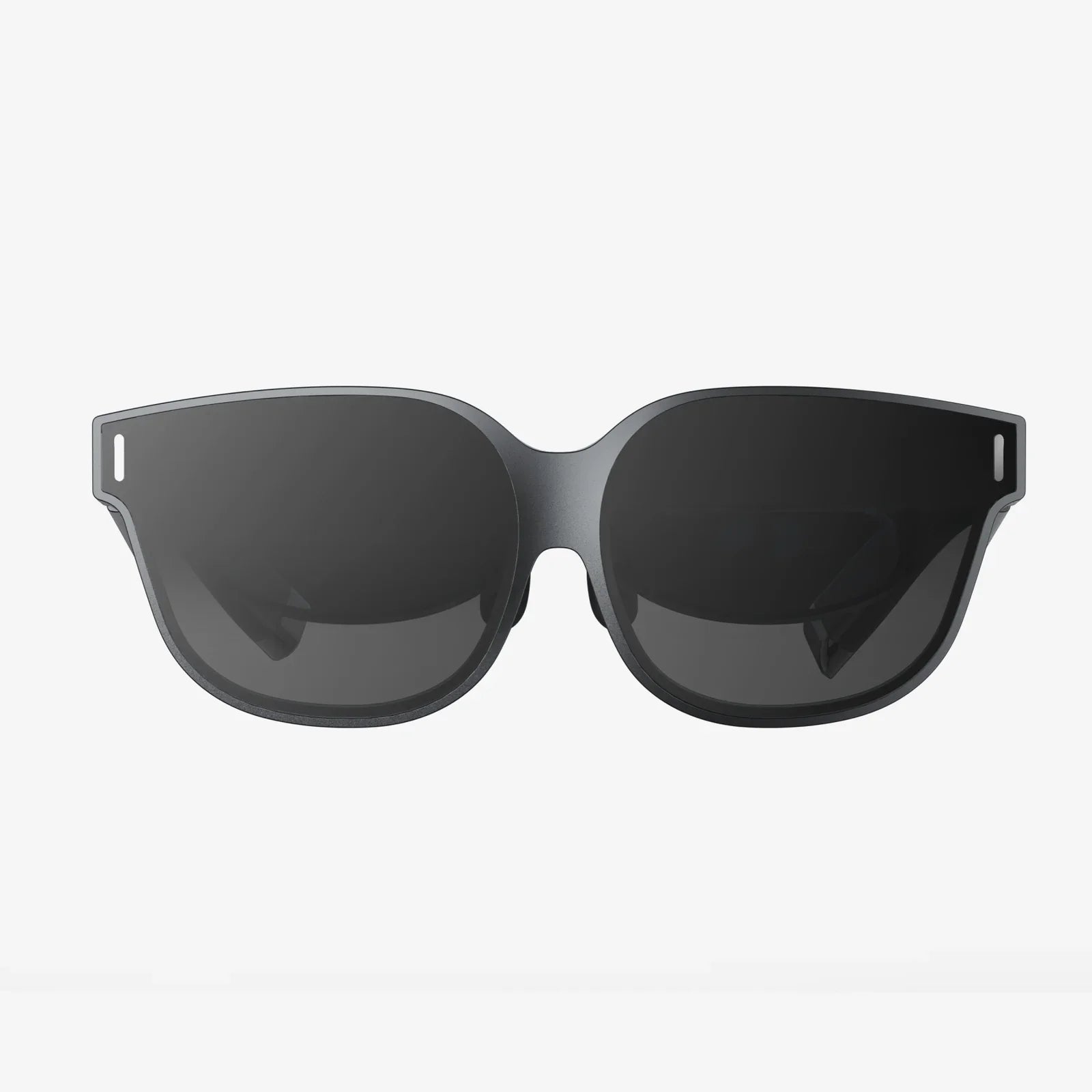
You've unboxed that sleek new piece of technology, your gateway to other worlds. The excitement is palpable as you envision exploring alien landscapes, creating masterpieces in thin air, or standing on the edge of a virtual skyscraper. Yet, for many, the first foray into virtual reality is met not with awe, but with a slight sense of unease—a blurry image, a nagging feeling of discomfort, or controllers that don't quite feel like an extension of your hands. The chasm between a good VR experience and a truly transformative one isn't bridged by hardware alone; it's meticulously built in the often-overlooked menus of your VR headset settings. This is the definitive guide to not just using your headset, but mastering it, ensuring every virtual adventure is as crisp, comfortable, and captivating as it was meant to be.
The Foundation: Why Precision in Configuration is Non-Negotiable
Think of your VR headset not as a simple screen, but as a sophisticated perceptual instrument. Its primary job is to trick your brain—to seamlessly replace your physical reality with a digital one. This illusion is incredibly fragile. Even minor misconfigurations can break immersion, leading to eye strain, headaches, and the dreaded simulator sickness. Proper VR headset settings are the bedrock upon which comfort and presence are built. They are the difference between watching a world and feeling like you are truly within it. Investing time here is the single most important step you can take to ensure your long-term enjoyment and ability to spend hours in VR without a hint of discomfort.
The First and Most Critical Step: Mastering the Interpupillary Distance (IPD)
If you take away only one thing from this guide, let it be the paramount importance of the Interpupillary Distance, or IPD. This is the distance between the centers of your pupils, measured in millimeters. Every human has a unique IPD, typically ranging from 58mm to 72mm.
Why it Matters: A VR headset uses two lenses, each projecting an image to one of your eyes. Your brain then fuses these two images into a single, stereoscopic 3D picture. If the lenses are not perfectly aligned with your pupils, the images will be out of sync. Your eyes and brain are forced to work overtime to correct this, resulting in immediate eye strain, blurred vision, and headaches. It is the number one cause of physical discomfort in VR.
How to Adjust It: Many modern headsets feature a physical dial or slider, usually located between the lenses or underneath the headset. While in your home environment or a well-lit, static scene, slowly adjust this dial. The world will snap into focus. Text will become razor-sharp, and the edges of objects will appear defined. You are looking for the "sweet spot"—the point of maximum clarity and comfort. Some higher-end devices offer software-assisted IPD adjustment with an on-screen guide, making the process even more precise.
Do not underestimate this setting. It is not a "set it and forget it" task for one user. If multiple people use the same headset, they must readjust the IPD for their own physiology every single time.
Conquering the Visual Frontier: Clarity, Brightness, and Performance
Once your IPD is perfectly set, you can focus on fine-tuning the visual experience to match your preferences and hardware capabilities.
Resolution and Refresh Rate: The Smoothness Trade-Off
These two settings are often intertwined and have a direct impact on performance.
- Refresh Rate (Hz): This dictates how many times per second the image in your headset is refreshed. A higher refresh rate (90Hz, 120Hz, and even 144Hz on some headsets) results in significantly smoother motion. This is crucial for reducing judder (stuttering image) and is a major weapon against motion sickness. Fast-paced games like racing simulators or first-person shooters benefit immensely from a high refresh rate.
- Resolution / Render Resolution: This determines the clarity and sharpness of the image. Pushing the resolution scaling above 100% (a technique called supersampling) can dramatically reduce the "screen door effect" (seeing fine lines between pixels) and make edges appear smoother.
The Balancing Act: Your graphics card has a finite amount of power. Increasing both the refresh rate and the resolution will demand more from it. If your hardware can't maintain a stable framerate at your chosen settings, you will experience lag, stuttering, and dropped frames, which are a surefire path to simulator sickness. The goal is to find the highest fidelity settings that your system can run rock-solid without any performance dips. It's almost always better to prioritize a stable, high refresh rate over a ultra-high resolution that causes stutters.
Field of View (FOV) and Lens Adjustment
While not always user-adjustable, some headsets offer software settings to modify the perceived Field of View. A wider FOV increases immersion but can also increase the rendering load on your system. Furthermore, the physical placement of the headset on your face—how close the lenses are to your eyes—can affect the effective FOV and edge-to-edge clarity. Ensure the headset is snug but not overly tight, and use the adjustable eye relief if your headset has it to bring the lenses as close to your eyes as is comfortable to maximize the FOV.
Creating Your Virtual Space: Guardian, Boundary, and Play Area
Safety is a non-negotiable aspect of VR. The boundary system (often called Guardian or Chaperone) is your virtual wall, preventing you from punching your monitor or tripping over your coffee table.
Setting it Up: Take this process seriously. When defining your play area, trace well beyond the actual physical obstacles. Leave a comfortable buffer zone. Most systems allow you to set a stationary boundary for standing/seated experiences or a room-scale boundary for moving around.
Fine-Tuning: You can usually adjust the sensitivity and visibility of these boundaries. If you find the walls appearing too often and breaking immersion, you can set them to appear only when you are moving quickly towards them. Conversely, if you have a very small space, you might want them to be always faintly visible as a constant reminder. Don't just accept the default; tailor this critical safety feature to your environment and play style.
Advanced Calibration: Mastering Tracking and Controller Settings
For headsets that use external or internal-outside-in tracking, environmental factors can interfere with the sensors.
- Lighting: Avoid direct sunlight on your play area, as it can blind the sensors and cause tracking loss. Similarly, very dim lighting can be problematic. Aim for consistent, diffuse ambient light.
- Reflective Surfaces: Mirrors, glass picture frames, and glossy TVs can confuse tracking cameras by reflecting the controllers and headset. Cover them or reposition yourself if you experience jittery tracking.
- Controller Sensitivity and Haptics: Many apps allow you to tweak the sensitivity of your controller's thumbsticks and the intensity of the haptic feedback (rumble). Finding the right level can make interactions feel more natural and responsive.
The Final Frontier: User-Specific Comfort and Accessibility
VR is for everyone, and modern headsets pack a suite of features to ensure that.
- Comfort Mode Features: For new users or those particularly sensitive to motion, always enable "comfort mode" options in games. These include vignetting (softly darkening the periphery of your vision during movement), teleportation movement instead of smooth locomotion, and snap-turning instead of smooth turning. These features are expertly designed to minimize sensory conflict and prevent nausea.
- Audio Settings: Spatial audio is a key part of immersion. Ensure your headset's audio is configured for 3D spatial sound. You can also often adjust the balance between game audio and chat audio from other players.
- Brightness and Blue Light: Playing in VR for extended periods, especially at night, can strain your eyes. Some systems include a blue light filter (often called a "night mode" or "comfort view") that gives the image a warmer, reddish tint to reduce eye fatigue and help preserve your natural sleep cycle.
Your journey into virtual reality should be defined by wonder, not by wrestling with blurry text or a queasy stomach. The power to shape your experience lies not in waiting for a software update or a new accessory, but in the deliberate and thoughtful application of your VR headset settings. This is the silent art of the virtuoso, the meticulous calibration that transforms a piece of advanced technology into an invisible window to another existence. From the critical physical IPD adjustment to the nuanced software toggles for comfort, each setting is a brushstroke on the canvas of your immersion. Embrace this process, revisit your configurations often, and prepare to experience virtual worlds exactly as their creators intended—with stunning clarity, profound comfort, and absolute presence. The ultimate VR experience isn't just purchased; it's patiently and expertly configured.
Share:
What Do Smart Goggles Do - A Deep Dive Into Wearable Visual Computing
Smart Goggles Price - A Comprehensive Guide to Cost, Value, and the Future of Wearable Tech