


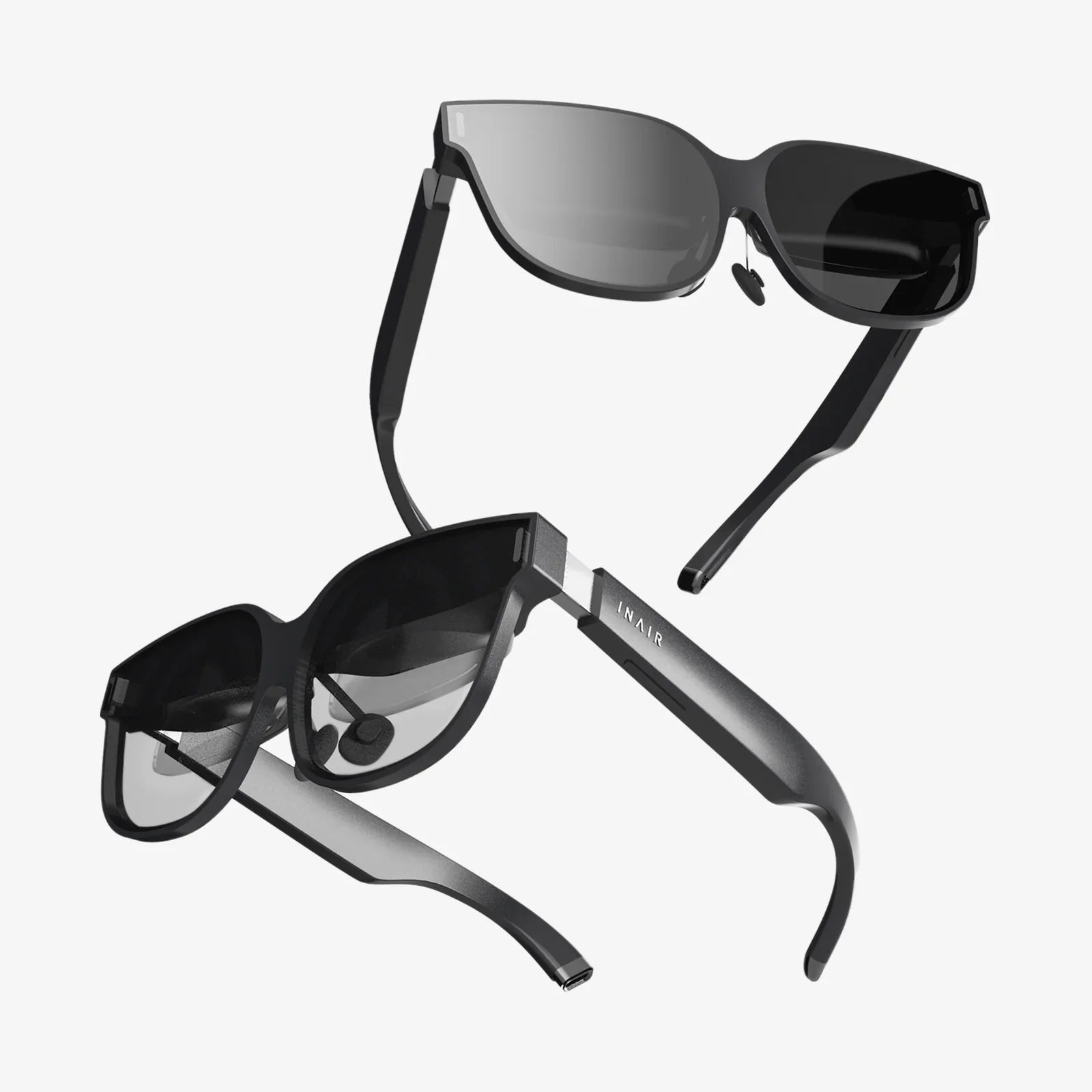
You’ve carved out a precious hour to dive into your favorite virtual world, only to pick up your headset and find it completely dead, refusing to power on no matter how long you’ve supposedly had it plugged in. That sinking feeling of disappointment is all too familiar for many VR enthusiasts. A headset that won’t charge is more than a minor inconvenience; it’s a barrier to an entire universe of experience. Before you resign yourself to the costly conclusion that you need a brand-new device, know that the problem is often far simpler and more solvable than you might think. The issue can stem from a myriad of sources, ranging from the utterly basic to the moderately complex. This comprehensive guide will walk you through a systematic diagnostic process, helping you pinpoint exactly why your VR headset won't charge and, most importantly, how to fix it.
Starting with the Basics: The Obvious Checks You Can't Skip
It may sound trivial, but a significant percentage of 'charging issues' are resolved by double-checking the fundamentals. It’s easy to overlook the simple things in a moment of frustration. Before you dive into more complex troubleshooting, dedicate five minutes to this essential checklist.
First, and most crucially, verify your power source. Is the wall outlet actually working? Test it by plugging in another device, like a phone charger or a lamp. Don’t rely on a wall socket that you haven't used recently. If you’re using a power strip or surge protector, ensure it’s switched on and functioning. Try a different outlet altogether to eliminate the possibility of a faulty circuit.
Next, examine the physical connection. Is the USB cable firmly seated in both the headset’s port and the power adapter or computer USB port? A loose connection is a common culprit. Unplug and firmly re-plug the cable at both ends. Inspect the cable itself for any obvious signs of damage—kinks, fraying, cuts, or bent connectors. If you have a wireless headset that uses a charging dock, ensure the contact points on both the headset and the dock are clean and free of debris, and that the headset is sitting correctly on the dock as per the manufacturer's guidelines.
Finally, consider the power adapter. Are you using the official power adapter that came with your headset? While many USB-C devices are cross-compatible, VR headsets can be particular about their power requirements. Using a phone charger or a low-power adapter from another device might not provide enough wattage to charge the headset, or worse, could charge it impossibly slowly or erratically. The voltage and amperage must meet the headset's specific needs for reliable charging.
Diagnosing the Cable and Adapter: The Silent Saboteurs
If the basics check out, the next most likely suspects are the cable and the power adapter themselves. These components are prone to wear and tear and can fail without showing obvious external signs of damage.
The Cable: USB cables, especially the ones we use regularly, are surprisingly fragile. They are often bent, twisted, and stepped on, which can break the delicate internal wires. A cable can appear perfectly fine on the outside but have internal fractures that prevent it from consistently carrying a charge. The best way to test this is to use a known-good, high-quality cable that is confirmed to work for data transfer and charging with another powerful device. If your headset begins charging with a different cable, you’ve found your culprit. Avoid cheap, no-name cables, as they often cannot handle the sustained power delivery a VR headset requires.
The Power Adapter (Wall Charger): Like cables, power adapters can fail. They can be damaged by power surges, heat, or simply through age. The symptoms of a failing adapter can be subtle: it might provide just enough power to trickle-charge a phone but not enough to handle a VR headset's larger battery, or it might work intermittently. If possible, test with the official power adapter from your headset's manufacturer. If you don’t have a spare, try using a high-wattage (e.g., 18W or higher) USB-C PD (Power Delivery) charger that you know works with other devices like a modern laptop or tablet. If the headset charges with a different adapter, you need a replacement.
Inspecting the USB Port: A Gateway for Problems
The USB port on your VR headset is a physical component that sees a lot of use and is vulnerable to several issues.
Physical Damage: Look closely at the port. Has it been bent, dented, or otherwise damaged? If the cable doesn't insert smoothly and 'click' into place with the same firmness it once did, the port's internal housing may be compromised. This kind of damage often requires professional repair.
Dust and Debris: Lint, dust, and pocket debris are incredibly common causes of charging problems. Over time, this material gets compacted at the very back of the port, preventing the cable connector from making full contact. This can lead to intermittent charging or a complete failure. Carefully inspect the port using a bright light and magnification if possible. To clean it, power the headset down completely. Then, use a can of compressed air to gently blow out any loose particles. For stubborn debris, use a small, non-metallic tool like a plastic toothpick or a specialized plastic spudger to very gently and carefully loosen and remove the material. Never use metal objects like paperclips, as they can easily short-circuit the pins inside the port and cause catastrophic damage.
Corrosion: If you live in a humid environment or the headset has been exposed to moisture, the metal contacts inside the USB port can corrode, hindering conductivity. A visual inspection might reveal a green or white chalky substance on the contacts. Cleaning this requires extreme care and is often best left to a professional technician.
Software and Firmware Glitches: The Digital Dilemma
Not all charging issues are hardware-related. Sometimes, the problem lies in the headset's software or firmware—the low-level code that controls its basic functions, including power management.
Battery Indicator Bugs: In some cases, the headset might actually be charging, but a software bug is preventing the battery indicator from updating correctly. It may show 0% or not show any charging icon, leading you to believe it's not working. Leave the headset plugged into a known-good power source for at least two to three hours, then try to power it on by holding the power button for 10-15 seconds (a forced reboot).
The Power Cycle (Soft Reset): This is the first and most important software-related step. A soft reset can clear temporary software glitches that may be interfering with the battery management system. To perform a soft reset on most headsets: Plug the headset into its charger. Press and hold the power button for a full 30 seconds. Release the button, then try turning it on normally. This process doesn't erase any data but can resolve many unexplained issues.
Firmware Updates: Occasionally, manufacturers release firmware updates that specifically address battery performance and charging bugs. If your headset has any power and you can access its menu, check for system updates. If it’s completely dead, you may need to follow a specific manufacturer procedure to force a firmware update via a connected computer, which often involves booting into a special recovery mode.
Understanding Battery Health: The Heart of the Matter
Lithium-ion batteries, which power all modern VR headsets, are consumable components. Their capacity to hold a charge diminishes over time with each charge cycle. How you use and store your headset dramatically impacts its long-term battery health.
Natural Degradation: After hundreds of charge cycles, a battery will naturally degrade. You might notice that the headset doesn't last as long on a single charge as it used to. In advanced stages, a severely degraded battery may refuse to charge at all or may only charge to a small percentage of its original capacity. It might also shut down unexpectedly, even if the indicator shows remaining charge.
Deep Discharge: One of the most damaging things for a lithium-ion battery is to be left completely discharged for a long period. If a headset is stored for months with a 0% battery, the battery's voltage can drop below a critical threshold, and the built-in protection circuit will prevent it from accepting a charge from a standard charger as a safety measure. In some cases, leaving it plugged into a wall charger (not a computer USB port) for 24-48 hours can sometimes 'trickle-charge' the battery enough to jump-start it past this threshold. However, a battery that has experienced a deep discharge is often permanently damaged.
Heat Exposure: Extreme heat is the enemy of batteries. Leaving your headset in a hot car, charging it in direct sunlight, or using intensive applications that cause significant heat buildup can accelerate the chemical aging process inside the battery, leading to a permanent and irreversible loss of capacity.
When to Seek Professional Help
If you have methodically worked through all of the previous steps—tried multiple cables and adapters, cleaned the port, performed soft resets, and ruled out software issues—and your headset still refuses to charge, it's likely time to contact professional repair services.
Internal Damage: The issue could be a failed internal component, such as the battery itself, a damaged charging circuit on the main board, or a disconnected internal cable. These issues require technical expertise, special tools, and often specific replacement parts to fix correctly. Attempting to open the headset yourself is strongly discouraged, as it is very easy to cause further damage and will almost certainly void any remaining warranty.
Warranty and Repair Options: Your first step should be to check if your headset is still under warranty. If it is, contact the manufacturer's support directly. They will guide you through their official repair or replacement process. If the warranty has expired, seek out a reputable third-party repair shop that has experience with VR hardware. They can often diagnose and fix the issue (most commonly a battery replacement) for a fraction of the cost of a new headset.
That moment of panic when your gateway to other realities sits lifeless in your hands doesn't have to be the end of the story. By approaching the problem logically, starting with the simplest and most common solutions, you empower yourself to find a fix. More often than not, the barrier between you and your virtual escape is just a faulty cable, a dusty port, or a software hiccup waiting to be resolved. A systematic approach not only saves you time and money but also gets you back to doing what you love most—exploring limitless worlds from the comfort of your home.
Share:
What Is The Best VR Headset To Get - The Ultimate 2024 Buyer's Guide
Can I Use the Internet from a Set of Glasses? The Future of Wearable Computing