


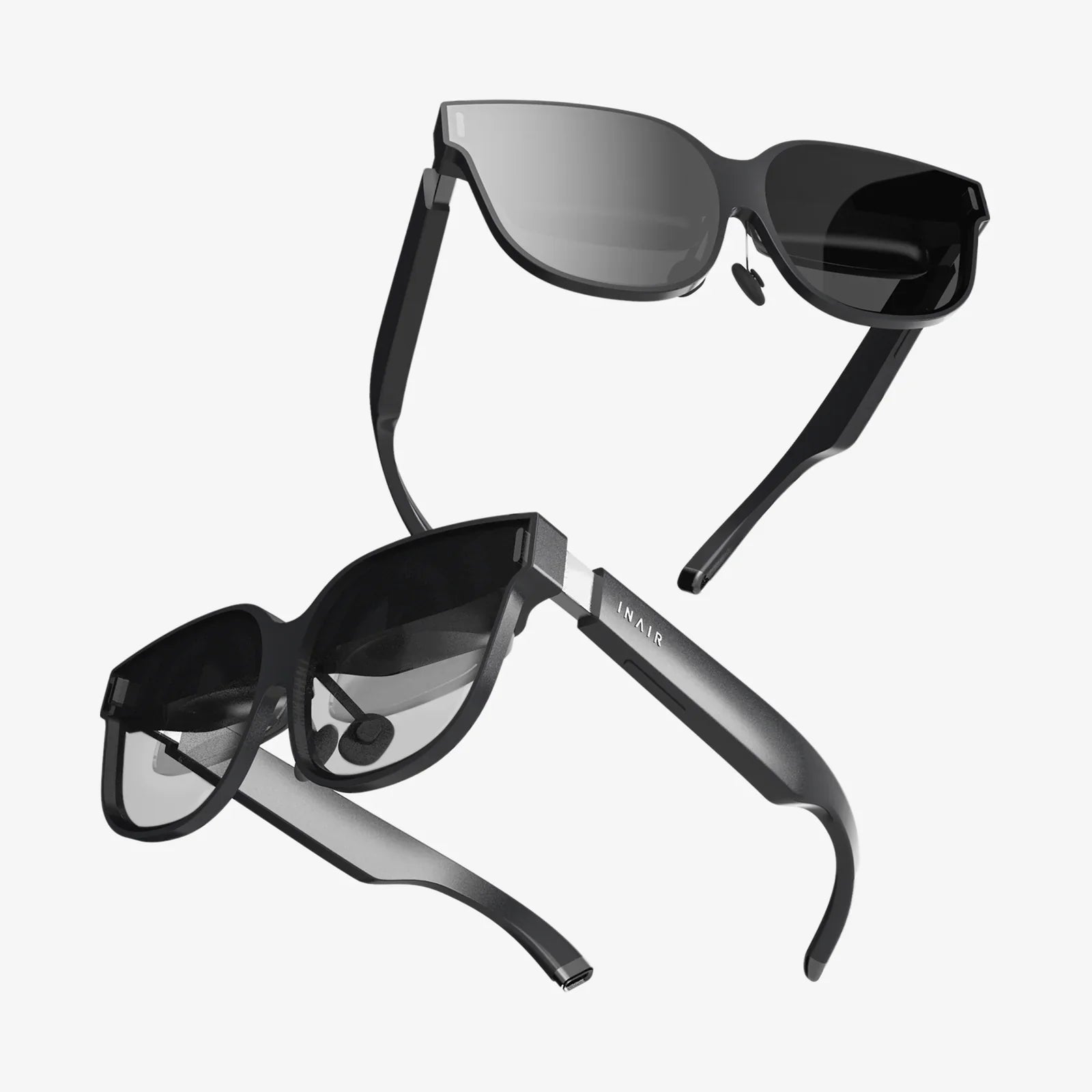
Have you ever stepped into a virtual world, only to be yanked back to reality by a wave of nausea or the disorienting feeling that your virtual hands aren't quite where they should be? You're not alone. The magic of immersion in Windows Mixed Reality is undeniable, but it can be instantly shattered by one critical, often overlooked aspect: improper configuration of your movement and orientation. The single most important tweak to conquer this digital frontier lies in mastering Windows Mixed Reality adjust turning. This isn't just a minor setting; it's the fundamental bridge between a clumsy, uncomfortable experience and a truly transformative one. Getting it right is the difference between fighting your environment and living within it. Ready to banish VR discomfort and claim your perfect virtual space? Let's dive in.
Why "Adjust Turning" is Your Gateway to Comfortable VR
Before we delve into the technical how-to, it's crucial to understand the "why." Our brains are incredibly sophisticated processors of sensory information. In the real world, our sense of balance (vestibular system), what we see (visual system), and what we feel (proprioception) are in perfect harmony. When you turn your head, your eyes see the world move, and your inner ear confirms the motion. Virtual reality deliberately decouples this link: your eyes perceive movement while your body remains stationary.
This sensory conflict is the primary culprit behind simulation sickness, a close cousin of motion sickness. Symptoms include dizziness, disorientation, eyestrain, nausea, and sweating. It's your brain's way of saying, "I'm getting conflicting reports, and I don't like it!" This is where Windows Mixed Reality adjust turning becomes your most powerful ally.
Snap Turning vs. Smooth Turning: The Great Debate
There are two primary methods for turning your virtual self when using a controller instead of physically rotating your body:
- Snap Turning (or Instant Turning): This method rotates your viewpoint in predefined, discrete angular increments (e.g., 30, 45, or 90 degrees) instantly when you push the thumbstick left or right. It's like quickly blinking and finding yourself facing a new direction.
- Smooth Turning (or Continuous Turning): This method mimics natural head movement by rotating your viewpoint continuously at a set speed when you push the thumbstick. It feels more like slowly panning a camera.
For a vast majority of users, especially newcomers to VR, snap turning is significantly less likely to induce discomfort. The instantaneous jump is easier for the brain to process than a continuous visual flow that isn't matched by vestibular feedback. The Windows Mixed Reality adjust turning settings allow you to choose your preferred method and fine-tune it to your personal tolerance level, making it the first and most important stop on your journey to VR comfort.
Navigating the WMR Portal: Finding the Adjustment Settings
Adjusting these critical settings is a straightforward process within the Windows Mixed Reality portal. Here's a step-by-step guide to finding the control panel you need.
- Put on your headset and enter the Windows Mixed Reality Cliff House or your starting environment.
- Open the Start Menu inside VR. You can do this by pointing your controller at the virtual Windows icon and clicking, or by pressing the Windows button on your controller.
- Navigate to the Settings app (it looks like a gear icon). Select it.
- Inside Settings, find and select the tab or option for Mixed Reality.
- From there, look for Headset Display or Controller settings. The exact naming can vary slightly depending on your version of Windows.
- Scroll through the options until you find settings related to Movement, Rotation, or Turning. This is the control hub for your Windows Mixed Reality adjust turning configuration.
You should now be presented with clear toggles and sliders to customize your experience. If you can't find it immediately, don't be discouraged. The interface is designed for exploration, and these essential comfort settings are always accessible from this central menu.
A Deep Dive into the Adjustment Options
Now that you've found the command center, let's break down what each option does and how you should approach configuring it.
1. Turning Type Selection
This is the fundamental choice: Snap Turn or Smooth Turn. As a general rule of thumb:
- Choose Snap Turn if: You are new to VR, you have ever felt any hint of motion sickness in a vehicle or game, or you simply want the most comfortable, reliable experience. Most experienced VR users still prefer snap turning for longer sessions as it reduces fatigue.
- Choose Smooth Turn if: You are a VR veteran with strong "VR legs," you prioritize visual fidelity and immersion above all else, and you have never experienced simulation sickness. It can feel more natural but carries a higher risk of discomfort.
2. Snap Turn Angle
If you select snap turning, this setting allows you to choose the increment of each turn. Common options are 30°, 45°, and 90°.
- A smaller angle (30°) provides more precise orientation control but requires more "clicks" of the thumbstick to make a full 180° or 360° turn.
- A larger angle (90°) lets you reorient yourself quickly with fewer inputs, which is great for fast-paced games, but can feel jarring if you only need to make a slight adjustment.
- 45° is often a good compromise and a popular starting point for Windows Mixed Reality adjust turning setups.
3. Smooth Turn Speed
If you venture into smooth turning, this slider is your best friend and worst enemy. It controls the rotational speed in degrees per second.
- Too slow (e.g., 60°/sec): Can feel sluggish and unresponsive, forcing you to hold the thumbstick too long to face a new direction, which can ironically increase discomfort.
- Too fast (e.g., 200°/sec): Will almost certainly cause disorientation and nausea as the world whips past you. It's utterly unnatural and uncomfortable.
- The Sweet Spot: Most users find a comfortable range between 90°/sec and 120°/sec. This is fast enough to be responsive but slow enough to allow your brain to process the movement without triggering a strong conflict. Start at 90° and increase it slowly only if you feel you can tolerate it.
Advanced Calibration: Beyond the Basic Turning Settings
While adjust turning is paramount, true mastery of your WMR environment involves calibrating a few other key areas that work in tandem with turning to create a cohesive and comfortable experience.
Boundary Setup: Your Virtual Playground
A correctly configured Boundary (or Guardian system) is non-negotiable for safe and immersive play. The Windows Mixed Reality setup wizard does an excellent job of guiding you through drawing your play space. The key is to be precise. Push furniture out of the way, ensure you have the maximum recommended space, and trace the boundary carefully. A well-defined boundary allows you to move and turn with confidence, knowing you won't accidentally punch a wall or trip over a chair. Re-run the boundary setup if you ever rearrange your room.
World Scale and IPD Adjustment
If the virtual world feels slightly "off"—if objects seem too big or too small, or if you experience eye strain—the issue might not be turning, but world scale and Interpupillary Distance (IPD).
- IPD is the physical distance between your pupils, measured in millimeters. Headsets have a software or physical adjustment to match this value. An incorrect IPD setting can cause a distorted image, making depth perception difficult and contributing to headaches and nausea, which can be mistaken for turning-induced sickness. Find your IPD (an optometrist can measure it, or some phone apps offer an estimate) and adjust your headset's IPD slider accordingly.
- While not always a user-accessible slider, perceived world scale can be affected by driver and software updates. If everything feels miniature or gigantic, ensure your WMR portal and graphics drivers are up to date.
Controller Tracking and Orientation
For turning to feel natural, your virtual controllers must be precisely tracked. Ensure your environment has adequate lighting (but avoid direct sunlight on the sensors) and isn't overly repetitive or reflective, as these can confuse the inside-out tracking cameras. If a controller feels like it's drifting or not pointing correctly, try re-pairing it with your PC via Bluetooth.
Troubleshooting Common Turning and Tracking Issues
Even with perfect settings, technical gremlins can sometimes appear. Here’s how to solve common problems.
Problem: The turning settings feel unresponsive or delayed.
Solution: This is almost always a performance issue. Close background applications to free up CPU and RAM resources. Check your PC's performance metrics. If you're below the recommended specification, you may need to lower the graphics quality settings in your VR applications.
Problem: The image stutters or "judders" when I turn my head.
Solution: This is a classic sign of reprojection or dropped frames. Your PC is struggling to maintain the required 90 FPS. Drastically lower the visual quality settings in your game or app. Ensure your graphics drivers are updated. Use monitoring tools to identify if your CPU or GPU is the bottleneck.
Problem: I still feel sick even after switching to snap turning.
Solution: Comfort is multifaceted. First, ensure your IPD is set correctly. Second, check your physical setup. Are you getting enough airflow? Is the headset strapped comfortably and securely to your face without being too tight? Are you playing while tired or dehydrated? Third, take regular breaks. Don't try to power through the discomfort. Start with short 15-minute sessions and gradually increase your playtime as your tolerance builds.
Problem: My controllers lose tracking when I turn around.
Solution: This is a limitation of inside-out tracking. The cameras on the headset need to see the controllers. If you turn completely away from your PC and put your hands behind your back for an extended period, they will lose visual tracking. The solution is to be mindful of keeping your hands in front of you or within the field of view of the headset's cameras. For games that require a lot of behind-the-back actions, this can be a challenge, but being aware of the limitation helps you adapt your playstyle.
Building Your VR Legs: A Training Regimen
"Getting your VR legs" is the process of acclimating your brain to the unique sensory experience of virtual reality. It takes time and patience. Think of Windows Mixed Reality adjust turning not as a crutch, but as a training tool.
- Start with Comfort-Focused Experiences: Begin with stationary experiences or games rated as "Comfortable" that use teleportation movement and snap turning.
- Use the Recommended Settings: Configure your snap turning and a comfortable field of view if available.
- Listen to Your Body: The moment you feel even slightly warm, sweaty, or uneasy, stop immediately. Do not try to "push through" nausea. Take the headset off, get some fresh air, and have a drink of water. Pushing through only reinforces the negative association.
- Short and Sweet: Have multiple short sessions rather than one long, marathon session.
- Gradual Exposure: As you become more comfortable, you can experiment. Try a slightly faster smooth turn speed in a familiar environment for just a minute or two before switching back to your comfortable settings. Gradually increase your exposure over days and weeks.
Mastering Windows Mixed Reality adjust turning is the master key that unlocks the full, breathtaking potential of your virtual reality headset. It transforms a queasy, disorienting novelty into a comfortable, compelling, and truly immersive portal to other worlds. By taking control of these settings, fine-tuning your environment, and patiently building your tolerance, you are no longer just a passenger in VR—you are the pilot. Your perfect, nausea-free adventure, where every turn feels natural and every movement is confident, is waiting just on the other side of that settings menu. What are you waiting for?
Share:
Interactive Virtual Reality System: The Next Frontier in Human Experience and Connection
Intelligent Computer: The Dawn of a New Cognitive Era in Technology