


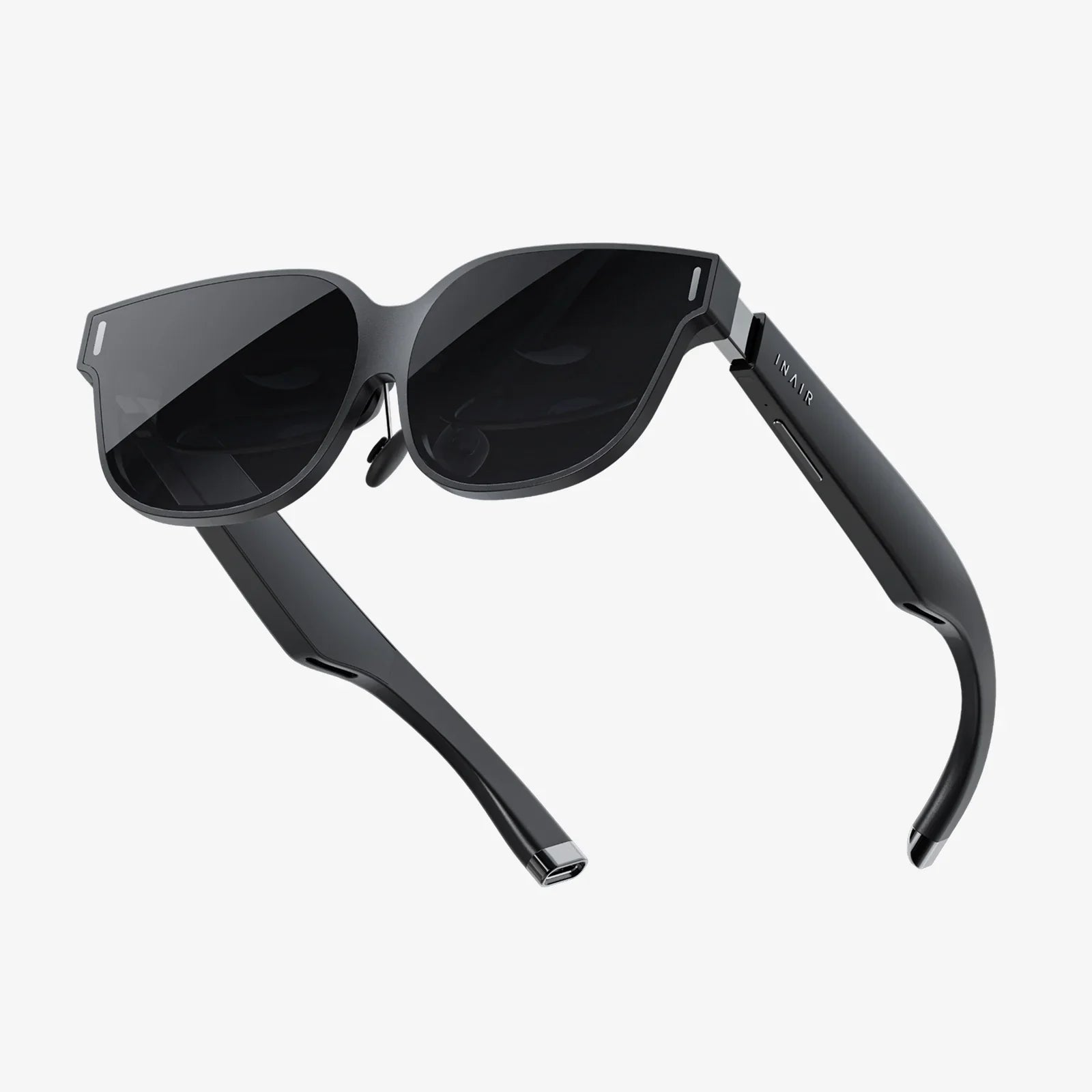
You’ve seen the breathtaking worlds, the immersive games, and the revolutionary applications—all experienced through the lens of a Virtual Reality headset. But before you dive in, a critical question emerges from the depths of technical doubt: is your trusty laptop, your portable workhorse, powerful enough to serve as the engine for these digital dreams? The allure of untethered exploration is strong, but the path to a smooth, nausea-free experience is paved with specific, non-negotiable hardware requirements. Unpacking the truth behind laptop-based VR is the first crucial step on your journey into another dimension.
The Heart of the Matter: Graphics Processing Power
At its core, the question of VR compatibility is a question of graphical horsepower. Unlike traditional gaming or video editing, VR is uniquely demanding. A headset must render two distinct, high-resolution images—one for each eye—and do so at an exceptionally high and stable frame rate, typically 90 frames per second (FPS) or higher. Any significant drop below this threshold can lead to latency, stuttering, and, most unpleasantly, motion sickness for the user.
This immense burden falls almost entirely on the Graphics Processing Unit (GPU). For laptops, this means one thing: you need a dedicated, powerful, and modern GPU. Integrated graphics solutions, like those built into standard processors, are simply not designed for this workload and will fail to deliver a playable experience.
The gold standard for PC-based VR has long been set by various industry standards. While we avoid mentioning specific brands, these standards act as a reliable benchmark. If a laptop's GPU meets or exceeds the performance level of these recognized benchmarks, it stands a very good chance of handling mainstream VR content. It is absolutely essential to research your specific laptop model's GPU and cross-reference it with the latest recommended specifications from headset manufacturers.
Connection Protocols: The Vital Link
Raw power is useless without a way to channel it. This is where connectivity comes into play. The cable connecting your headset to your laptop is a high-speed data highway, and it requires the right kind of port.
- DisplayPort: The Preferred Standard: Many high-end VR headsets rely on a DisplayPort connection to transmit the high-bandwidth video signal. Some laptops feature a full-size DisplayPort, while others use the smaller, increasingly common Mini-DisplayPort. It is crucial to identify which type your headset requires and which type your laptop offers. A simple physical adapter can often bridge the gap between Mini-DisplayPort and full-size DisplayPort.
- HDMI: A Common Alternative: Several popular headsets use an HDMI connection. However, not all HDMI ports are created equal. For VR, you need an HDMI port that supports at least version 2.0 or higher to ensure it has the necessary bandwidth. An older HDMI 1.4 port will likely result in a compromised experience or may not work at all.
- USB: More Than Just Peripherals: Beyond video, VR headsets need USB connections for data and power. These are used for the headset's tracking sensors, built-in cameras, audio, and connectivity for controllers. A USB 3.0 (or higher) port is typically mandatory. The number of available ports is also a consideration, as some setups may require two or more USB connections.
The absence of the correct ports is one of the most common reasons a VR headset will fail to work with a laptop. Carefully checking your laptop's available ports against your headset's requirements is a non-negotiable step.
The Laptop-Specific Hurdles: It's Not Just a Small PC
Assuming your laptop has a sufficiently powerful GPU and the right ports, there are still unique challenges that desktop PCs largely avoid.
- Thermal Throttling: Laptops have limited space for cooling. Under the sustained, maximum load of a VR application, a laptop's GPU and CPU will generate immense heat. To prevent damage, the system will automatically reduce its performance—a process known as thermal throttling. This can manifest as a game running smoothly for ten minutes before suddenly becoming a stuttering, unplayable mess as the components overheat. Good laptop ventilation and playing in a cool environment are essential.
- Power Delivery and Battery: Running a high-end GPU at full tilt consumes a tremendous amount of power. For consistent performance, the laptop should be plugged into a wall outlet. Attempting to run VR on battery power will likely result in severe performance limitations as the system conserves energy, not to mention a very short battery life.
- Optimus and Switchable Graphics: Many laptops are designed for battery efficiency and use a technology that switches between a power-efficient integrated GPU and the high-performance dedicated GPU. This can notoriously interfere with VR applications, which may fail to engage the correct, powerful GPU. This often requires manually disabling the integrated graphics or forcing the application to use the dedicated GPU via the system's graphics control panel.
The Software Bridge: Making Everything Talk
Hardware is only half the battle. Your laptop needs the correct software to recognize, configure, and optimize for the VR headset.
This starts with the essential platform software. This software acts as the central hub for VR on your laptop. It manages the hardware, runs the home environment, and provides access to the application store. Before connecting your headset, you must download and install this software from the official source. It will guide you through the setup process, including checking your system's compatibility, connecting your devices, and configuring your play area.
Furthermore, ensuring your laptop has the latest drivers for its GPU is perhaps the single most important software step. GPU manufacturers release driver updates specifically to optimize performance and fix bugs for new VR games and applications. Running outdated drivers is a common source of poor performance, crashes, and incompatibility.
Step-by-Step: Setting Up Your VR Headset on a Laptop
- Research and Verify: Before purchasing anything, rigorously check your laptop's specifications. Confirm the exact model of its dedicated GPU and all available video output ports (DisplayPort, Mini-DisplayPort, HDMI version). Compare these against the latest minimum and recommended specifications for the VR headset you intend to buy.
- Install Foundation Software: Download and install the necessary VR platform software from the official website. Also, visit your GPU manufacturer's website to download and install the very latest graphics drivers.
- Connect the Hardware: Power your laptop and connect it to the wall outlet. Connect all headset cables to the correct ports on your laptop. If you are using external sensors for tracking, position them appropriately and connect them as directed.
- Run the Setup: Open the installed VR platform software. It should detect the headset and walk you through a setup wizard. This will include calibrating the headset's display, setting up the tracking system (whether inside-out or external sensor-based), and pairing your motion controllers.
- Define Your Play Space: The software will guide you in defining your Guardian or Chaperone boundaries—the digital walls that keep you from bumping into real-world objects while immersed.
- Test and Troubleshoot: Start with a less demanding experience to test performance. If you encounter issues, return to the software's settings. Check that the VR application is set to use the dedicated GPU, ensure all cables are secure, and verify that no power-saving modes are active on the laptop.
Troubleshooting Common Problems
- "No Headset Detected": This is almost always a cable or port issue. Double-check every connection. Try a different USB port. Ensure you are using the correct video port (e.g., some laptops have multiple HDMI ports but only one is connected to the powerful GPU).
- Poor Performance and Stuttering: First, ensure your laptop is plugged in and its power plan is set to "High Performance." Close all unnecessary background applications. Lower the graphical settings within the VR game or application. Check your GPU's control panel to ensure VR is not being limited by a frame rate cap or other setting.
- Overheating: Invest in a laptop cooling pad. Ensure the laptop's air vents are completely unobstructed. Consider lowering in-game settings to reduce the GPU's workload.
The Wireless and Standalone Future
The landscape of VR is rapidly evolving to mitigate these laptop and PC complexities. Wireless adapter kits exist that can transmit the video signal from a capable laptop to a compatible headset, eliminating the tether but adding a new layer of latency and compression to consider.
More significantly, the rise of standalone VR headsets represents a paradigm shift. These all-in-one devices have the computer, display, and tracking systems built directly into the headset. They require no external PC or laptop, no complicated cable connections, and no driver updates. While they are generally less powerful than a high-end laptop VR setup, they offer a level of convenience and accessibility that is revolutionizing the market. For many users, a standalone headset may be a more straightforward and reliable path into VR than attempting to retrofit a laptop.
The potential of your laptop to become a gateway to virtual worlds is immense, but it is a potential locked behind a very specific set of technical criteria. It demands a modern, dedicated GPU, the correct array of high-speed ports, diligent software maintenance, and an awareness of the thermal and power constraints inherent to mobile computing. For those whose laptops meet the challenge, a universe of unparalleled experiences awaits. For others, the evolving world of standalone VR offers a compelling and hassle-free alternative. The power to explore is there; it just requires understanding which key will unlock it for you.
Share:
How Long Does a VR Headset Charge: A Complete Guide to Power Management
Best VR Headset for iPhone 10: Your Ultimate Portal to Mobile Virtual Reality