


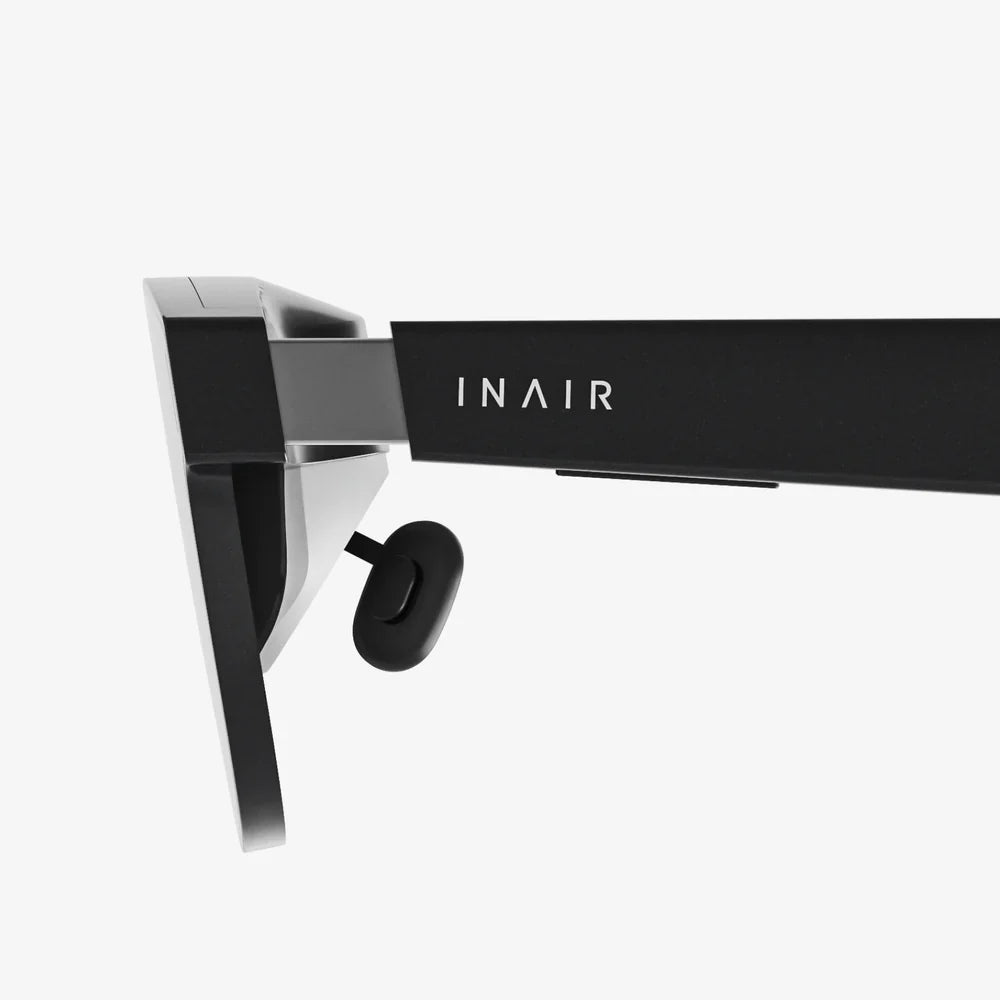
You're deep in an epic virtual quest, your fingers deftly maneuvering the controllers as you battle dragons or build empires, when suddenly, a low battery warning shatters your immersion. Nothing kills the virtual reality vibe faster than a dying controller. But fear not, intrepid explorer! Keeping your VR headset controllers powered up and ready for action is simpler than you think. This comprehensive guide will walk you through every step, from identifying your specific charging method to expert tips that will extend your playtime and protect your hardware for years to come. Let's plug in and power up your play.
Understanding Your VR Controller's Power Source
Before you can effectively charge your gear, you need to know what you're working with. Not all VR controllers are created equal, and their power sources can vary significantly. The first and most crucial step is to identify the type of batteries your controllers use. This knowledge is the foundation for all subsequent charging practices.
Rechargeable Battery Packs
Many modern VR systems utilize integrated, proprietary rechargeable battery packs. These are designed specifically for the controllers and often charge via a dedicated docking station or a direct cable connection to the pack itself. Their main advantage is convenience and integration with the VR system's ecosystem.
Standard Replaceable Batteries
Other controllers rely on standard, consumer-grade batteries, most commonly AA or AAA size. These can be either single-use alkaline batteries or, more economically and environmentally friendly, rechargeable NiMH (Nickel-Metal Hydride) batteries. In this case, you don't charge the controller itself but rather the removable batteries using an external battery charger.
Identifying Your Type
To determine which category your controllers fall into, your best resources are the official user manual that came with your headset or the manufacturer's support website. A physical inspection can also reveal a lot. Look for a battery compartment door, typically on the back or bottom of the controller. If one exists, you likely use standard batteries. If the controller feels solid with no visible seams for a door, it probably has an integrated battery.
The Essential Charging Methods Demystified
Once you've identified your power source, the next step is to understand the correct way to deliver energy to it. Using the wrong method can be, at best, ineffective and, at worst, damaging to your equipment.
Charging via USB Cable
This is the most common method for controllers with integrated batteries. You will typically find a small USB-C or Micro-USB port on the controller, often hidden by a small rubber flap to protect it from dust and sweat.
- Locate the Port: Carefully find and open the protective cover for the charging port on your controller.
- Choose the Right Cable: Use the cable provided with your VR headset. If that's unavailable, ensure you use a high-quality data-syncing cable, as some cheap cables only provide power and may not initiate charging correctly.
- Connect to Power Source: Plug the other end of the cable into a reliable power source. This can be:
- A USB port on your powered-on computer.
- A USB wall adapter plugged into a wall outlet (this is often faster).
- Sometimes, even a USB port on the headset itself.
- Look for Indicators: Most controllers have an LED light that will illuminate, change color, or blink to indicate that charging has begun. Refer to your manual to decipher what the different light patterns mean.
Using a Dedicated Charging Dock
For the ultimate in convenience and organization, a charging dock is a popular accessory. These docks are designed to hold both your headset and controllers, presenting a neat and tidy charging solution.
Docks work by making contact with charging pins located on the controllers. To use one:
- Place the dock on a stable, flat surface near a power outlet.
- Connect the dock's power adapter to the wall.
- Gently place each controller onto its designated spot on the dock, ensuring the metallic charging pins on the controller align with those on the dock. You should feel a magnetic snap or see an indicator light turn on to confirm proper alignment.
- The dock will typically show a charging status for each device, often turning a solid color while charging and a different color when fully charged.
Charging Removable Batteries
If your controllers use standard AA or AAA batteries, the process is different.
- Remove the Batteries: Open the battery compartment door and take out the depleted batteries.
- Use an External Charger: Place the rechargeable batteries into a compatible external battery charger. It is vital to use a charger that is designed for the specific battery type (NiMH) and size (AA/AAA).
- Monitor the Charge: Good chargers will have indicators showing the charging progress. Never leave batteries charging unattended for extended periods, especially with basic chargers.
- Reinsert: Once fully charged, place the batteries back into your controllers, ensuring the positive (+) and negative (-) ends are aligned correctly with the diagrams inside the compartment.
Interpreting Charging Indicators and Status Lights
Your controllers communicate their battery status through LED lights. While the exact colors and patterns vary by brand, some general conventions are widely used.
- Solid Red / Orange / Yellow: The controller is actively charging. The battery level is low, and it is currently receiving power.
- Blinking Light: This can indicate several things: charging in progress, a connection error, or a low battery warning during use. Consult your manual for the specific blink pattern meaning.
- Solid Green / White / Blue: This usually signals a full charge. Your controller is ready to go.
- No Light: Could mean the controller is not properly connected, the battery is completely drained and needs a moment to initiate charging, or there is a hardware fault.
If the light doesn't turn on when you plug it in, don't panic immediately. Leave it connected for a few minutes. A deeply discharged battery can sometimes take a moment to show any signs of life.
Proactive Practices for Maximizing Battery Life
Charging is one thing, but making a single charge last as long as possible is the true goal. Adopting good habits can significantly extend your time in VR.
Smart Charging Habits
- Avoid Deep Discharges: Try not to wait until your controllers are completely dead before charging. Frequently draining a lithium-ion battery to 0% can stress it and reduce its overall lifespan. Plugging in when you see the low battery warning (often around 10-20%) is ideal.
- You Can't Overcharge (Usually): Modern electronics with integrated batteries have built-in circuitry that stops charging once they reach 100%. Leaving them on the dock or plugged in overnight is generally safe. However, consistently keeping them at 100% charge for weeks on end can cause slight long-term degradation.
- Store with Charge: If you plan not to use your VR system for a month or more, don't store the controllers with empty batteries. A charge level of around 50-60% is ideal for long-term storage.
In-Use Power Savings
- Auto-Sleep/Timeout: Ensure the auto-sleep or timeout feature is enabled in your VR system settings. This ensures the controllers enter a low-power sleep mode shortly after you set them down.
- Haptic Feedback: While immersive, haptic feedback (the vibration motor) is a significant drain on power. Some games or system settings allow you to reduce the intensity or disable it if you are desperate to conserve battery.
- Temperature Matters: Batteries drain faster in cold environments and can be damaged by extreme heat. Play and charge your controllers in a room-temperature environment for optimal performance.
Troubleshooting Common Charging Problems
Even with the best practices, you might encounter issues. Here’s how to solve the most common problems.
Controller Won't Charge
If you plug in your controller and nothing happens, work through this checklist:
- Check the Basics: Is the wall outlet working? Try a different outlet. Is the USB cable firmly plugged in at both ends? Try a different high-quality cable.
- Clean the Port: The charging port can accumulate pocket lint and dust. Carefully use a can of compressed air or a small, non-metallic tool like a plastic toothpick to gently clear any debris.
- Reboot: Restart your VR headset. Sometimes, a software glitch can prevent the system from recognizing that a controller is charging.
- Try a Different Source: If you were using a computer's USB port, try a wall adapter, or vice versa.
Battery Drains Too Quickly
If your controllers seem to die unusually fast, consider these causes:
- Old Batteries: If you use rechargeable AA/AAA batteries, know that they have a limited lifespan (typically 500-1000 charge cycles). Their capacity diminishes over time. If they are old, they may need to be replaced.
- Software Issues: A firmware bug could be causing excessive battery drain. Check for any available controller or headset firmware updates.
- Environmental Factors: As mentioned, cold temperatures can drastically reduce battery performance.
Charging Dock Issues
If your dock isn't working:
- Alignment: Ensure the controllers are seated perfectly and making full contact with the charging pins.
- Clean the Pins: Use a dry cotton swab to gently clean both the pins on the dock and the pins on the controllers. Dirt or oxidation can break the electrical connection.
Imagine a VR session where the only boundaries are your imagination, not a dwindling battery icon. By mastering these simple charging techniques, adopting smart battery habits, and knowing how to troubleshoot common issues, you've effectively banished power anxiety from your virtual world. Your controllers are now limitless conduits to adventure, always ready to translate your every move into digital reality. Go ahead—dive back in and play until your arms, not your batteries, tell you it's time to rest.
Share:
Best VR Headset for iPhone 10: Your Ultimate Portal to Mobile Virtual Reality
Choosing the Right VR Headset: Your Ultimate Guide to Immersive Technology