


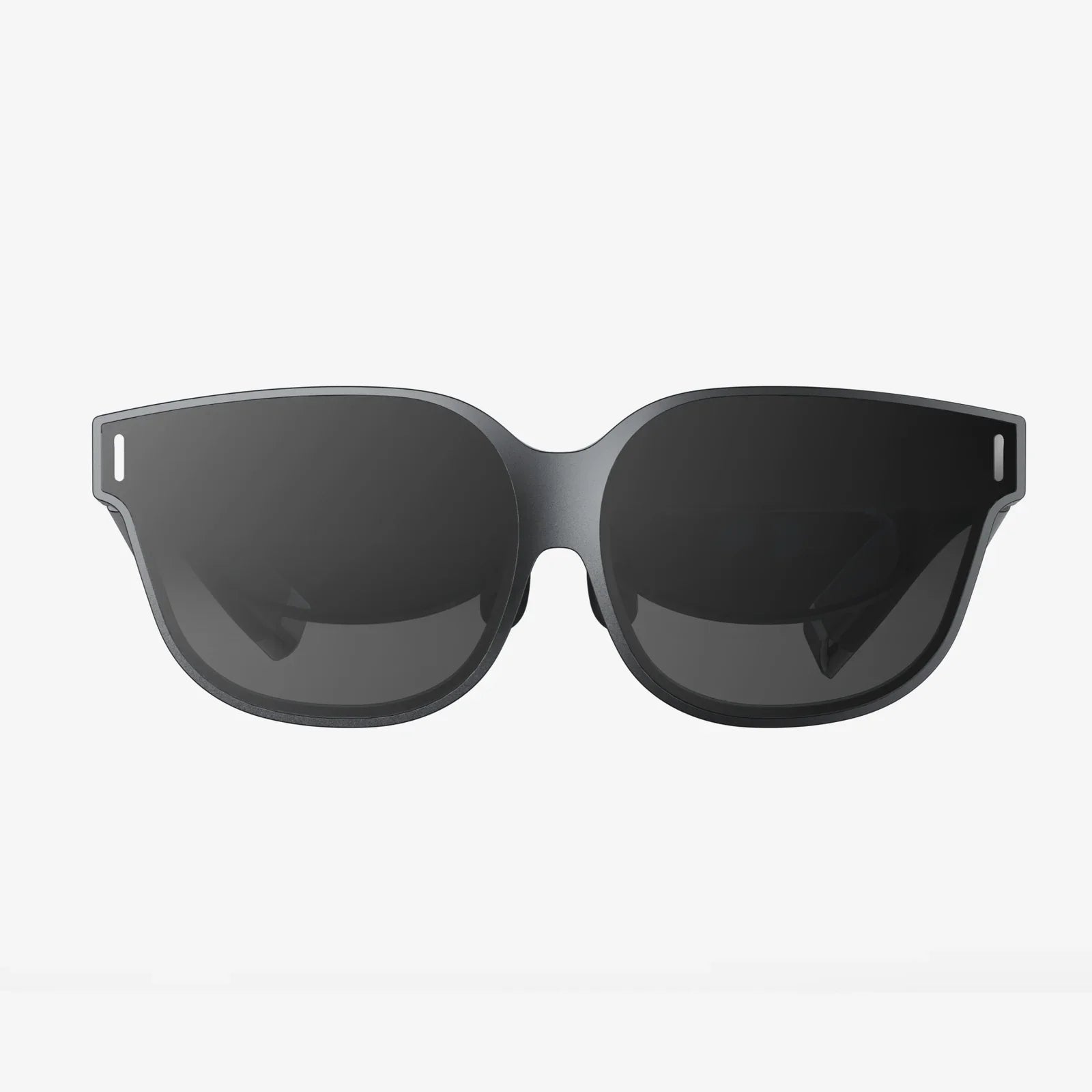
You slip on the headset, the world fades away, and suddenly you're standing on the edge of a virtual precipice or exploring a digital cosmos. This is the promise of Virtual Reality on Android—a pocket-sized portal to another dimension. Yet, for many, the reality falls short of the dream. The experience can be plagued by jarring lag, blurry visuals, and disorienting motion that shatters the illusion. The secret to bridging this gap between a mediocre novelty and a truly transformative experience doesn't lie in expensive hardware alone; it's hidden within a labyrinth of menus and options. Unlocking the full potential of your device is all about mastering the VR settings for Android. This comprehensive guide is your key, designed to take you from a curious novice to a confident power user, ensuring every foray into the virtual is nothing short of spectacular.
Laying the Foundation: Pre-Setup Essentials
Before you even dive into the digital settings, the physical and preparatory steps are paramount. A misstep here can undermine even the most perfectly configured software.
Compatibility is King: Does Your Device Measure Up?
Not all Android devices are created equal for VR. The experience demands significant processing power, a high-quality gyroscope, and a crisp display. Attempting to run advanced experiences on an incompatible phone is a recipe for disappointment, characterized by low framerates and overheating.
- Processor (CPU/GPU): A mid-range chipset or higher is essential. Older or budget-oriented processors will struggle to render two high-resolution scenes (one for each eye) simultaneously at a smooth 60 frames per second or higher.
- Gyroscope & Sensors: This is the heart of positional tracking. A lack of a high-quality gyroscope will result in inaccurate head movement tracking, leading to disorientation and motion sickness.
- Display Resolution: The screen is magnified significantly inside the headset. A 1080p display is the absolute minimum, but a Quad HD (1440p) or 4K display is highly recommended to minimize the "screen door effect" (seeing the gaps between pixels).
- Operating System: Ensure your device is running a relatively recent version of the Android OS. Many modern VR platforms and applications have minimum OS requirements for access to crucial sensor and graphics APIs.
Choosing Your Portal: The Right Headset Matters
While this guide avoids brands, the type of headset you choose dramatically influences the available settings and overall experience. There are generally two categories:
- Basic Viewers: These are primarily a physical holder for your phone, featuring lenses but no built-in electronics. They rely entirely on your phone's capabilities. Settings are managed almost exclusively through the VR apps themselves and your phone's system settings.
- Advanced Standalone-Headsets with Android Integration: These more sophisticated devices often have their own internal processors and sensors but use an Android-based operating system and may stream content from or mirror your phone. They feature a much deeper and more complex settings menu, often accessible from within the headset's virtual environment.
Identifying which type you have is the first step to knowing where to look for your configuration options.
Mastering the System: Android-Wide VR Settings
Your journey begins in the core settings of your Android device. These system-level configurations form the bedrock of your VR performance.
Developer Options: Unleashing Hidden Power
This is the most important menu for any serious Android VR user. Unlocking Developer Options grants you access to low-level system controls. To enable it, go to Settings > About Phone and tap on the "Build Number" seven times. You will then find Developer Options in your main Settings menu.
- Profile HWUI rendering: Enabling this and selecting "On screen as bars" will show a graph at the bottom of your screen. In VR, this can help you visualize performance hiccups and lag.
- Force 4x MSAA: This forces multi-sample anti-aliasing in OpenGL ES applications. In simple terms, it can make edges in VR games and apps appear smoother and less jagged. This is a power-intensive setting and can impact battery life and generate more heat, but the visual improvement can be significant on powerful devices.
- Disable HW overlays: This setting forces the GPU to do all the rendering work. It can sometimes stabilize performance and reduce visual glitches in demanding VR applications.
Warning: Developer Options contain powerful settings. Tweak one thing at a time and note its effect. Changing unfamiliar settings arbitrarily can lead to instability.
Display and Performance Tweaks
Outside of Developer Options, several standard settings can enhance your experience.
- Screen Brightness: VR can be intense on the eyes. Adjust your brightness to a comfortable level before entering a VR session. Auto-brightness should typically be disabled to prevent distracting fluctuations inside the headset.
- Blue Light Filter/Night Light: While designed to reduce eye strain at night, this filter can distort colors in VR. It's best to disable it before launching any VR content to ensure color accuracy.
- Power Saving Modes: Always disable any form of battery saver or power management mode before using VR. These modes aggressively throttle your CPU and GPU performance to save battery, which will directly cause lag, stuttering, and a poor VR experience.
The App Arena: Configuring Your VR Platform
Whether you're using a content portal, a game streaming service, or a specific VR application, each has its own critical settings menu.
Calibration: The Key to Comfort
Never skip the initial setup and calibration process for any new VR app or headset. This is not a suggestion; it is a requirement for a comfortable experience.
- Interpupillary Distance (IPD): This is the distance between your pupils, measured in millimeters. If the software or headset allows you to adjust this, take the time to set it correctly. An incorrect IPD setting will cause eye strain, headaches, and a blurred image. Some apps use a software-based IPD adjustment, guiding you to align virtual images until they are clear.
- Floor Height Calibration: This tells the software where the "ground" is in your virtual world. An incorrect floor height will make you feel abnormally tall or short and can break immersion. Most apps will ask you to place your controller on the floor or look at a marker.
- Guardian/Boundary System: This safety feature creates a virtual wall you can see when you get too close to the real-world boundaries of your play area. Always set this up accurately to avoid hitting furniture or walls. Don't draw it too tight; give yourself a safe buffer zone.
Graphics and Performance Settings
Within VR games and apps, look for a "Graphics," "Video," or "Performance" section.
- Resolution/Quality Preset: Start with a "Medium" or "High" preset. If the experience is smooth, try increasing it to "Ultra" or customizing higher individual settings. If you experience lag or stuttering, lower the preset.
- Field of View (FOV): Some apps may allow minor FOV adjustments. A wider FOV increases immersion but demands more from your GPU.
- Refresh Rate: If your device's screen supports a high refresh rate (e.g., 90Hz or 120Hz) and the app offers the option, enabling it will make motion incredibly smooth, significantly reducing the potential for motion sickness.
Comfort and Accessibility
These settings are crucial for new users and those sensitive to motion.
- Comfort Mode/Tunneling: This feature reduces the field of view during movement, creating a tunnel-vision effect that dramatically reduces motion sickness for many users.
- Snap Turning vs. Smooth Turning: Smooth turning rotates your view continuously, which can be disorienting. Snap turning rotates your view in quick, discrete increments (e.g., 30 degrees at a time), which is far more comfortable for most.
- Seated vs. Standing Mode: Always select the mode that matches your physical setup. This ensures the virtual world is oriented correctly.
Advanced Optimization: Pushing the Experience Further
For those who want to squeeze every last drop of performance and clarity from their Android device, consider these advanced steps.
Thermal Management: Keeping Your Cool
VR is one of the most demanding tasks for a mobile device. Intensive use will generate heat, which can lead to performance throttling.
- Environment: Play in a cool, air-conditioned room. Avoid direct sunlight on the device.
- Device Preparation: Close all background applications before launching VR. Remove any protective case from your phone to aid heat dissipation.
- Cooling Solutions: For extended sessions, consider simple passive cooling methods. Taking a short break between 30-45 minute sessions allows the device to cool down naturally and prevents performance drops.
Storage and Memory Management
A cluttered phone is a slow phone. Ensure you have ample free storage space and RAM available.
- Regularly clear cached data for your VR apps and launcher.
- Uninstall apps and games you no longer use.
- Consider using a lightweight launcher to reduce system resource usage overall.
Troubleshooting Common VR Issues on Android
Even with perfect settings, issues can arise. Here’s how to diagnose and fix them.
-
Problem: Drifting (the virtual world slowly spins on its own).
Fix: Recalibrate your gyroscope. This is often found in the system settings or within the VR app's settings. Place the device on a flat, level surface during calibration. -
Problem: Jittery or shaky head tracking.
Fix: Ensure your play area is well-lit. Poor lighting can confuse the sensors used for positional tracking. Also, check for strong magnetic fields or electronic interference. -
Problem: Black screen or app crashes on launch.
Fix: Check for app and system software updates. Ensure all required permissions (location, storage, etc.) are granted to the VR app. Reinstalling the app can often resolve this. -
Problem: Overheating and performance throttling.
Fix: Follow the thermal management tips above. Lower the in-app graphics settings to reduce the load on the SoC.
The world of Android VR is vast and constantly evolving, but its quality will always be dictated by the subtle art of configuration. It's a personal journey of tweaking and testing, of finding the perfect balance between visual fidelity and buttery-smooth performance that works for your specific hardware and your personal comfort. By taking control of these settings, you cease to be a passive user and become the architect of your own virtual reality. You're no longer just putting a phone in a headset; you're fine-tuning a universe. The next time you power up, you won't just be entering a virtual world—you'll be stepping into one you've personally perfected, ready to explore, game, and create without limits.
Share:
Latest VR Headset Price - A Comprehensive Guide to Navigating the 2024 Market
Best VR Headset for iPhone 13 Pro: Your Ultimate Immersive Companion